Remote Access
Open ncSender from another computer, tablet or phone on the same network.
Open ncSender From Another Device
- Find the IP address of the computer running ncSender (the host).
- On the other device, open a web browser.
- Go to
http://<host-ip>:8090, for examplehttp://192.168.1.50:8090.
8090 is the default port. If you changed it, use your port.
Allow or Block Machine Control
Remote browsers can't move the machine until you allow it.
- On the host computer, open Settings → General.
- Go to Remote Control Settings.
- Turn on Allow Remote Control.
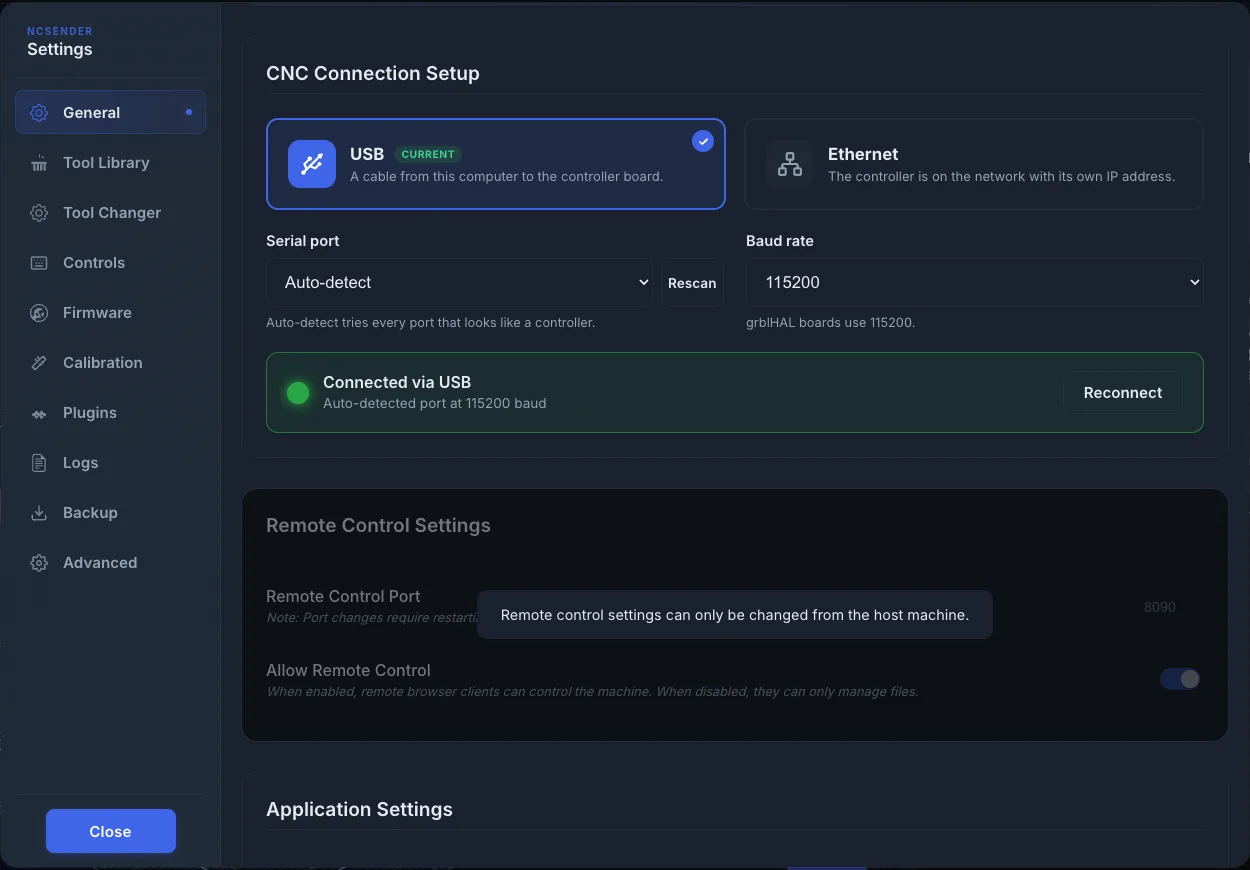
When it's off, remote browsers can only manage files.
These settings can only be changed on the host computer.
Change the Port
- On the host computer, open Settings → General → Remote Control Settings.
- Enter a port from 1024 to 65535 in Remote Control Port.
- Click outside the field to save. ncSender checks the port is free.
- Restart ncSender.
If you see "Port … is not available.", another program is using it. Pick a different number.
CAM programs that send files to ncSender use the same port. See CAM Integration.
Without Remote Control
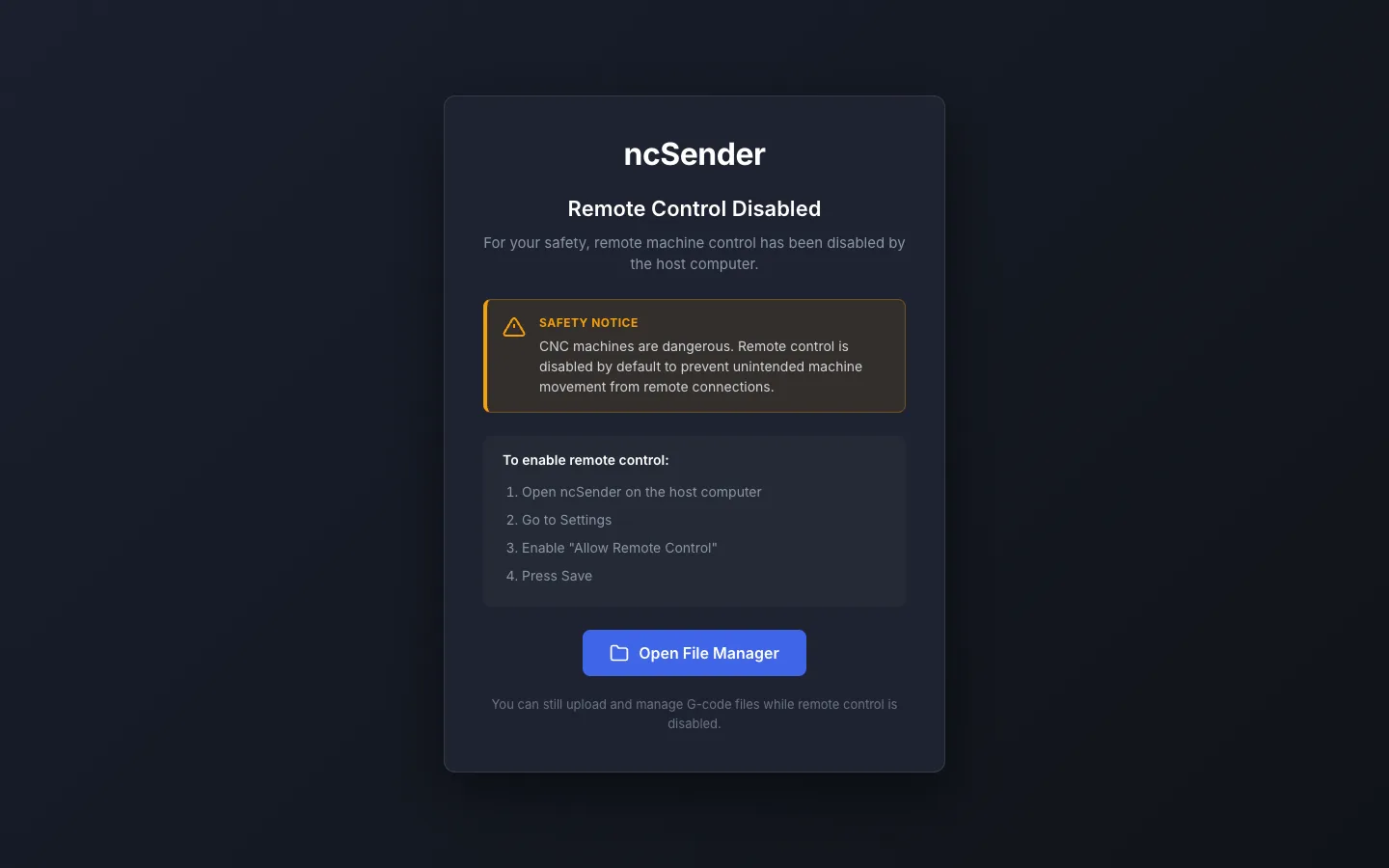
When Allow Remote Control is off, a remote browser shows Remote Control Disabled. You can still:
- Click Open File Manager to upload and manage G-code files.
- View the Calibration guides, but not run them.
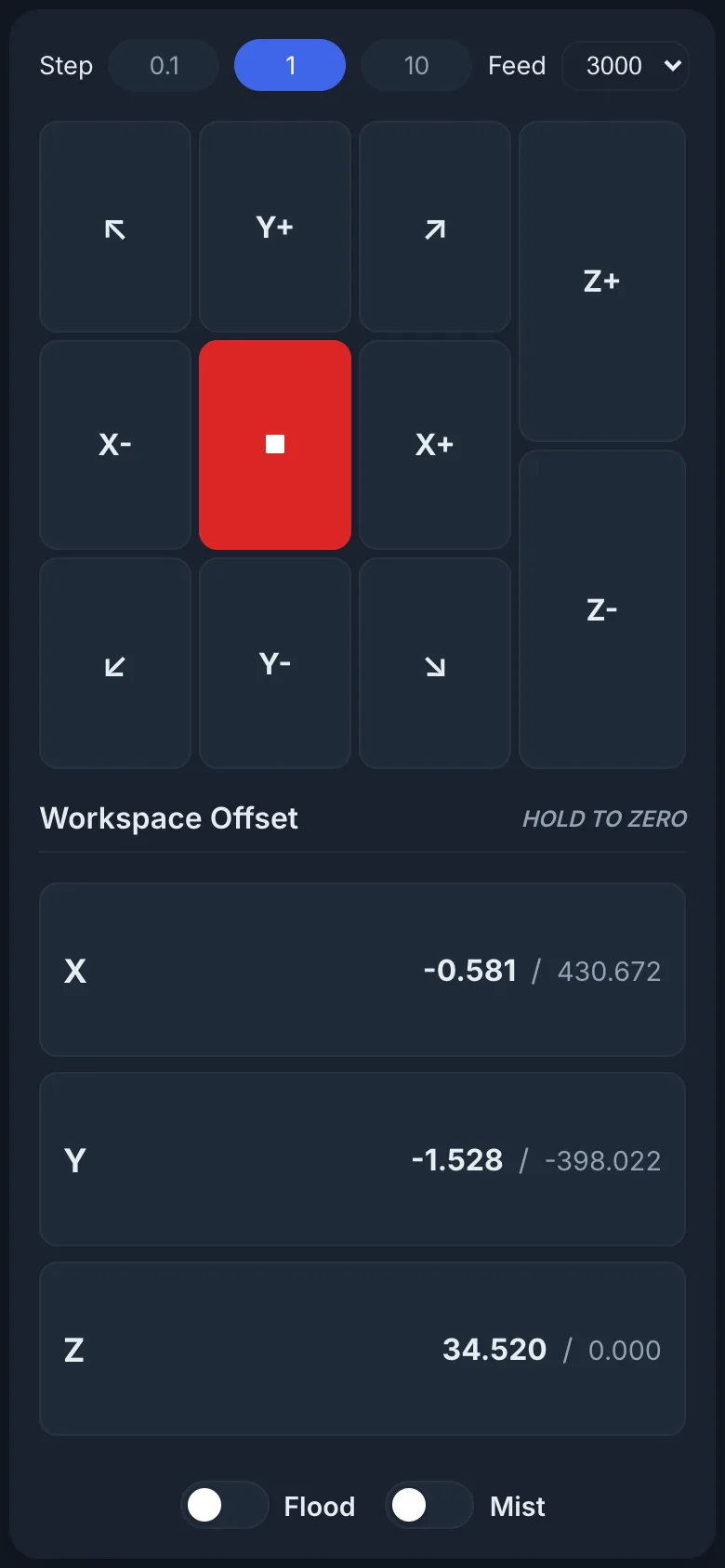
Phone Layout
On a phone, ncSender shows a simpler layout. It includes Workspace Offset with HOLD TO ZERO, plus Flood and Mist.
Kiosk Links
A kiosk screen has no web browser. When you tap a link there, ncSender shows Scan to open with a QR code. Point your phone camera at it to open the link.
Safety
Stay near the machine
A CNC machine can hurt you. Only turn on Allow Remote Control if someone can see the machine and reach the E-stop. Turn it off when you don't need it.