Trace
Pro Feature
Trace is available in ncSender Pro only.
Trace moves the machine around the outline of your program, so you can check it fits your material before cutting.
How It Works
Trace moves around the rectangle that holds the whole program. Use it to check that:
- The program fits on the workpiece.
- The origin is in the right place.
- No clamps or fixtures are in the way.
Usage
- Load a G-code program.
- Set your work zero (X0, Y0).
- Click Trace next to Start, Stop and From Line.
- The Trace Outline dialog shows the Width (X) and Height (Y) of the program.
- Leave Move Z to safe height first on unless you have a reason not to.
- Click Trace, or Abort to close without moving.
- Watch the machine go around the outline and check it stays on your material.
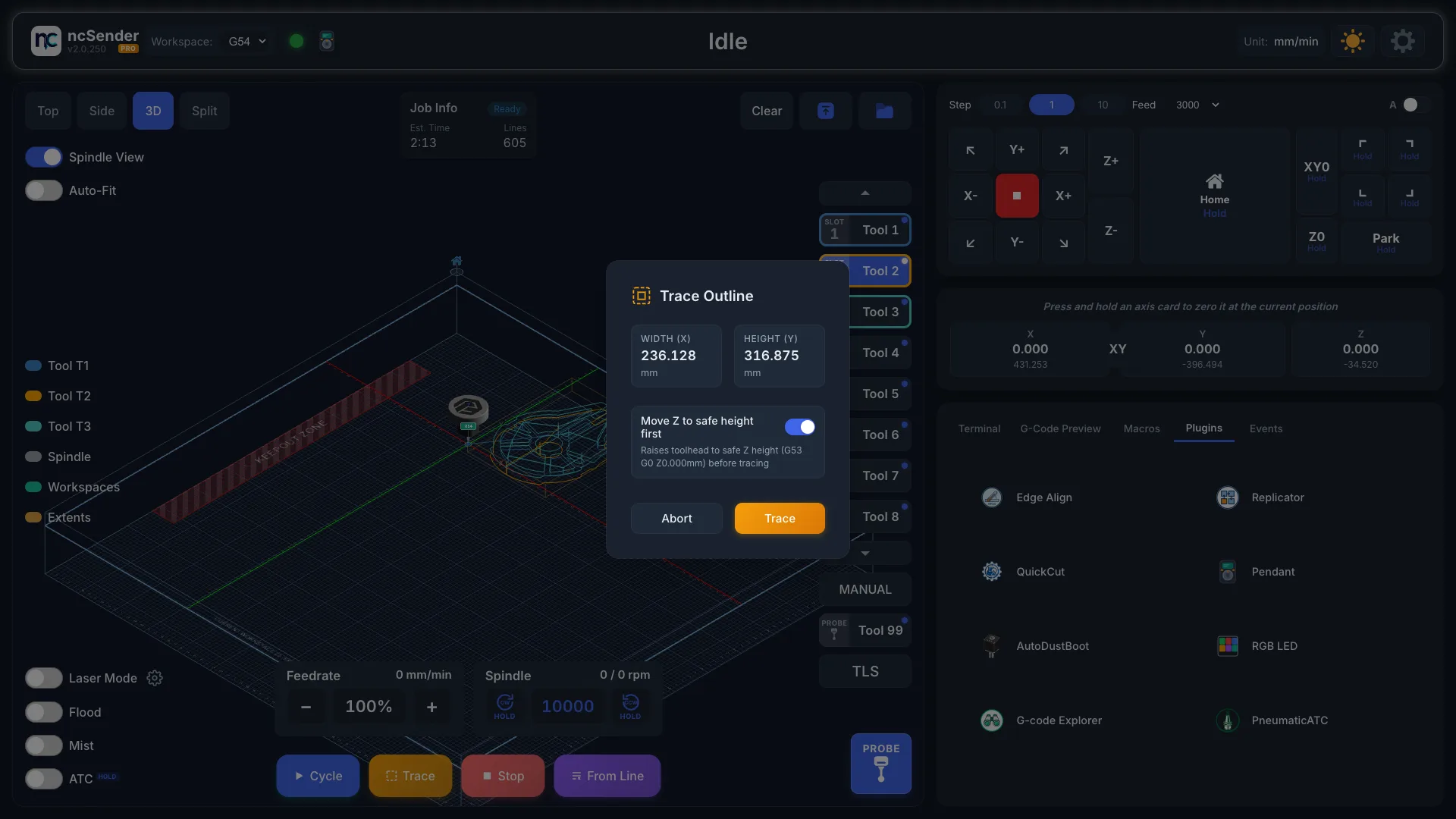
The machine goes to the front-left corner of the outline, then around it counter-clockwise. The outline includes arcs and every workspace the program uses.
Safe Height
With Move Z to safe height first on, Z rises to your Safe Z Height before moving. Set it in Settings → General → Safe Z Height.
With it off, Z stays where it is. Make sure the bit clears everything first.
Tip
Trace uses rapid moves (G0), so it finishes quickly.
When Trace Is Unavailable
The Trace button is greyed out when:
- No program is loaded.
- The safety door is open.
- The machine needs homing and hasn't been homed.
While a job runs, Pause takes the place of Trace.
If the machine goes into alarm during a trace, ncSender stops sending the rest of the moves.
Keepout Zone
Trace moves follow your Keepout Zone rules.