Software Updates
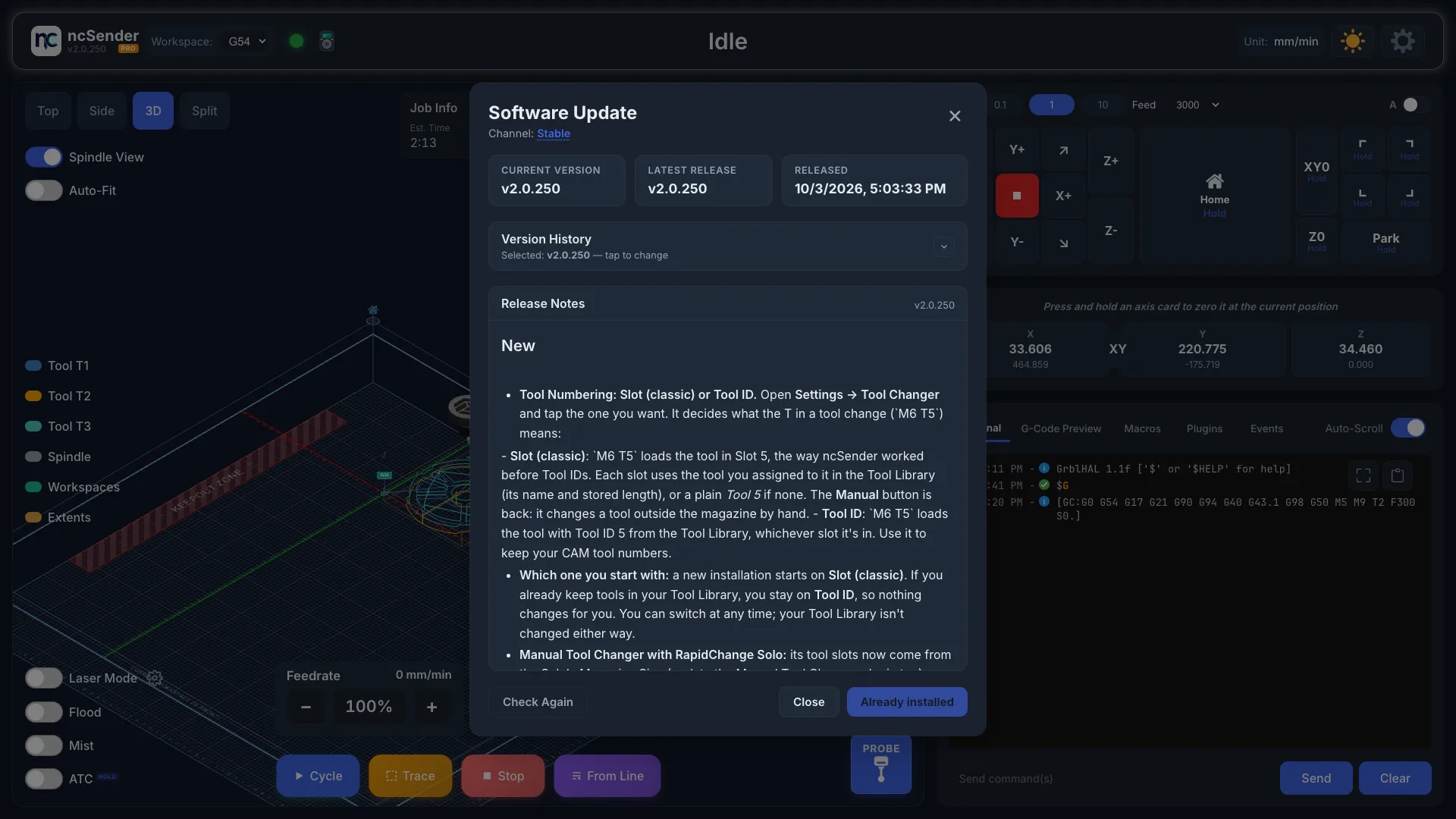
ncSender checks for new releases a few seconds after it starts. When one is available, the toolbar shows Update vX.Y.Z. Click it, or click the version number in the toolbar, to open Software Update. There you can see what's new, read the release notes and install.
Checking for Updates
The dialog shows:
- Current Version: the version you're running.
- Latest Release: the newest release on your channel. A NEW badge means it differs from what you have installed.
- Released: when it was published.
- Release Notes for the selected version.
Check Again asks GitHub for the latest release straight away.
Going Back to an Older Version
Version History lists every release on your channel. The newest is selected by default, but you can pick any version. The main button installs whichever one is selected.
- Open Version History and pick a version.
- Press the main button.
- ncSender asks Install vX? or, for an older version, Roll back to vX?
- Press Install or Roll back to go ahead, or Cancel.
Rolling back to an older version can leave newer settings unsupported. Existing settings are not migrated automatically.
Channels
| Channel | What you get |
|---|---|
| Stable | Tested releases. The default. |
| Development | Beta builds, published ahead of stable for early feedback. Expect rough edges. |
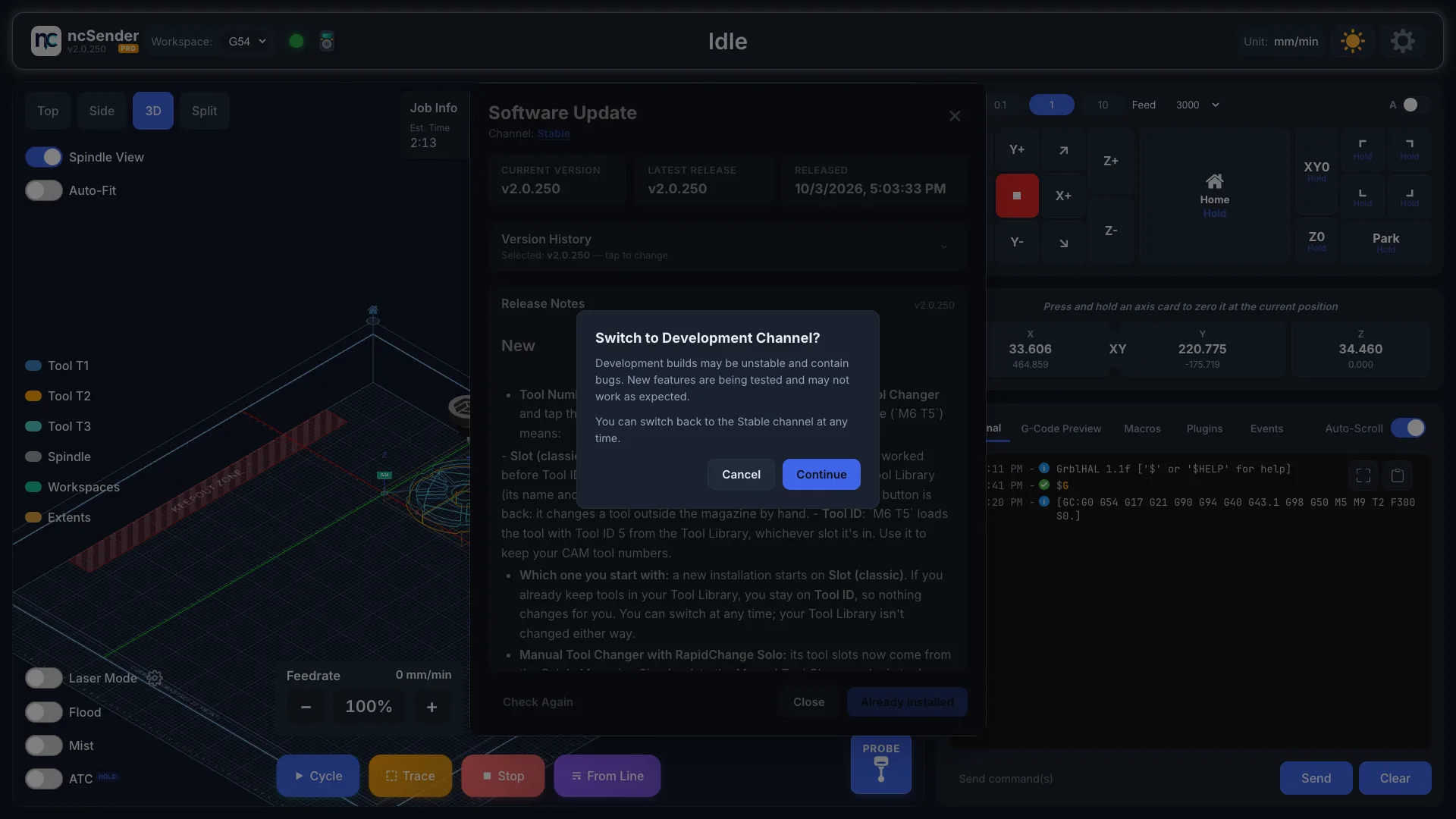
The dialog shows Channel: Stable. Click the channel name to switch. Switching to Development asks Switch to Development Channel? Press Continue to switch or Cancel to stay. You can switch back to Stable at any time.
Installing In-App
Pro Feature
ncSender Pro installs updates from inside the app on Windows, macOS and Debian-based Linux. The Community edition installs in-app on Debian-based Linux only. On Windows and macOS it still checks for updates and shows the release notes, but you download and install the new version yourself.
Click Download Update. ncSender downloads the release for your platform, then installs it and restarts itself. What you see during the restart depends on the platform:
The app closes and a small "Updating ncSender" window stays on screen while the installer replaces the files, typically 15–25 seconds. The app reopens by itself when it's done. If you kept the default install folder, there are no prompts and no request for administrator rights.
The app quits, the new version is copied into place, and the app reopens, usually within a few seconds.
You do not need to run xattr -c after an in-app update. That command
is only needed on a fresh install because the browser marks downloaded
apps as quarantined. Updates are downloaded by ncSender itself, so nothing
marks them, and the new version launches straight away.
The .deb package is installed with dpkg and the app relaunches.
On a Debian-based system that isn't running as root, you may be prompted
for your password.
On the Raspberry Pi 5 / ncSender OS image, the whole system reboots after an update rather than just relaunching the app. The boot logo covers the gap.
Where the Files Come From
Releases are published on GitHub. The updater downloads only the file for your platform and architecture, and the download goes into your temporary folder, which is cleaned up once the update has installed.
If an Update Fails
An interrupted or failed update leaves your current version untouched: on
Windows and macOS the new files are only swapped in once they're complete,
and on Linux dpkg won't replace a working package with a broken one. Just
run the update again.
- Windows: if you see "cannot access the file because it is being used by another process", another program (usually antivirus) is still scanning the downloaded installer. Wait a few seconds and click Download Update again.
- Windows: if you see "An Application Control policy has blocked this file", see Smart App Control below.
- macOS: the update log is at
$TMPDIR/ncsender-update.logif you need to see what happened. - Upgrading from 0.3.x: the updater does not cross that boundary; see the FAQ.
Windows: Smart App Control
Windows 11 ships with Smart App Control, which refuses to run programs that are not code-signed by a publisher it recognises. The ncSender installer is not signed yet, so on a PC where Smart App Control is On, the in-app update downloads fine and then fails when it tries to start the installer, with an error like:
An error occurred trying to start process
C:\Users\…\AppData\Local\Temp\ncsender-update-….exe. An Application Control policy has blocked this file.
Your installed version is untouched. You have two ways forward:
Install updates by hand. Download the Windows installer for the release from the ncSender releases page (Pro users: from the Pro releases page), then run it. If Windows still refuses to open it, right-click the file, choose Properties, tick Unblock, and run it again. The in-app update will keep failing on this PC until the installer is signed.
Open Windows Security → App & browser control → Smart App Control settings and set it to Off. In-app updates then work as described above.
Windows only lets you turn Smart App Control off. Once off, it cannot be turned back on without reinstalling Windows, so make that choice deliberately.
On a company-managed PC the same error can come from an AppLocker or Windows Defender Application Control policy set by IT. Only IT can allow the installer there; manual installation may be blocked too.