Laser Mode
Pro Feature
Laser mode is available in ncSender Pro only.
Laser mode sets up the visualizer and controls for laser engraving and cutting.
Turn On the Laser Controls
The Laser Mode switch is hidden until you turn it on in Settings.
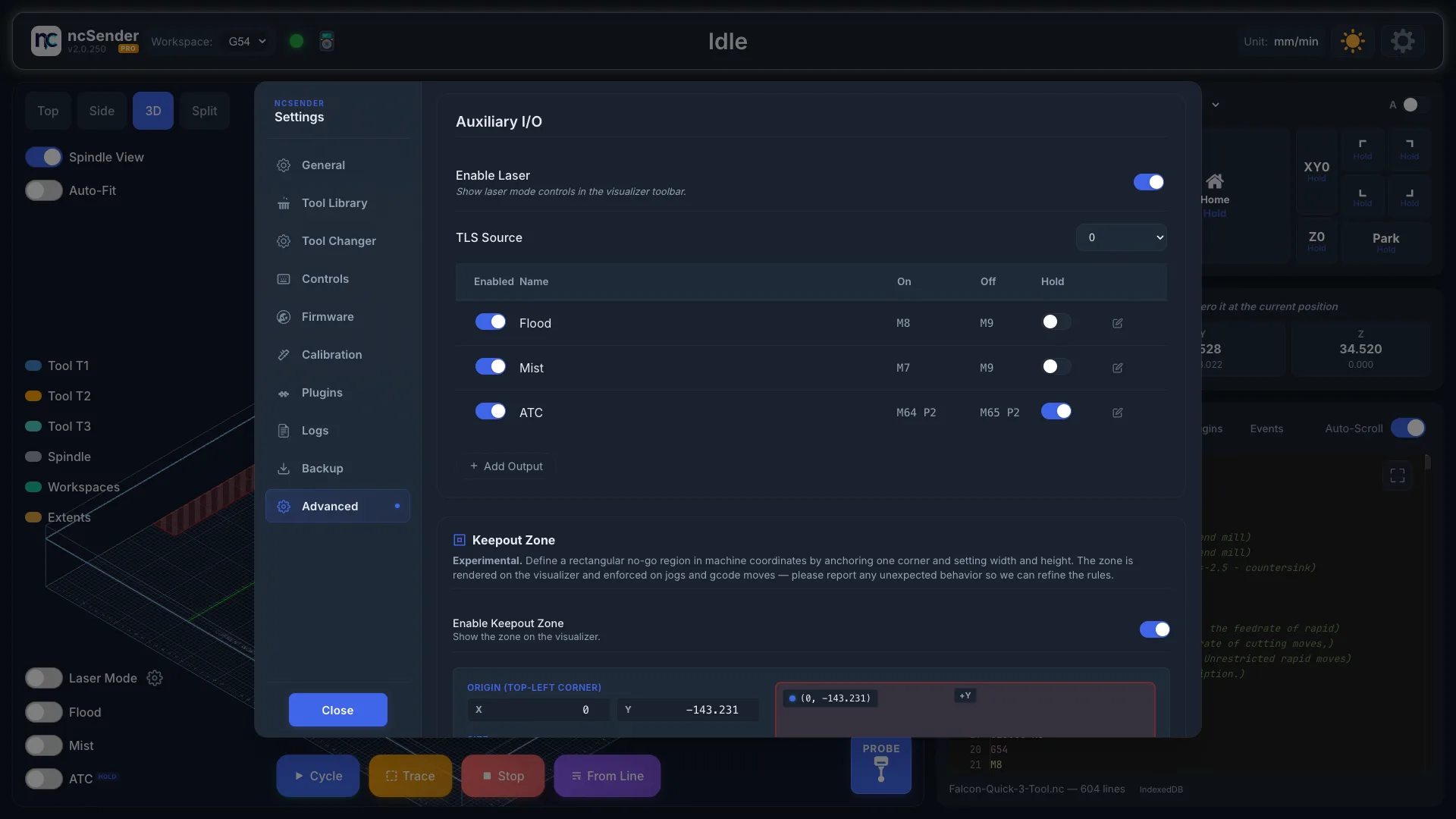
- Open Settings → Advanced.
- In Auxiliary I/O, turn on Enable Laser.
- Close Settings. A Laser Mode switch and a gear button now appear with the Flood and Mist switches in the visualizer.
Enabling Laser Mode
- Click the gear button next to Laser Mode to open Laser Settings.
- Under Spindle use for Laser, pick the spindle output your laser is wired to (for example PWM2 (Spindle 1)).
- Click Save.
- Turn on Laser Mode.
The Laser Mode switch stays greyed out until you have picked and saved a laser spindle.
Entries marked - enable in firmware first can't be picked. Turn that spindle on in your controller's firmware first. The spindle in use is marked - active.
Unload the tool first
If a tool is in the spindle, ncSender shows Tool Loaded in Spindle. Click Unload Tool to unload it and continue.
Turning Laser Mode Off
When you turn Laser Mode off, ncSender asks you to confirm that the laser has been removed from the spindle. Click Confirm only after you have taken it off. Running the spindle with the laser still mounted can damage the laser head.
You can't change Laser Mode or Laser Settings while a job is running or paused.
Laser Settings
| Setting | Description |
|---|---|
| Spindle use for Laser | Which spindle output drives the laser module (for example PWM2 (Spindle 1)). |
| Mode of operation ($32) | Firmware laser mode. You don't set this by hand. Turning Laser Mode on sets $32=1, and turning it off sets $32=0. This stops the laser from silently not firing, and stops parking moves from being skipped. |
Visualizer Changes
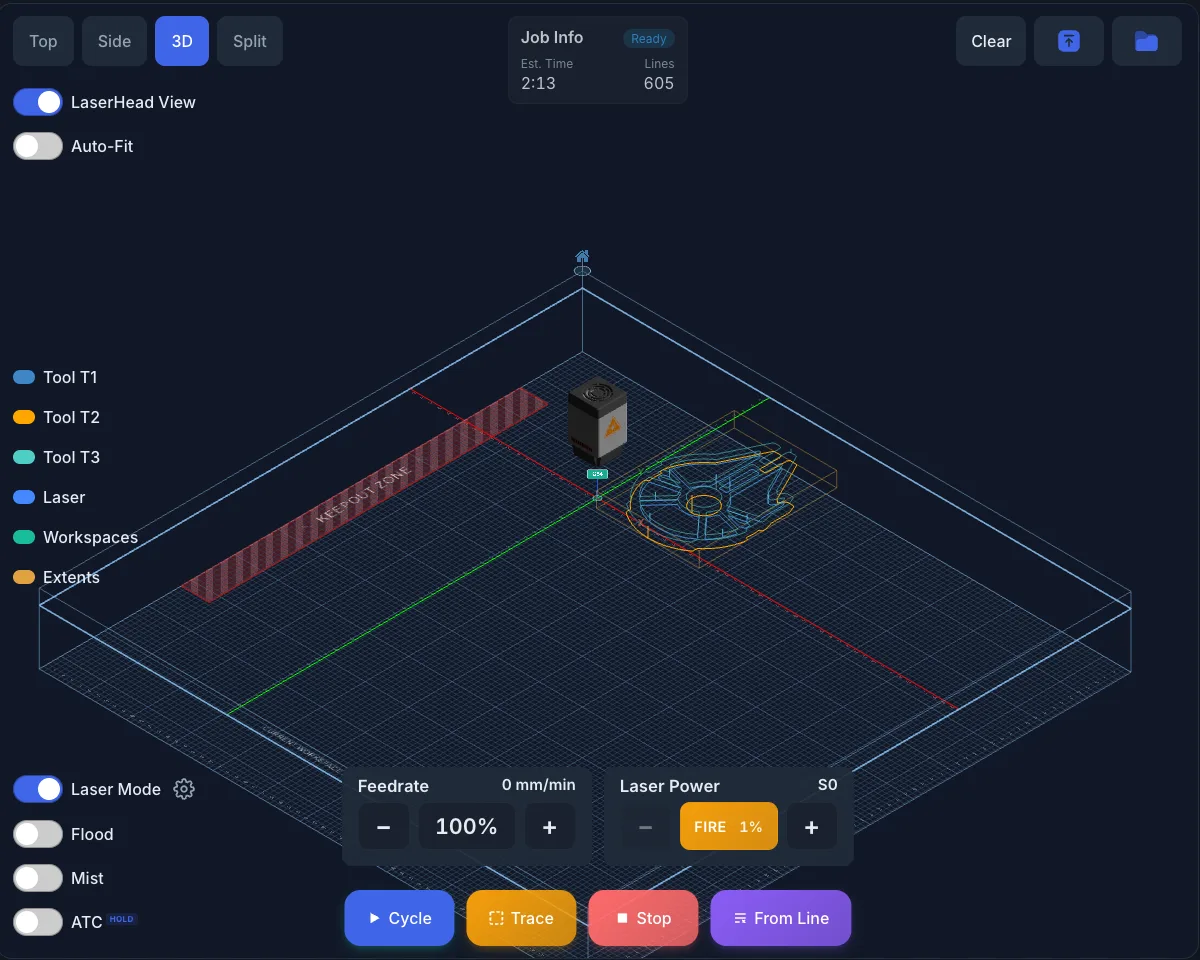
When laser mode is on:
- A laser head replaces the spindle.
- A beam runs from the head to the work surface, with a burn effect where it touches.
- Rapids are hidden. G0 moves are not drawn, because the laser doesn't fire during them.
- The view button reads LaserHead View instead of Spindle View.
- The Probe button and the tool legend are hidden.
Test Fire
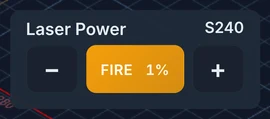
When no job is running, the Laser Power card becomes a test fire, for checking where the beam lands and for focusing.
- Hold the middle button to fire. The laser stays on only while you hold it — let go, slide your finger off the button, or switch away from the window and it stops.
- Tap − or + to set the power, as a percentage of your maximum S value. Hold to keep changing it.
- It starts at 1 %, which is enough to see the spot without marking.
Wear your laser glasses
A test fire is still a live beam. Put your eye protection on first, and make sure nothing flammable is under the head.
Why hold instead of tap?
In laser mode M4 only fires while the machine is moving, so firing on
the spot has to use M3, which stays on until something turns it off.
Holding the button means letting go always stops it.
Power Tracking
In laser mode the override panel label changes to Laser Power and shows the current S value.
- The power bar fills as power goes up.
- Power drops to 0 during G0 rapid moves, because the laser is off.