Probing
Use the probe dialog to find your work zero with a touch probe.
Probe Types
Pick one under Probe Type. The fields change with the type and the Probing Axis. The dialog opens on AutoZero Touch with axis Z.
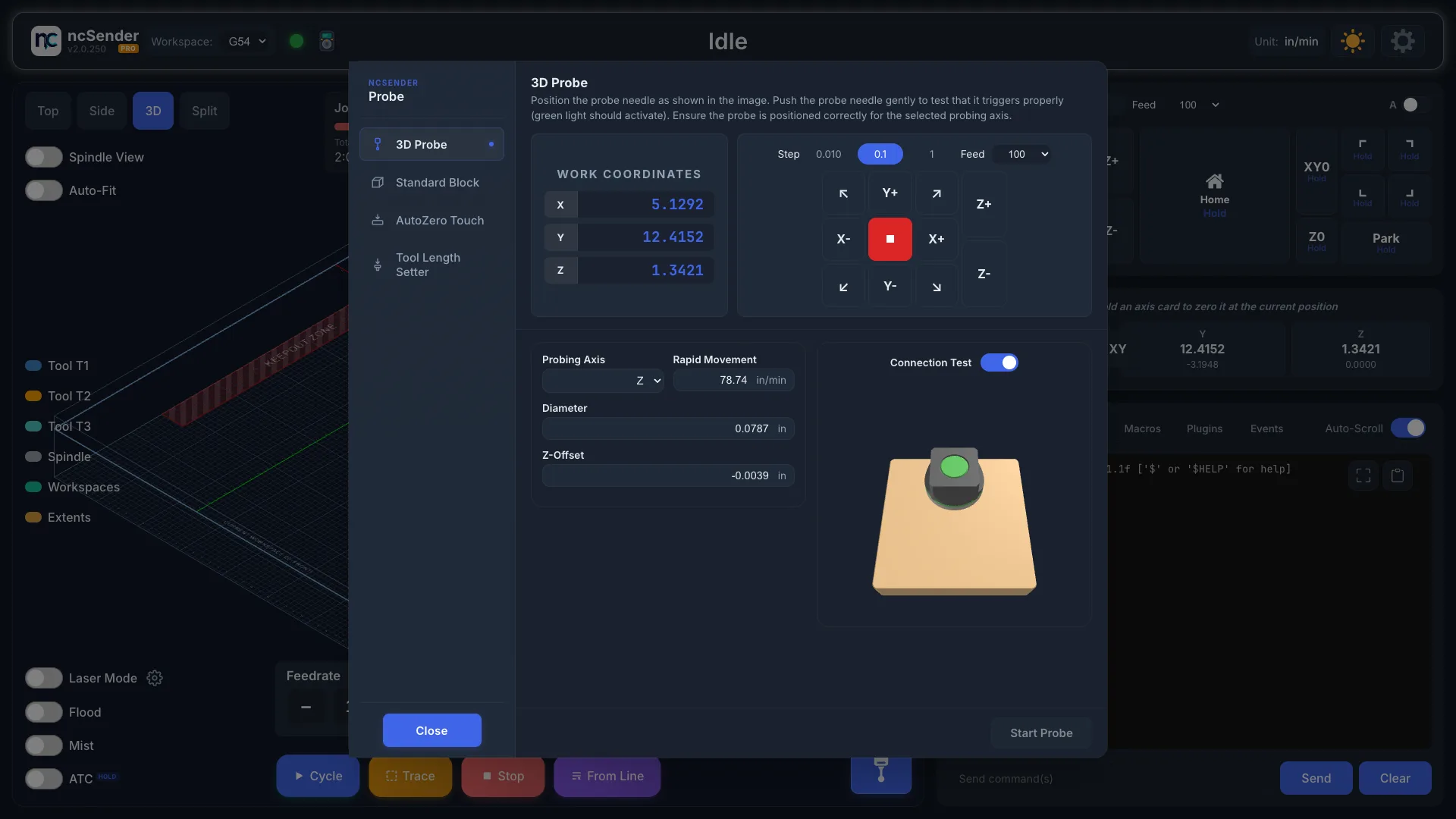
3D Probe
For 3D touch probes with a ball tip.
Probing Axis:
- Z: find the top of the material.
- X or Y: find one edge.
- XY: find a corner.
- XYZ: find a corner and the top.
- Center - Inner: find the center of a hole or pocket.
- Center - Outer: find the center of a part.
Settings:
- Diameter: the ball tip diameter.
- Z-Plunge (XYZ and center modes)
- Z-Offset
- Rapid Movement: the speed for fast moves.
- X Dimension and Y Dimension: the rough size of the hole or part (center modes).
- Probe Z First: probe the top before finding the center (Center - Outer).
Standard Block
For a rectangular touch plate.
Probing Axis: Z, X, Y, XY or XYZ.
Settings:
- Bit Diameter: pick a saved diameter or add your own with +Add.
- Z Thickness: the plate height.
- XY Thickness: the side wall thickness.
- Z Probe Distance
- Rapid Movement
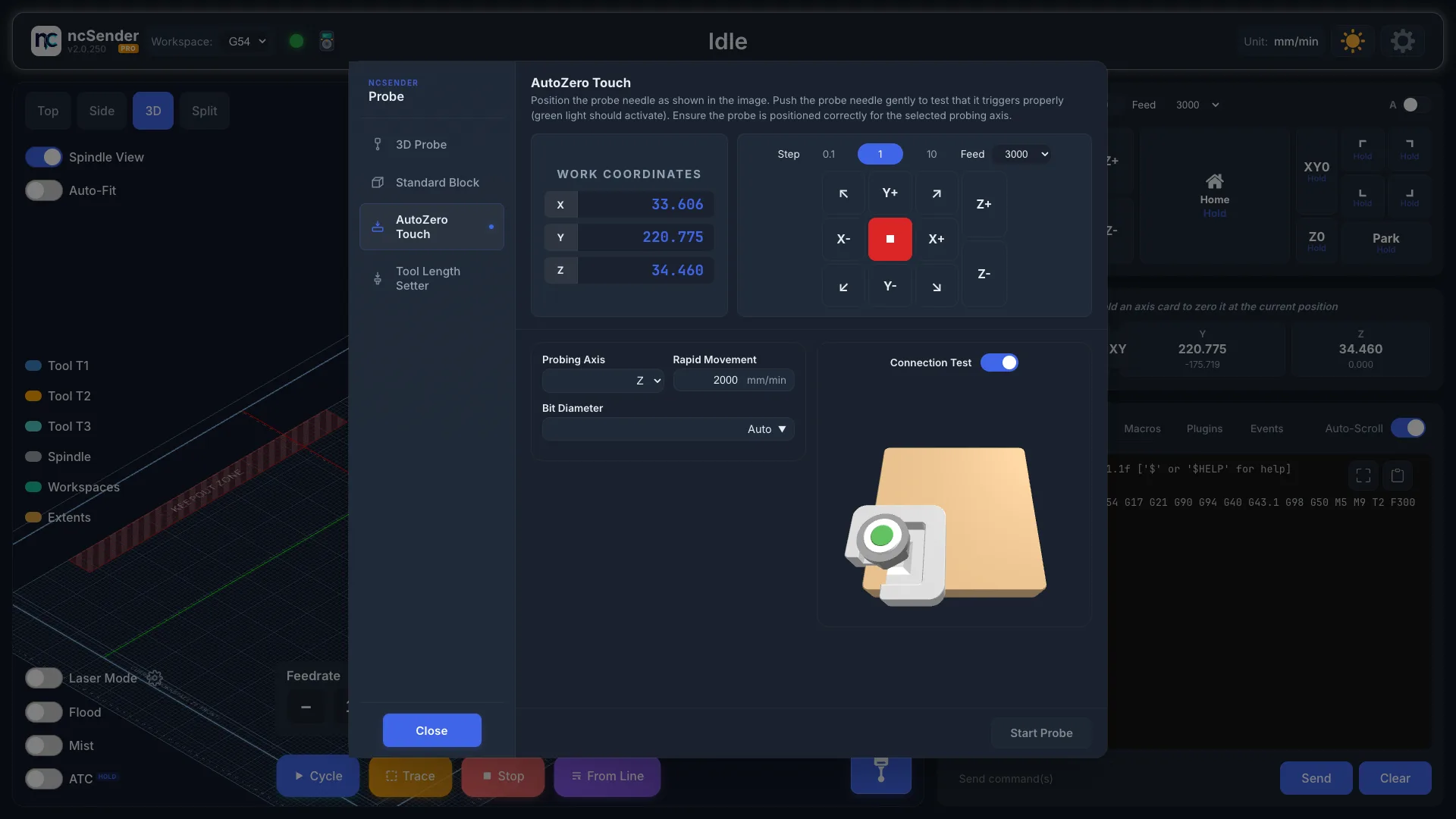
AutoZero Touch
A touch plate that needs almost no setup.
Probing Axis: Z, X, Y, XY or XYZ.
Settings:
- Bit Diameter: Auto (the default) finds it for you. Choose Tip for a pointed bit, or pick a saved diameter or add one with +Add.
- Rapid Movement
Tool Length Setter
For a fixed tool length setter.
Settings:
- Tool Length Setter Height
There is no probing axis or rapid movement setting for this type.
Units
Probe settings use your unit preference: mm and mm/min, or inches and in/min.
Using the Probe Dialog
- Press Probe in the Visualizer.
- Choose your Probe Type and Probing Axis.
- Check the settings.
- Use the jog buttons and step size in the dialog to move the probe into place.
- Tell ncSender where to probe:
- XY or XYZ: click the corner on the picture.
- X or Y: click the side. Start Probe stays off until you pick a side.
- Center modes: place the probe 3–5 mm above the rough center of the hole or part.
- Click Start Probe.
To stop a probe cycle, press Stop in the Visualizer. If the probe ends in an alarm, Start Probe changes to Unlock. Press it to clear the alarm.
The Start Probe key in Settings → Controls also works while the dialog is open.
Safety
Always check your settings before probing. A wrong Z-Plunge or speed can damage the probe or the workpiece.
Connection Test
Turn on Connection Test to check the probe works before each cycle.
- Turn on Connection Test. Start Probe is off.
- Touch the probe to the plate, or push the probe tip gently. The picture shows the probe as triggered.
- Start Probe turns on.