Macros
Macros let you save G-code you use often and run it with one click.
Creating a Macro
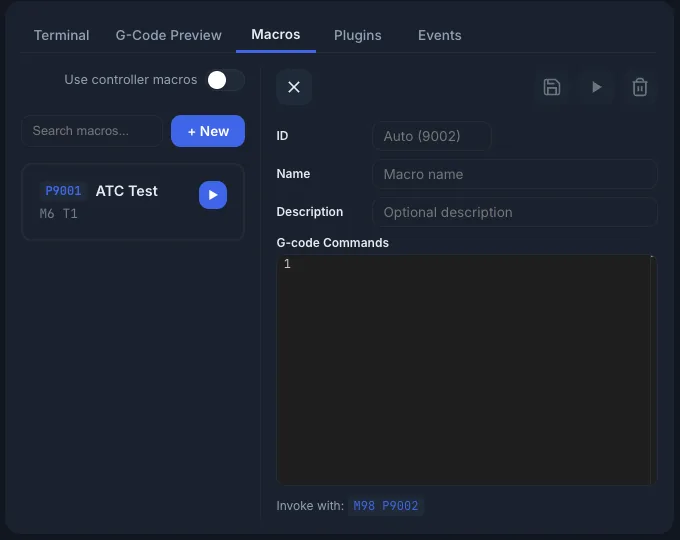
- Go to the Macros tab.
- Click + New.
- Leave ID empty to use the next free number, shown as Auto (9001). Or type your own ID from 9001 to 9999.
- Enter a Name and, if you like, a Description.
- Type your G-code under G-code Commands.
- Click Save.
The ID can't be changed after you save. The editor shows how to call the macro, for example Invoke with: M98 P9001.
The editor also has:
- Run: runs the macro. Needs a connection.
- Delete: deletes the macro. It asks you to confirm first.
Running a Macro
You can run a macro in several ways:
- Click the Play button next to the macro in the list.
- Type
M98 P<id>in the Terminal, for exampleM98 P9001. - Add an
M98 P<id>line to a G-code file. - Add an
M98 P<id>line to a Program Event.
When ncSender sees M98 P<id>, it finds the macro in your library and sends its
G-code in its place. The controller never gets the M98 itself. The terminal shows
the macro's lines, with their indentation kept.
Nested Macros
A macro can call another macro. A macro that contains M98 P9002 runs macro 9002 at
that point. Macros can call each other up to 16 levels deep.
If a macro ends up calling itself, directly or through other macros, ncSender stops the job with an error like:
This keeps a macro loop from running forever.
Controller Macros (Pass-Through Mode)
Normally ncSender runs every M98 from its own macro library. If your controller has
its own macros (for example a grblHAL board with an SD card), you may want the
controller to handle M98 instead.
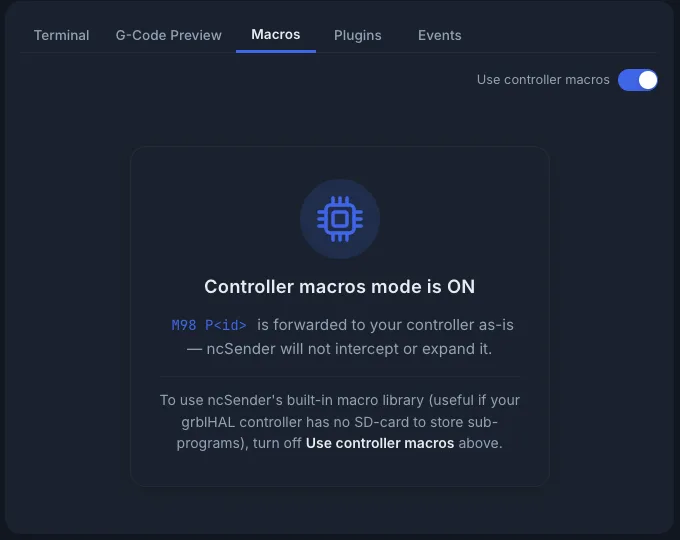
Turn on Use controller macros in the Macros tab to switch:
| Toggle | What happens to M98 P<id> |
|---|---|
| Off (default) | ncSender runs the macro from its library. Nesting and loop checks work (see above). |
| On | ncSender sends M98 to the controller as it is. Only macros stored on the controller run. The macro library is hidden, and a note reads Controller macros mode is ON. |
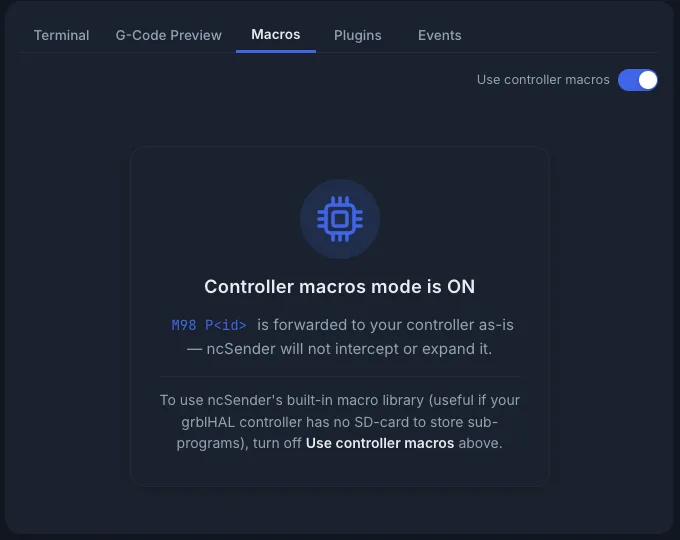
Keep it off if your controller has no SD card or doesn't support macros. Turn it on if you want to use the macros stored on your controller.
Macro Editor
The editor has:
- Colour-coded G-code
- Line numbers
- Multiple lines, so you can write longer sequences
- Light and dark theme, matching the app
Searching Macros
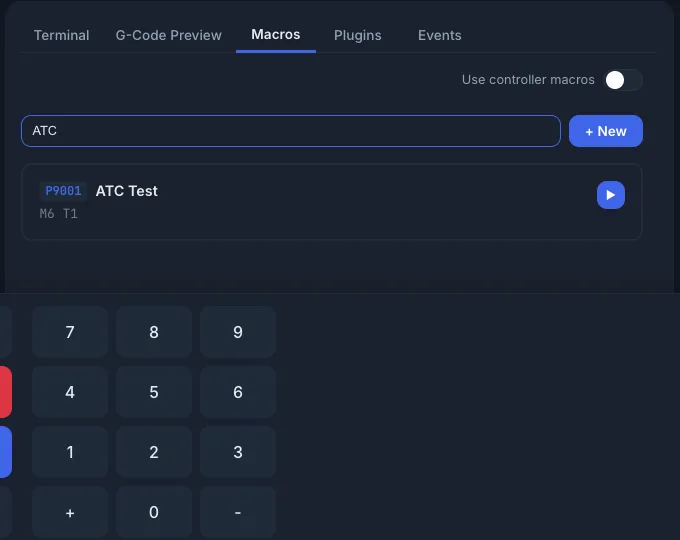
Type in Search macros... to filter by name, description, G-code or ID.
Example Macros
Go to Machine Zero
Park Position
Probe Z and Zero
Tip
Macros can use any command your controller understands, including $H (home) and
$X (unlock).