Visualizer
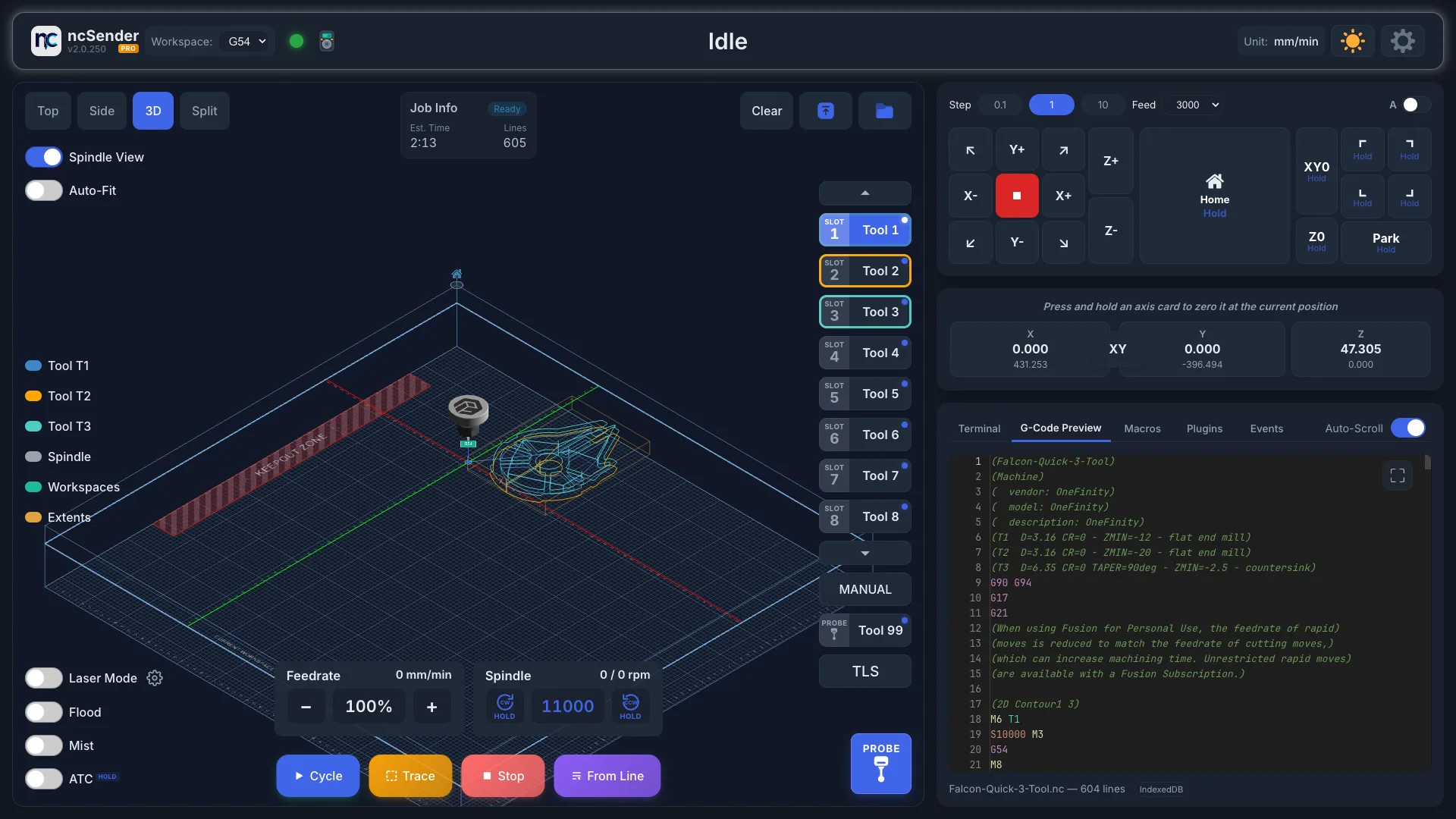
The Visualizer shows your G-code toolpath in 3D and tracks where the machine is while it runs. You also start, pause and stop jobs from here.
Changing the View
Pick a view with the Top, Side, 3D and Split buttons:
| View | What it shows | Best for |
|---|---|---|
| Top | Looking down on the XY plane | Checking 2D layouts and positions |
| Side | Looking from the front at the XZ plane | Checking depth passes and Z moves |
| 3D | A perspective view you can rotate | General use, inspecting toolpaths |
| Split | Top, Side and 3D at the same time | Detailed inspection |
Moving Around
- Pan: left-click and drag, in any view.
- Rotate: right-click and drag. This works in 3D, and in the 3D pane of Split.
- Zoom: use the mouse wheel. The view zooms toward the point under the cursor. On a touchscreen, pinch. The view zooms toward the point between your fingers.
View Toggles
- Spindle View (or LaserHead View in Laser Mode): keeps the camera close to the moving head so you can watch the cut. The spindle turns while it runs, so you can check the direction (CW or CCW).
- Auto-Fit: when on, the camera fits the loaded file. When off, it shows the whole grid.
Loading a File
- Upload G-code: pick a
.nc,.gcode,.gc,.ngc,.tapor.txtfile from your computer. - Open Folder: browse files saved in ncSender's G-code library.
- Drag and drop: drop a file onto the ncSender window.
- Clear: unload the current file. You can't clear a file while a job is running.
Running a Job
- Cycle: starts the loaded file. When the machine is on hold, it resumes. Cycle works when a file is loaded and the machine is Idle, or when it is on Hold. It stays off while the safety door is open.
- Pause: holds the running job. It takes the place of Trace while a job is running or on hold.
- Stop: stops the job. If a probe cycle is running, Stop stops the probe instead.
- Trace: moves around the outline of the toolpath with the spindle off, so you can check clearances and workholding. See Trace.
- From Line: starts the job from a line you choose. Use it to pick up after a broken bit or a power cut. You can also double-click a line in the G-Code Preview tab. From Line is hidden while a job is running.
All job buttons are off while ncSender is not connected. They are also off when the controller requires homing at startup and the machine is not homed yet.
While a job runs:
- The toolhead follows the machine in real time.
- Completed paths change colour.
- The Job Progress card shows progress and run time.
- The live feed rate and spindle RPM (actual and target) show on the override cards.
Spindle control
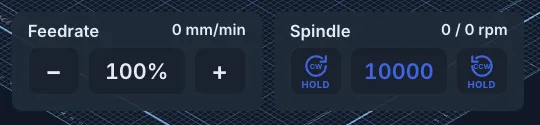
When no job is running, the Spindle card runs the spindle instead of overriding it — an override only means something while a program is feeding.
- Press and hold a HOLD button for 1 second to start the spindle at the speed shown. The left button turns it clockwise (CW in its arrow), the right one counter-clockwise (CCW). A fill sweeps across the button while you hold; the spindle starts when it reaches the end. Let go early and nothing happens, so a stray touch can't start the spindle.
- Tap the speed to pick from a list of preset speeds.
- Tap − or + to change the speed by one step. Hold to keep changing it.
The speed never goes below or above what your controller allows (
$31and$30).
The presets and the step size come from your spindle's speed range: $31
(minimum RPM) to $30 (maximum RPM). You always get at least six presets,
with your minimum and maximum at either end. For example:
$31 / $30 |
Step | Presets |
|---|---|---|
| 0 / 24000 (router) | 1000 | 1000, 5000, 10000, 15000, 20000, 24000 |
| 0 / 6000 (high-torque spindle) | 200 | 200, 1000, 2000, 3000, 4000, 5000, 6000 |
| 0 / 50000 (high-speed spindle) | 2000 | 2000, 10000, 20000, 30000, 40000, 50000 |
If $31 is 0, the lowest preset is one step, so the card never starts the
spindle at 0 RPM.
Set $30 and $31 to match your spindle
The presets are only as good as these two settings. grblHAL ships with
$30=1000, so a new board that was never set up offers nothing above
1000 RPM. Set $30 to your spindle's maximum RPM and $31 to its minimum
in Settings → Firmware (see grblHAL Setup).
The card picks up the change straight away; no restart is needed.
Once the spindle is turning, the card changes:
- The middle button becomes STOP (
M5). One tap stops the spindle, no hold needed. - − and + still change the speed, and the spindle follows straight away, keeping the direction you started it in.
The actual and target RPM always show at the top right of the card.
The controls are hidden while a job is running, while the machine is homing or in alarm, and while the door is open. STOP stays available whenever the machine is connected.
Where did the terminal buttons go?
The spindle buttons used to live in the enlarged Terminal. They moved here so you can reach them without covering the toolpath.
Overrides
Use the Feedrate and Spindle overrides to speed up or slow down a running job. The change takes effect right away, without pausing.
- Tap − or + to change the value by 10 %. Hold the button to keep changing it.
- Tap the percentage to reset it to 100 %. It shows in blue when it isn't at 100 %.
- Overrides go from 10 % to 200 %.
Rapid moves follow the Feedrate override, in the fixed steps grblHAL supports:
| Feedrate override | Rapid moves |
|---|---|
| Above 50 % | 100 % |
| 26 – 50 % | 50 % |
| 11 – 25 % | 25 % |
| 10 % | 5 % |
Note
The 5 % rapid step needs grblHAL build 20260831 or newer. On older firmware, rapid moves stay at 25 %.
In Laser Mode the second card is Laser Power.
Probe Button
Press Probe to open the probing dialog. See Probing.
The button is off while a job is running, while connecting, in an alarm, while homing, or when homing is required first. It is hidden in Laser Mode.
Transform Menu
Use the transform menu to rotate, mirror or offset the loaded file, or to move the spindle to a spot.
- Mouse: right-click the canvas.
- Touchscreen: press and hold one finger for about half a second. If your finger slides, the menu doesn't open.
The menu always opens fully on screen. It is not available while a job is running. Press Esc or click outside the menu to close it.
The items depend on the view:
| Action | Top | Side | 3D | Split |
|---|---|---|---|---|
| Rotate 90° CW / Rotate 90° CCW | ✓ | — | ✓ | — |
| Mirror X Axis / Mirror Y Axis | ✓ | — | ✓ | — |
| Offset Material | ✓ | ✓ | ✓ | ✓ |
| Reset to Original (only after a plugin or a transform changed the file) | ✓ | ✓ | ✓ | ✓ |
| Move To (needs a connection) | ✓ | — | — | — |
Moving to a Spot
- Switch to Top view.
- Right-click where you want the spindle to go, then choose Move To.
- The Move To dialog opens with X and Y filled in from your click. These are machine coordinates. Change them if needed.
- Press Move. The spindle rises to a safe Z height first, then moves.
Why Move To is Top-only
Only in Top view does a click match an exact X and Y on the machine. In the other views the spot you click is ambiguous, so Move To is hidden.
Toolpath Display
- Rapid moves (G0): dashed lines.
- Cutting moves (G1): solid lines.
- Arcs (G2/G3): smooth curves.
- Machine travel: a cyan outline shows how far the machine can move.
Toolhead
A 3D model shows where the machine is:
- Spindle: a turning spindle with its collet. The bit is hidden when no tool is loaded.
- Laser head: a laser head with its beam. Needs Laser Mode (Pro).
Workspace Markers
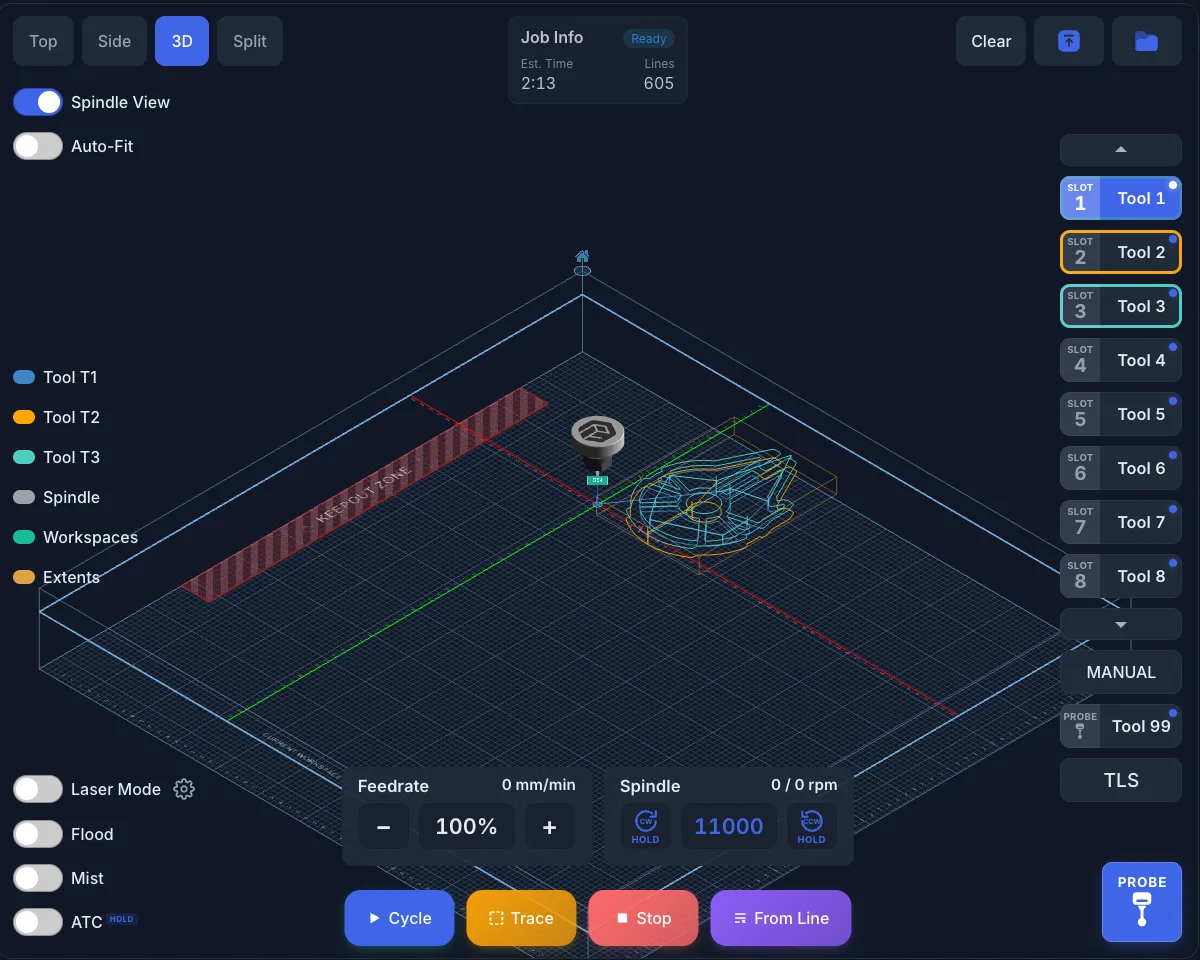
Markers show where the origins of G54 to G59 are on the machine. The active workspace is highlighted.
Legend
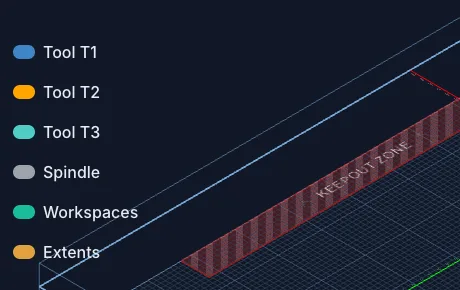
Click an item in the legend to show or hide it:
- Tool T1, T2, …: one entry for each tool in the file, in the same colour as its paths.
- Spindle (or Laser): the toolhead.
- Workspaces: the G54 to G59 markers. Only shown when more than one workspace is set.
- Extents: a box around the toolpath. Only shown when a file is loaded.
Tool Slots
The slot buttons change the tool in the spindle. They are, in order: Slot1, Slot2 …, Manual, Probe and TLS.
- Hold a slot for 1 second to change to that tool. Hold the current tool to unload it.
- Tap a slot to see its tool ID, diameter and type. Tap again to hide it.
- A dot on a slot means that tool has a stored tool length offset (TLO). The Probe button shows the same dot.
- With more than 8 slots, use the arrows to scroll.
See Tool Library and Tool Changer for setup.
Coolant and Outputs
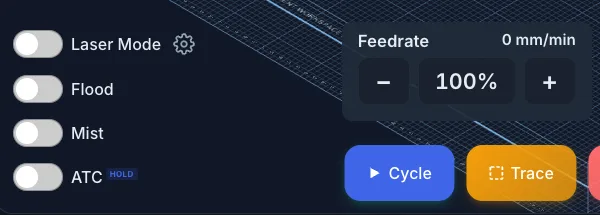
- Flood and Mist: turn coolant on or off. They work during a job too.
- Your own outputs: any outputs you set up in Settings.
- Hold outputs: an output marked "Hold" needs a 1-second press, so you can't switch it by accident.
- Laser Mode (Pro): switches between spindle and laser. The button next to it opens the laser settings. See Laser Mode.
Keepout Zone
The keepout zone is available in ncSender Pro only.
When the keepout zone is on, it shows as a red box labelled KEEPOUT ZONE. It pulses if the loaded file passes through it. ncSender moves around the zone or refuses moves that end inside it. See Keepout Zone.
Out-of-Bounds Warning
If the toolpath goes past the machine's travel, a red banner shows Toolpath exceeds machine boundaries. When known, it adds which way the file goes past the limit, for example at X+, Y- or at Z below machine limit (-120). The banner moves every few seconds so you notice it.
The check uses machine coordinates. It runs again when you change the work zero, workspace, tool length offset or home position, and it keeps checking during the job. The banner goes away on its own when the toolpath fits again or the file is unloaded.
Tip
If the toolpath is outside the machine right after homing, check the home corner setting before the file. See the FAQ.
Alarm Dialog
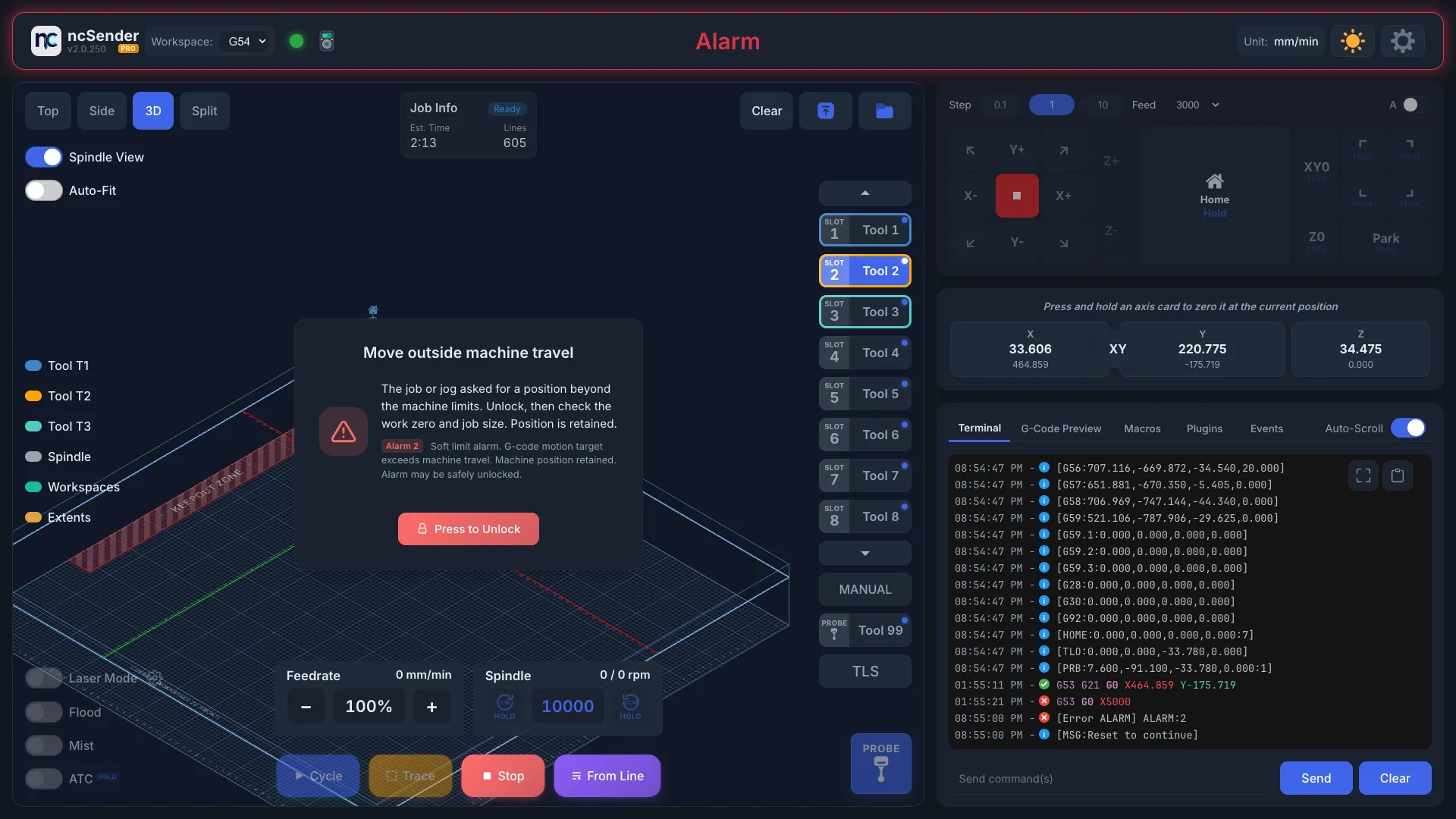
When the controller raises an alarm, a dialog opens. It closes on its own when the alarm clears.
- The title names the alarm in plain words, such as Hard limit hit or Homing required.
- The main line tells you how to clear it, for example Release the E-stop button, then press Unlock. Re-home afterwards if the machine was moving.
- The controller's own message is kept below, with an Alarm N badge.
An alarm without a code, common right after power-on, is named after its cause. For example, a pressed E-stop shows as Power-on safety check: press the E-stop in, release it, then unlock.
Press to Unlock
Press to Unlock resets the controller and unlocks it. It keeps trying about every 3 seconds for up to 30 seconds, and counts down while it works. It stops as soon as the alarm clears.
If the controller refuses because the cause is still there, the dialog says so. Release the E-stop, clear the switch or fix the motor fault, and the next try goes through.
Undoing changes to a file
If a plugin or the transform menu changed the loaded file, choose Reset to Original in the transform menu to get the original back.