Plugins
Plugins add tools to ncSender: tool changers, quick G-code generators, probing helpers and support for ncSender accessories. They work in both ncSender Community and ncSender Pro, unless a plugin page says otherwise.
Install a plugin
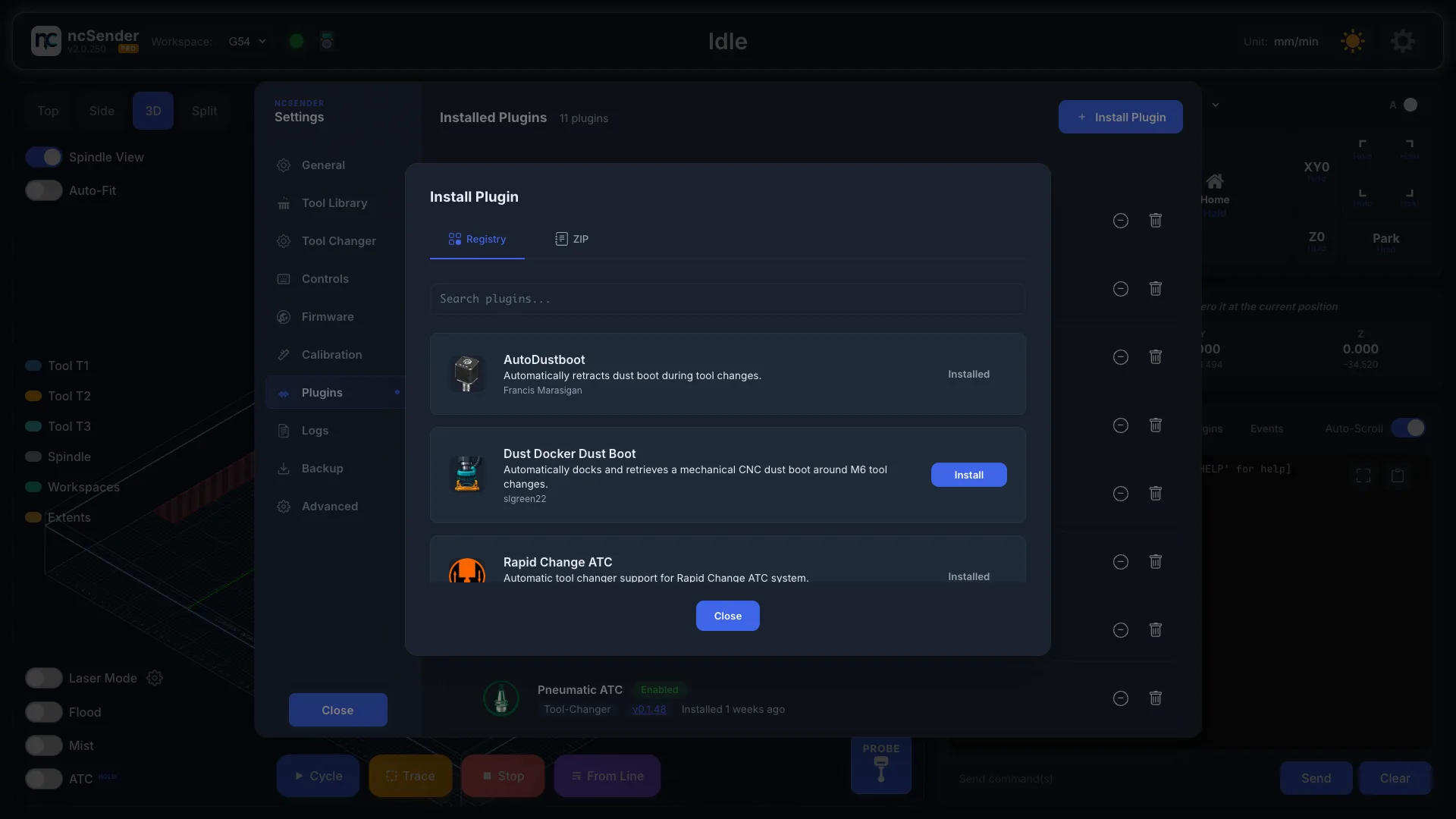
- Open Settings > Plugins.
- Press Install Plugin.
- On the Registry tab, type in Search plugins... to find a plugin.
- Press Install on the plugin you want.
Plugins already on your machine show Installed instead of Install.
Install from a ZIP file or link
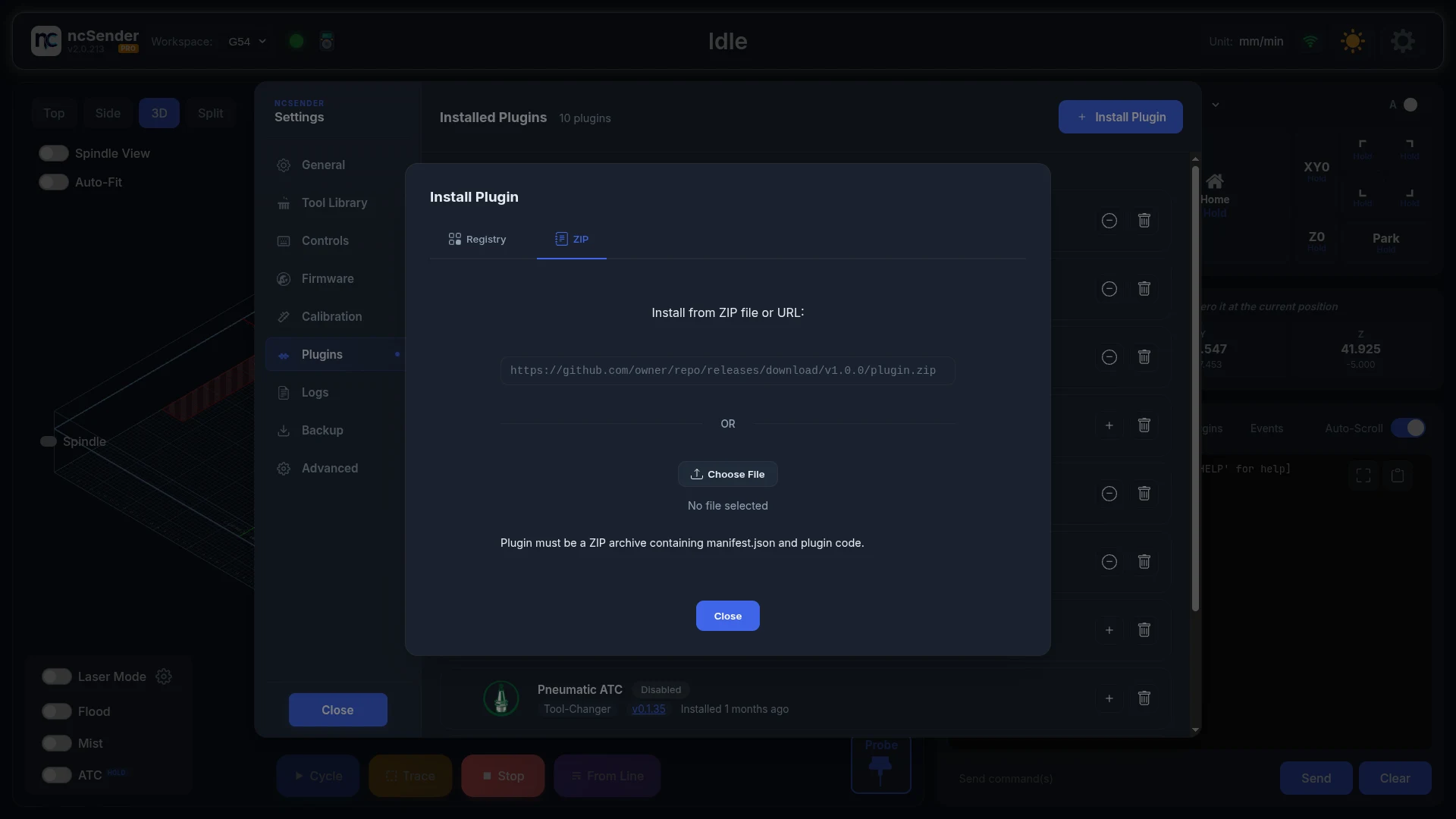
Use this when someone gives you a plugin file or a download link.
- Open Settings > Plugins > Install Plugin > ZIP.
- Either press Choose File, pick the
.zip, then press Install from File, or paste the link and press Install from URL.
Use a plugin
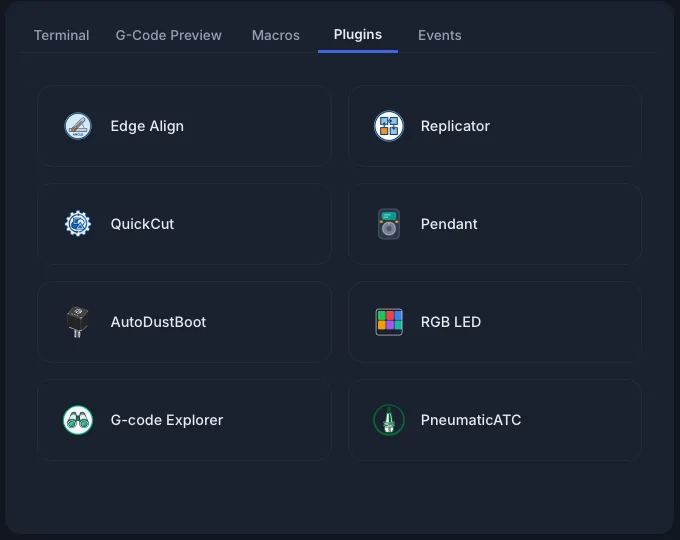
- Open the Plugins tab in the console area.
- Press the plugin's button.
Only enabled plugins have a button. The buttons are locked while a job is running.
Manage installed plugins
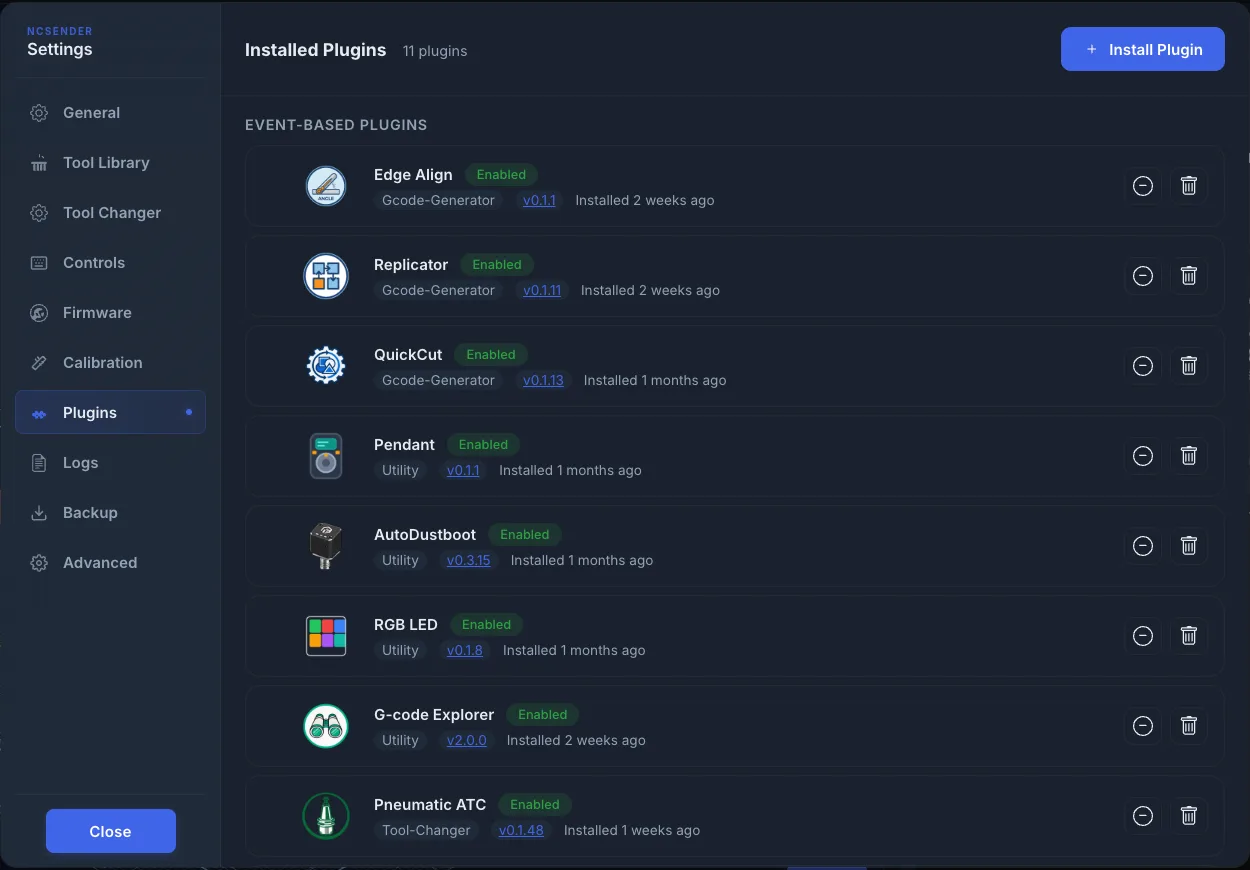
Open Settings > Plugins. Each installed plugin has these buttons:
- Enable / Disable: turn the plugin on or off without removing it.
- Configure: open the plugin's settings.
- Reload: restart the plugin, for example after it stops responding.
- Uninstall: remove the plugin. ncSender asks you to confirm, because this also deletes the plugin's saved settings and cannot be undone.
Update a plugin
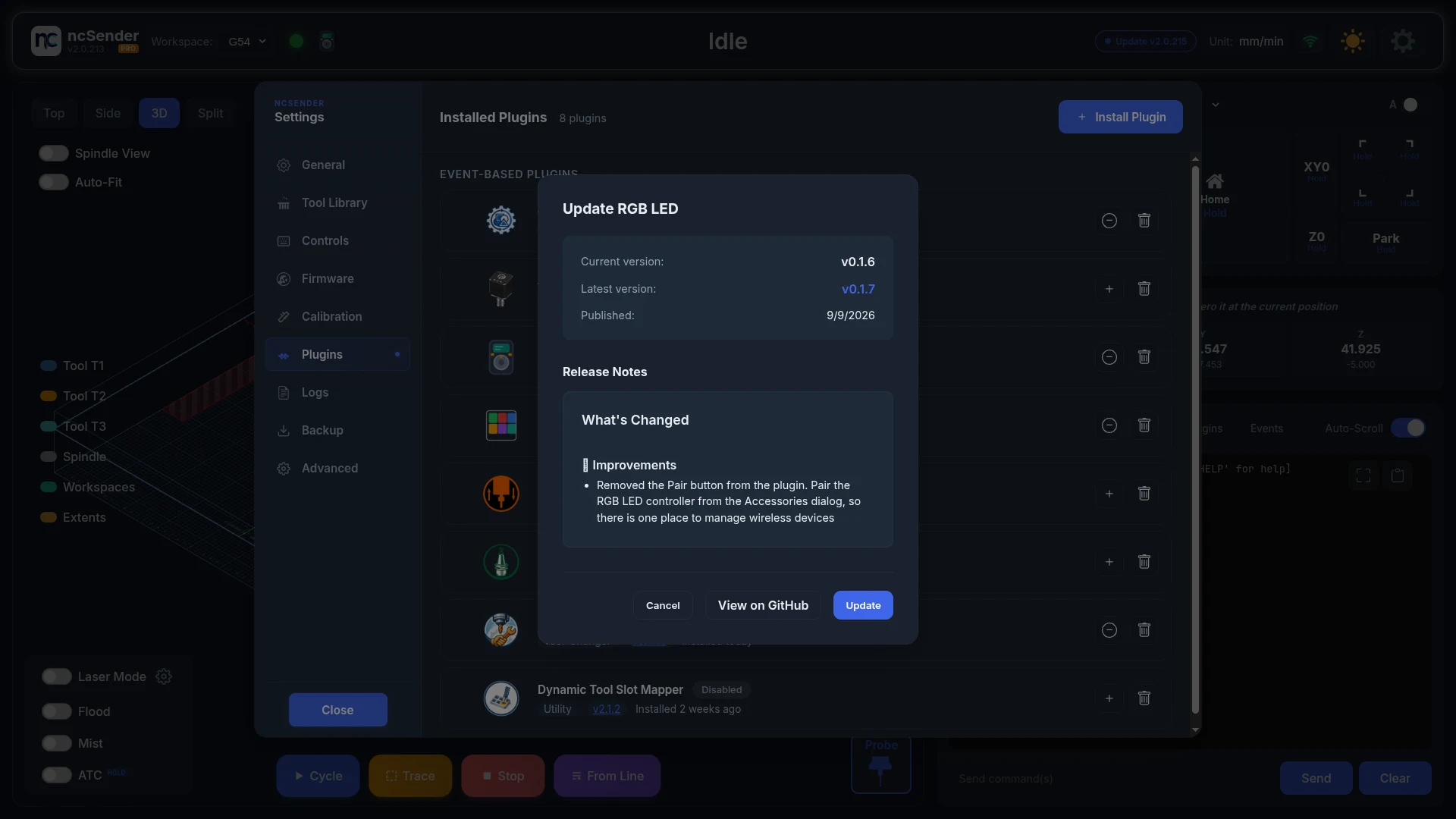
When a newer version exists, the plugin shows Update available.
- Press Update available.
- Check the Current version, Latest version and Release Notes. Press View on GitHub for the full notes.
- Press Update.
Available plugins
| Plugin | Type | What it does |
|---|---|---|
| QuickCut | G-code generator | Rectangles, circles, polygons, surfacing, edge jointing and cut-to-size |
| Manual Tool Changer | Tool changer | Guided hand tool changes with automatic tool measuring |
| Rapid Change ATC | Tool changer | Automatic tool changes with a RapidChange magazine |
| Pneumatic ATC | Tool changer | Automatic tool changes with an air-powered drawbar and a tool rack |
| Edge Align | Probing | Measures how crooked your stock sits and rotates the program to match (Pro) |
| 3DMesh | Probing | Probes an uneven surface so a flat program follows it (Pro) |
| Replicator | G-code generator | Repeats the loaded program in a grid |
| BoxJoints | G-code generator | Finger joints for boxes and drawers |
| AutoDustBoot | Accessory | Raises the AutoDustBoot for tool changes, homing and rapid moves |
| Pendant | Accessory | Activates the ncSender pendant and updates its firmware |
| RGB LED | Accessory | Sets the colours of the Smart RGB LED strip |
The Registry also lists plugins written by other people. Their authors look after them.
Some plugins show a Beta label in their title. They work, but they are still changing, so write down or back up your settings before you update.
Tool changer plugins
Only one tool changer plugin can be enabled at a time.
- If you install a second tool changer, it installs but stays disabled.
- To switch, Enable the other tool changer. The one that was on is turned off automatically.
While a tool changer is enabled, it controls the tool buttons on the main screen. See Tool Changer.
Troubleshooting
A plugin's settings have no Save or Close button
The buttons are below the edge of the screen. See the FAQ.