Interface Overview
This page shows where to find the things you use every day. Each feature has its own page with the details.
Check the Machine Status
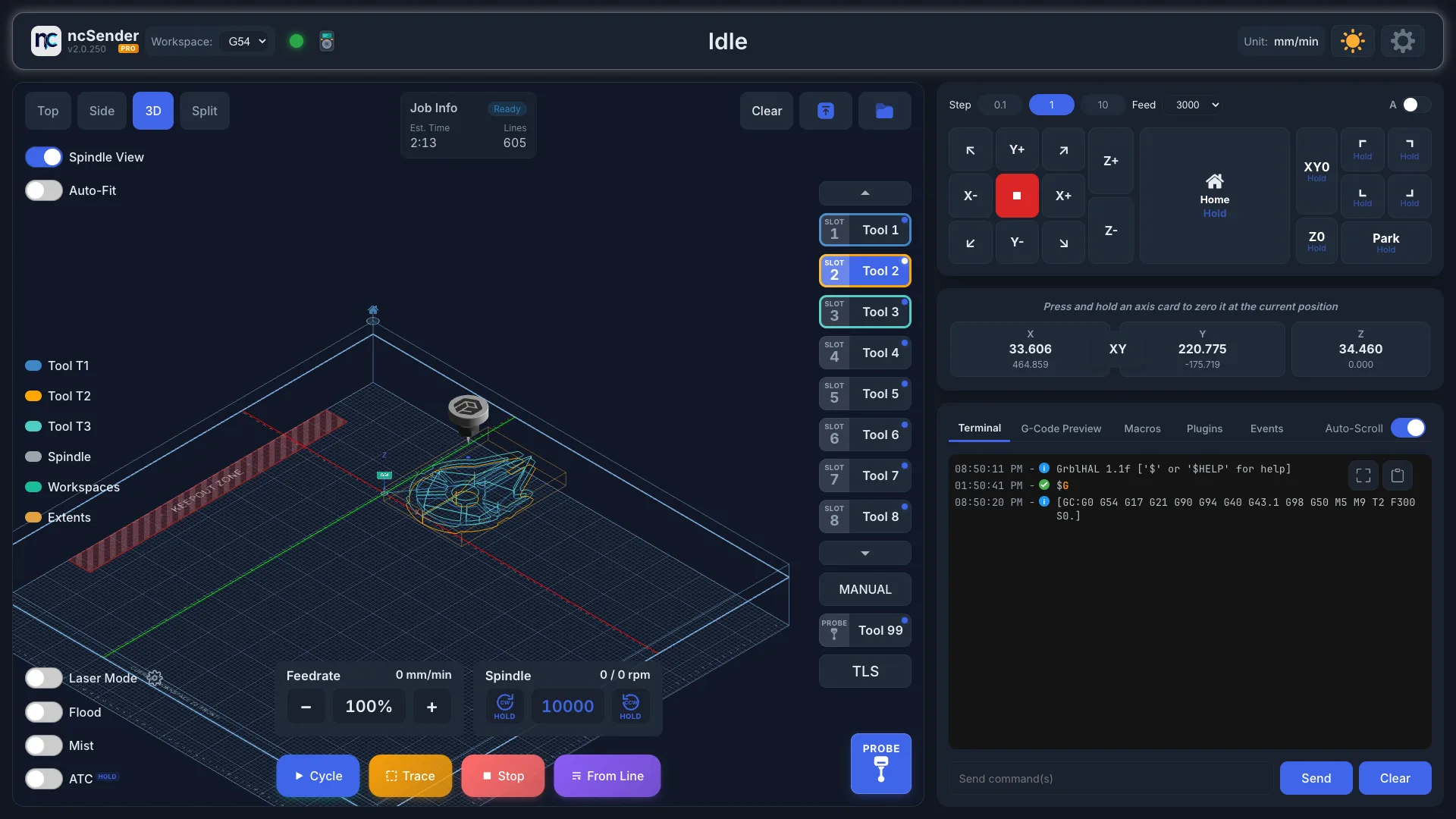
The toolbar shows what the machine is doing: Idle, Running, Homing Required, Alarm, Setup Required and so on. It also shows the pin states (limit switches, probe, door), the units, and the light/dark theme toggle.
- Homing Required: the Home button shows that the machine needs homing. Press it before jogging or running a job.
- Setup Required: no connection is saved yet. See First Connection.
Zero an Axis
The DRO (Digital Readout) shows work and machine coordinates for each axis.
- Long-press an axis card to zero it at the current position.
- Long-press the XY button to zero X and Y together.
- Double-click (or double-tap on a touchscreen) a work coordinate to type in a value.
With a tool setter you can zero Z before or after measuring the tool. If you zero first, ncSender keeps that Z0 when the tool is measured. See Tool Changer.
See DRO.
View the Toolpath
The 3D visualizer shows the loaded G-code, the tool position and the machine work area. Rotate and zoom with the mouse or touch.
See Visualizer.
Send Commands and Run Macros
The console panel has five tabs:
| Tab | Use it to |
|---|---|
| Terminal | Type commands and see the controller's replies |
| G-Code Preview | Read the lines of the loaded program as they run |
| Macros | Run your saved macros |
| Plugins | Open tools added by plugins |
| Events | Set G-code that runs at Program Start and Program End |

See Console & Terminal, Macros and Program Events.
Clear an Alarm
When the controller raises an alarm, ncSender shows what happened and how to fix it. Fix the cause, then press Press to Unlock. See If an Alarm Appears.
Open Settings
Click Settings in the toolbar. The tabs are General, Tool Library, Controls, Firmware, Calibration (Pro), Config, Plugins, Logs, Backup and Advanced.
Manage Accessories
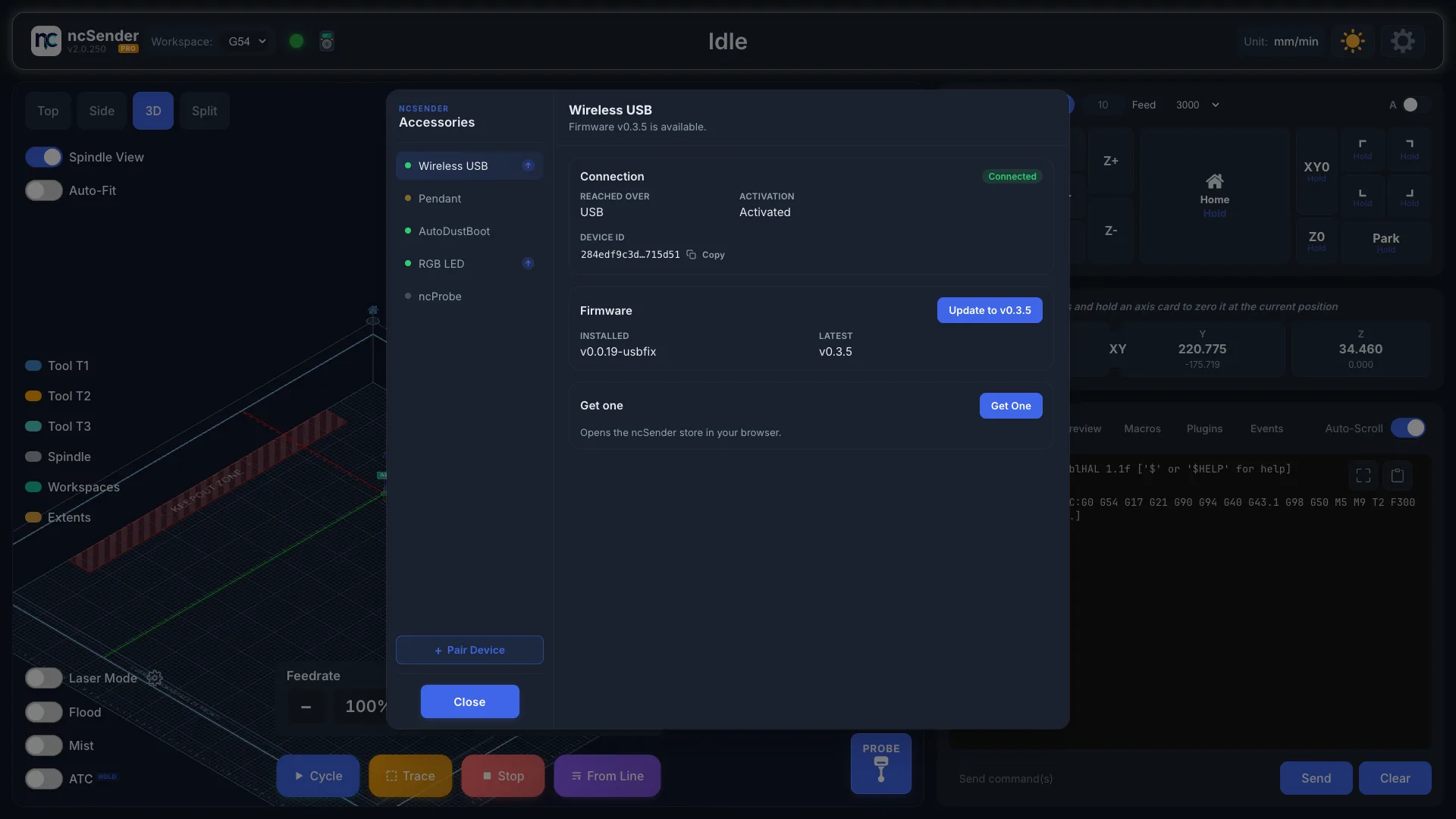
Click the Accessories icon in the toolbar to pair, activate and update a pendant, Wireless USB or other ncSender accessory. The icon also shows whether the Wireless USB is connected.
See Wireless USB.
Install an Update
When a new version is available, the toolbar shows Update vX.Y.Z. Click it to open Software Update. See Software Updates.
Change the Language
Language and keyboard layout settings are part of ncSender Pro.
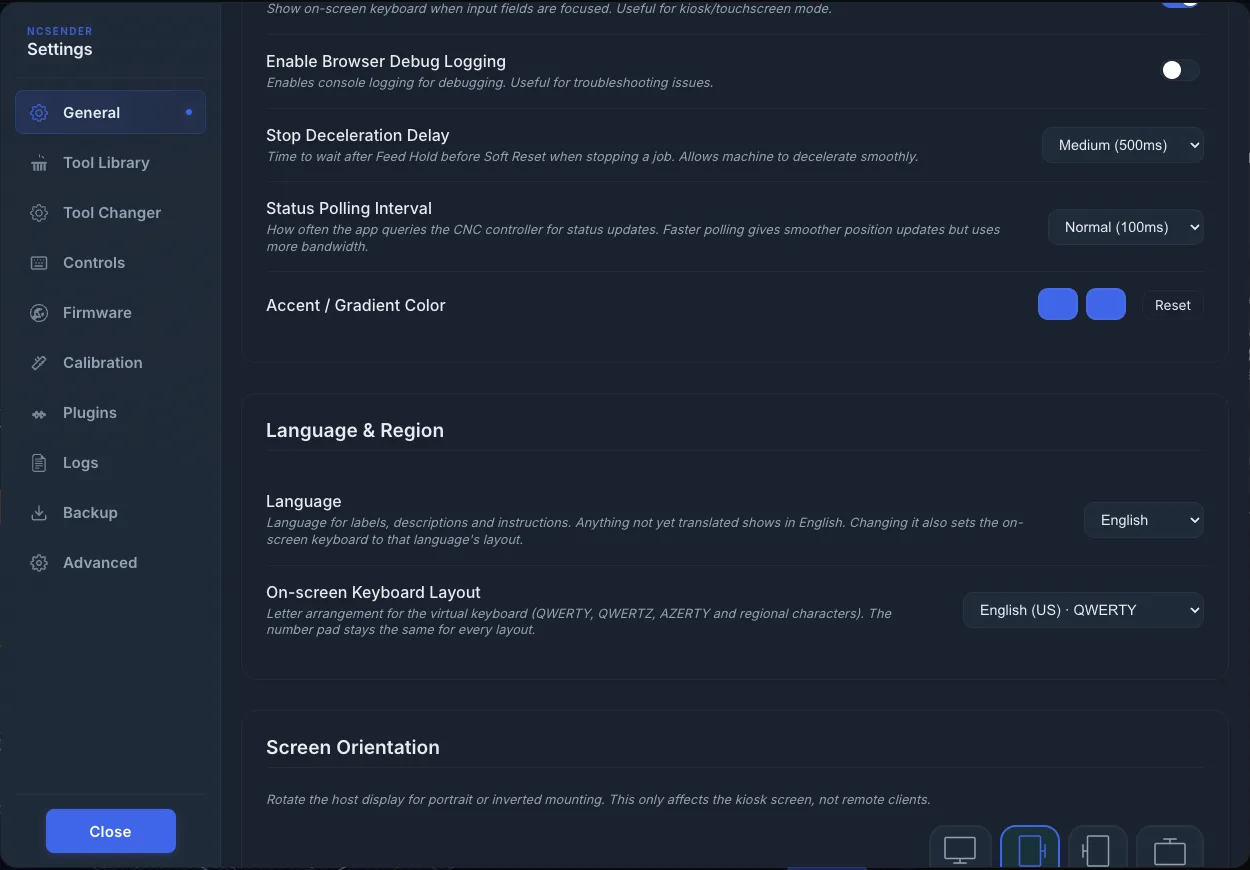
- Open Settings → General → Language & Region.
- Pick a Language: English, Deutsch, Français or Español. Anything not yet translated shows in English.
- The on-screen keyboard switches to that language's layout. To choose a different one, pick it under On-screen Keyboard Layout (QWERTY, QWERTZ, AZERTY and regional variants).
Screen Orientation
ncSender lays itself out for the screen it is on. The same 1080p panel works mounted either way, and nothing is hidden or cut off in either orientation — you get the same controls, rearranged.
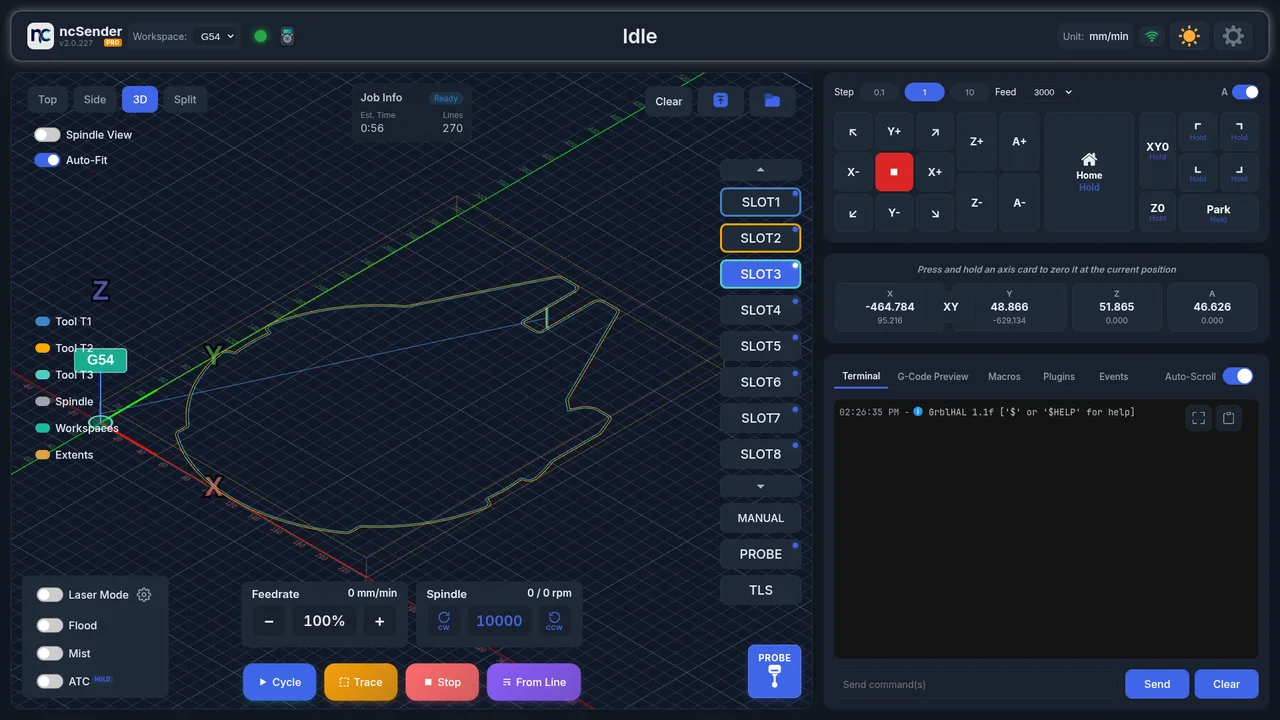
The visualizer takes the left, with jog, the DRO and the terminal panel stacked down the right.
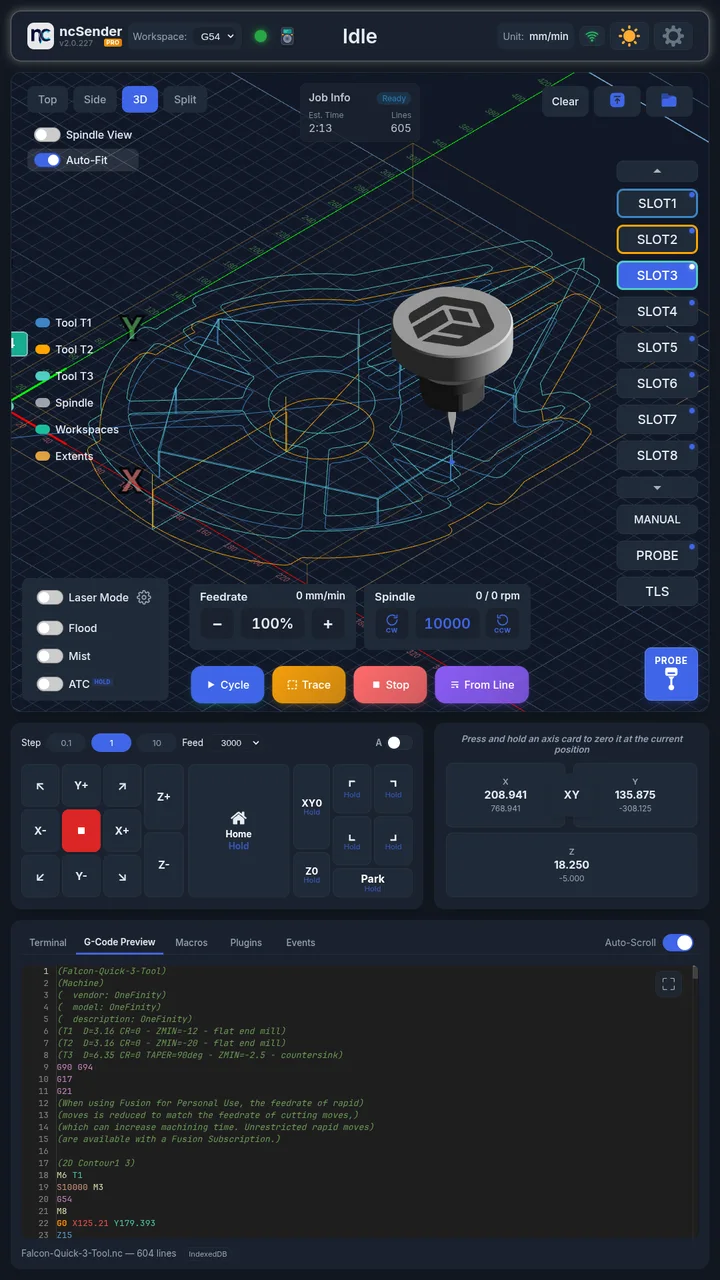
The visualizer sits across the top, with jog and the DRO below it and the terminal panel along the bottom.
On a kiosk, set the orientation in your OS display settings — ncSender follows the screen and reflows on its own.
Open Links on a Kiosk
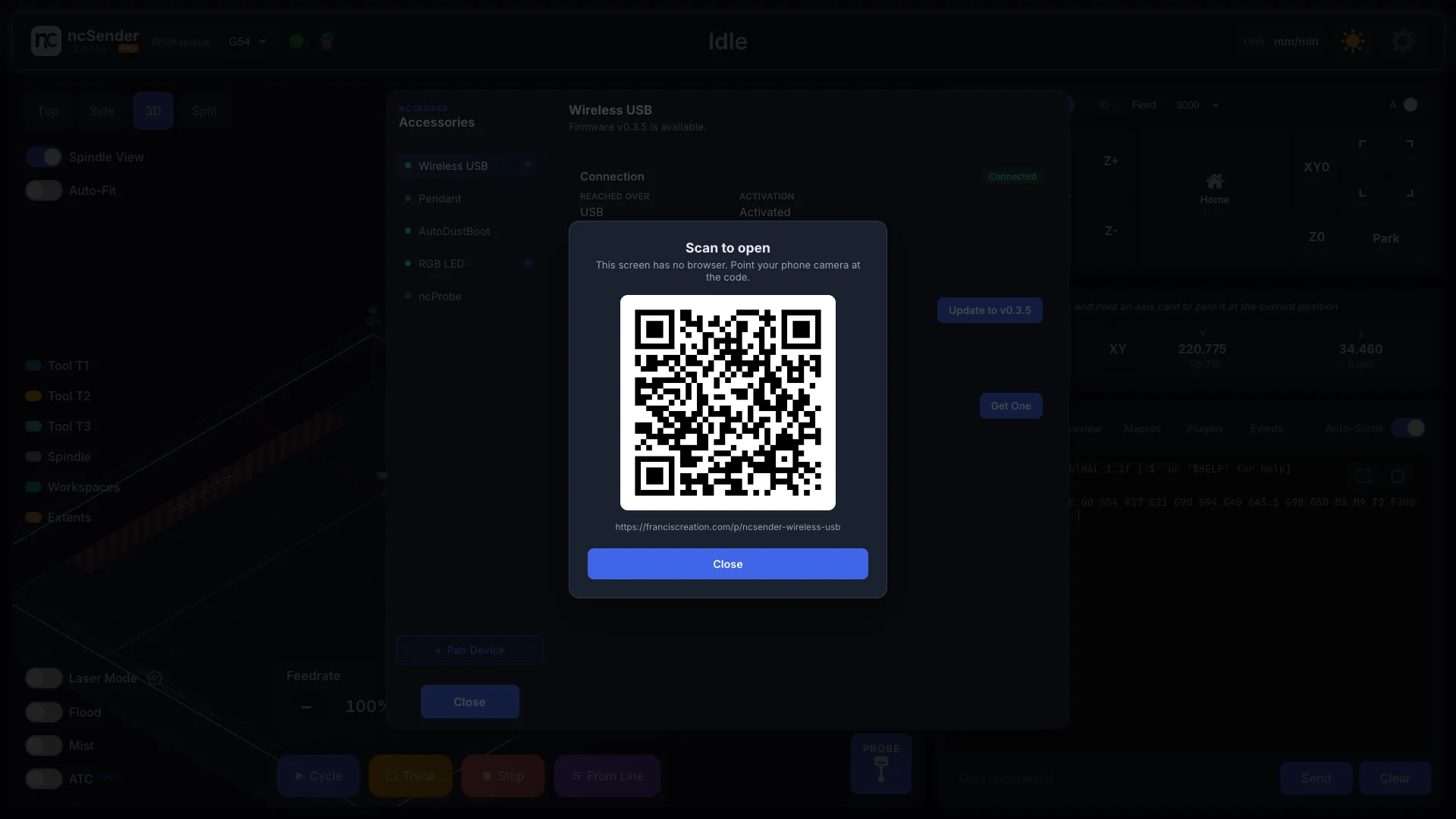
A kiosk screen has no web browser. When you tap a link (help, store, release notes), ncSender shows a Scan to open QR code. Point your phone camera at it to open the page there.