Tool Library

ncSender keeps a Tool Library of your cutting tools: their sizes, names and stored lengths, and which magazine slot each one sits in. The tools in your magazine show as slot buttons in the visualizer (see Tool Changer).
Open Settings → Tool Library to keep a list of your bits and assign them to the slots (pockets) in your tool magazine. The bottom of the tab shows how many tools are in the library. How many slots you have, and which tool buttons show, are set on the Tool Changer tab.
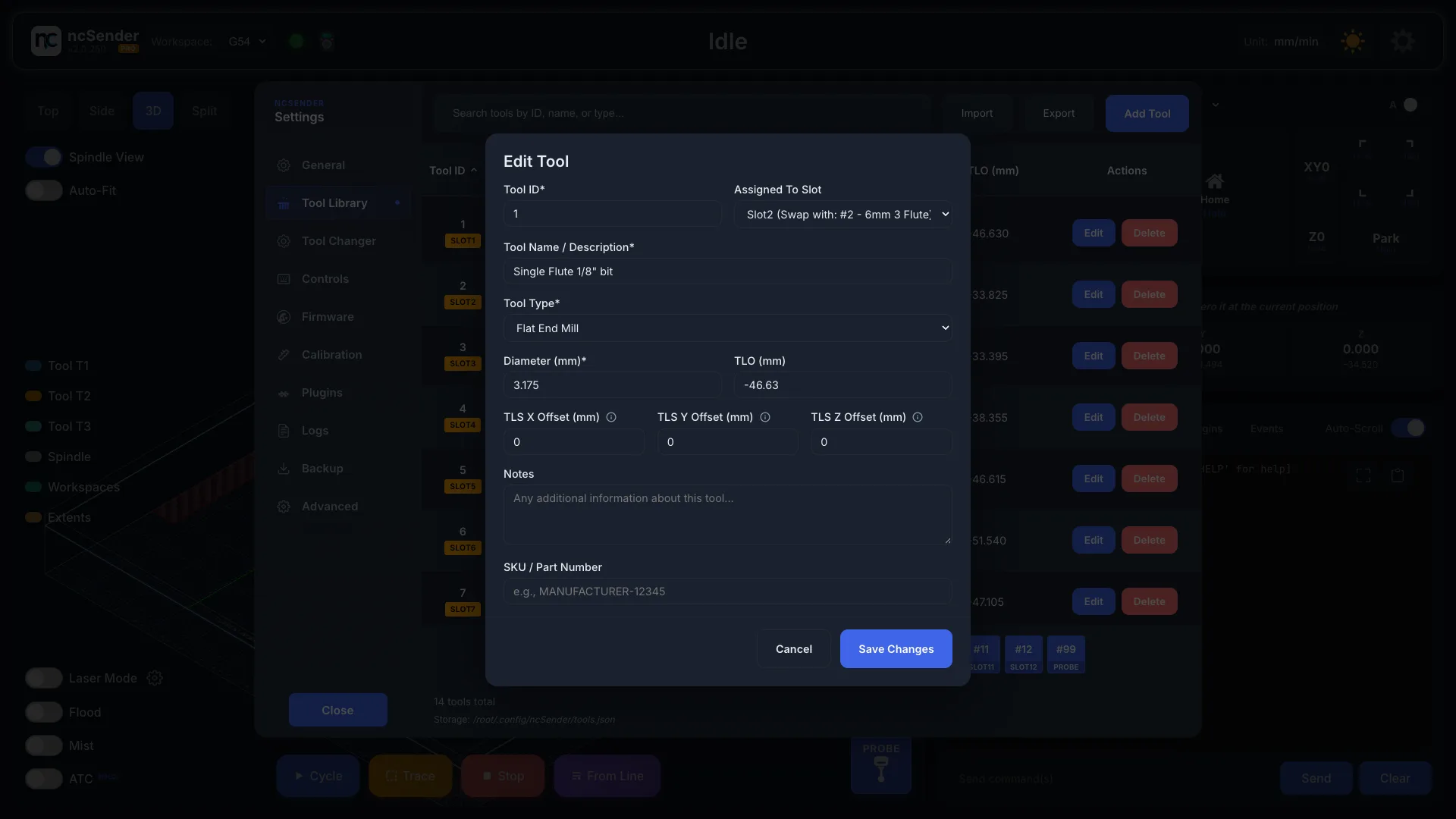
Add, edit and delete tools here. Each tool has:
- Tool ID: the tool's own number. Each tool needs a different ID.
- Assigned To Slot: the magazine slot it sits in. See Assigning a tool to a magazine slot.
- Tool Name / Description: for example 1/4" Flat Endmill.
- Tool Type: Flat End Mill, Ball End Mill, V-Bit, Drill, Chamfer, Surfacing or Thread Mill.
- Diameter
- TLO: the stored tool length offset.
- TLS X Offset, TLS Y Offset and TLS Z Offset: move where this tool is measured. Use them for a tool that sits off spindle center, such as a laser, or to start the measurement higher or lower for a long or short tool. Hover over each field for details.
- Notes and SKU / Part Number for your own use.
Import / Export
Use Import and Export to back up your library or move it to another machine.
- Export saves the library to a
.jsonfile. - Import loads a saved
.jsonfile. If a tool ID in the file already exists, ncSender lists them and asks before replacing.
Pro: Import also accepts Vectric tool databases (.vtdb) from VCarve,
Aspire and Cut2D.
Assigning a tool to a magazine slot
A tool only takes a magazine slot once you assign it. There are two ways:
- In Add Tool or Edit Tool: set Assigned To Slot to a slot. Leave it on None (Not in magazine) to keep the bit in the library without a slot.
- In the tool table: click the tool's slot badge (Slot# or No Slot), then pick a slot.
You can only pick Slot1 up to the Magazine Size. Set it on the Tool Changer tab.
Slots swap automatically
If another tool already sits in the slot you pick, the two tools swap. The list shows "(Swap with …)" next to that slot.
Assigned tools show a Slot# badge in the table. The slot strip is a map of the magazine: click a slot to jump to its tool.
How a tool number finds its tool
What M6 T4 loads depends on Tool Numbering in
Settings → Tool Changer:
| You run | Tool Library | Slot (classic) loads | Tool ID loads |
|---|---|---|---|
M6 T4 |
Tool ID 68 is in Slot 4 | Tool ID 68, with its offsets | Tool ID 4, if you have one; otherwise by hand |
M6 T87 |
Tool ID 87 is in no slot | By hand (past the magazine) | Tool ID 87, by hand, with its offsets |
M6 T4 |
Slot 4 is empty | Tool 4 from Slot 4 | Tool ID 4, if you have one |
A tool's TLO and TLS X/Y/Z Offsets belong to the tool, not to the slot it sits in. Move a tool to another slot and its offsets go with it.
With Slot (classic), a tool's length is saved to the tool assigned to that slot. A slot with no tool assigned keeps no length: the tool is measured when it's loaded.
Tool IDs and your controller's tool table
After every tool change, ncSender tells your controller which tool is now in the
spindle, using the tool's Tool ID (for example M61 Q300 for Tool ID 300).
Some grblHAL firmware is built with a tool table: a fixed list of tool entries stored on the controller. The Sienci SuperLongBoard firmware, for example, has a 32-entry table, made for Sienci's own ATC. A controller with a tool table refuses any tool number higher than its number of entries. On a 32-entry table, Tool ID 33 and up can't be set.
Tool IDs above the table size are not recorded
The tool change runs, but the controller rejects the new tool number
(error:38, Tool number greater than max supported value) and keeps the
previous one. The next tool change then thinks the wrong tool, or no tool, is in
the spindle, and can drive the loaded tool into the magazine.
Check your controller. Type $I in the console. The last number on the
[OPT:…] line is the size of the tool table. For example [OPT:VNMZHS2,128,1024,4,32]
means 32 entries. 0 means the firmware has no tool table.
Then either:
- Use Slot (classic) numbering. Tool numbers are then your slot numbers, which stay small. See Tool Numbering; or
- Keep every Tool ID at or below that number, for example 1 to 32 on a SuperLongBoard; or
- Use firmware built without a tool table. ncSender's tool changer plugins don't use the controller's tool table: ncSender keeps each tool's length itself and sets it at every tool change. Without a table, higher Tool IDs such as 300 work.
Probe slot
When Probe is on, the library adds a Probe (T99) slot. The number is your probe tool number, 99 by default. Assign your probe to it in Assigned To Slot or in the slot picker. It shows as a dashed PROBE box in the slot strip.
The probe can then store a TLO like any other tool. The Probe slot stays assigned when you shrink the magazine.