Keepout Zone
Pro Feature
Keepout Zone is available in ncSender Pro only.
A keepout zone is a rectangle on your table that the spindle should never enter. ncSender draws it in the visualizer and keeps jogs and moves out of it.
Experimental
Keepout Zone is experimental. It does not replace an E-stop. Please report anything unexpected.
What It's For
- Clamps and hold-downs that stay in the same place
- A tool change rack (ATC) or tool setter
- Fixtures and jigs bolted to the table
Set It Up
Your machine must be connected so ncSender can read its travel limits.
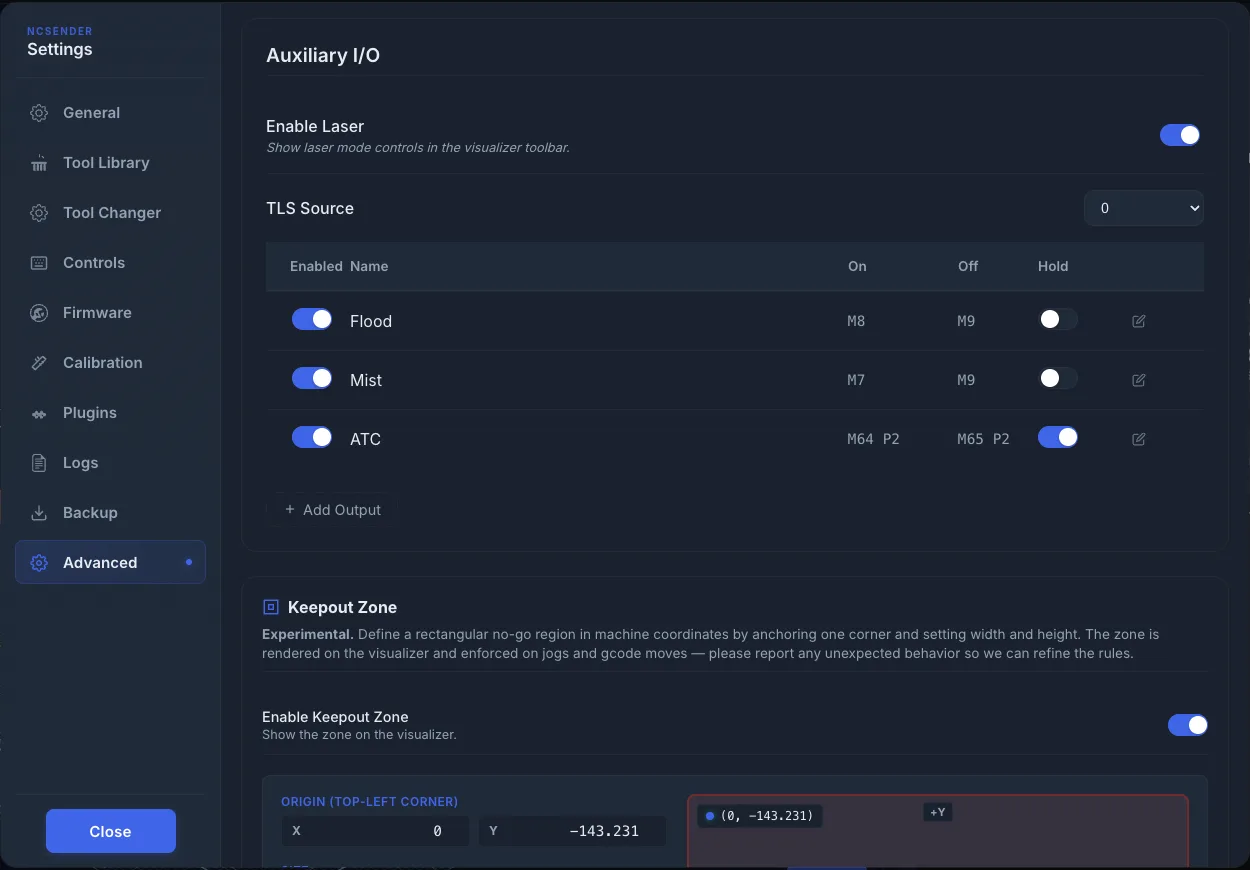
- Open Settings → Advanced and scroll to Keepout Zone.
- Turn on Enable Keepout Zone.
- Under Origin, enter the X and Y of one corner in machine coordinates. The corner matches your Machine Home Location, for example Origin (Top-Left Corner).
- Under Size, enter the width (W) and height (H).
- Check the preview. It saves by itself.
Finding the corner
Jog the spindle to the corner of the area you want to protect and read the machine position from the DRO.
ncSender checks the zone against your machine's travel limits. If part of it is off the table, you'll see a message such as "Right edge X (…) exceeds machine limit (…)". If the limits show Not loaded (connect & read firmware), connect the machine first.
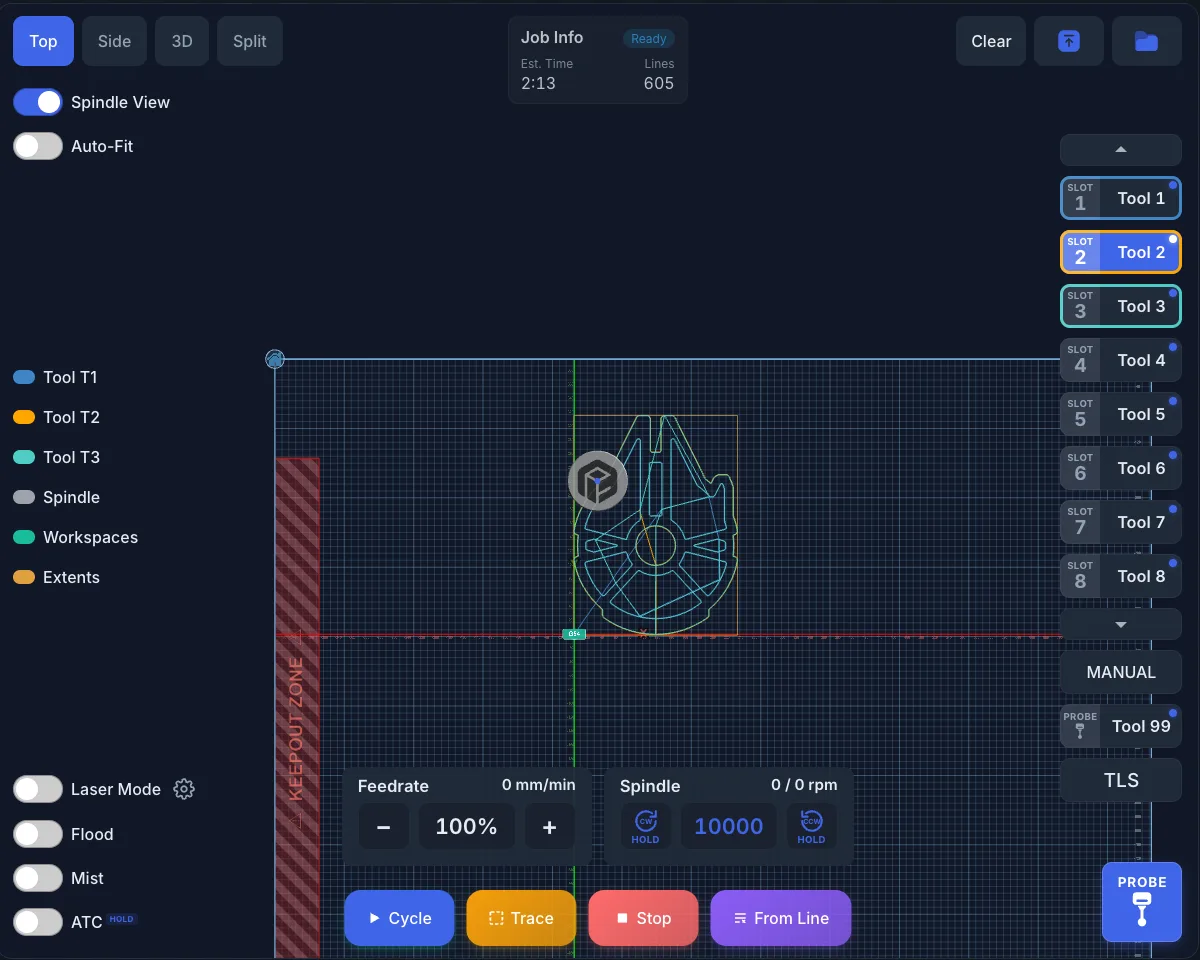
The zone shows in the visualizer, labelled KEEPOUT. The label pulses when you load a program and after you change a work offset.
When You Jog
- Jogs stop at the edge of the zone. This includes the jog buttons, the keyboard, gamepads and the pendant.
- A jog that is already at the edge does nothing.
- The terminal shows where the jog was stopped, for example
(keepout: 250,300 → 180,300).
When You Send a Move
For G0, G1, G2 and G3 moves from the console or a macro:
- A move that only crosses the zone is routed around it.
- A move that ends inside the zone is refused. ncSender shows Movement Blocked with the reason.
When You Run a Job
- The move from where the spindle is to the program's first position goes around the zone and stays within machine travel.
- If that first position is inside the zone, ncSender stops before sending it and shows Program Halted. Move the machine clear, or fix the program's start position, then run it again.
- The visualizer warns you before you start if the program's own toolpath crosses the zone.
Homing With a Keepout Zone
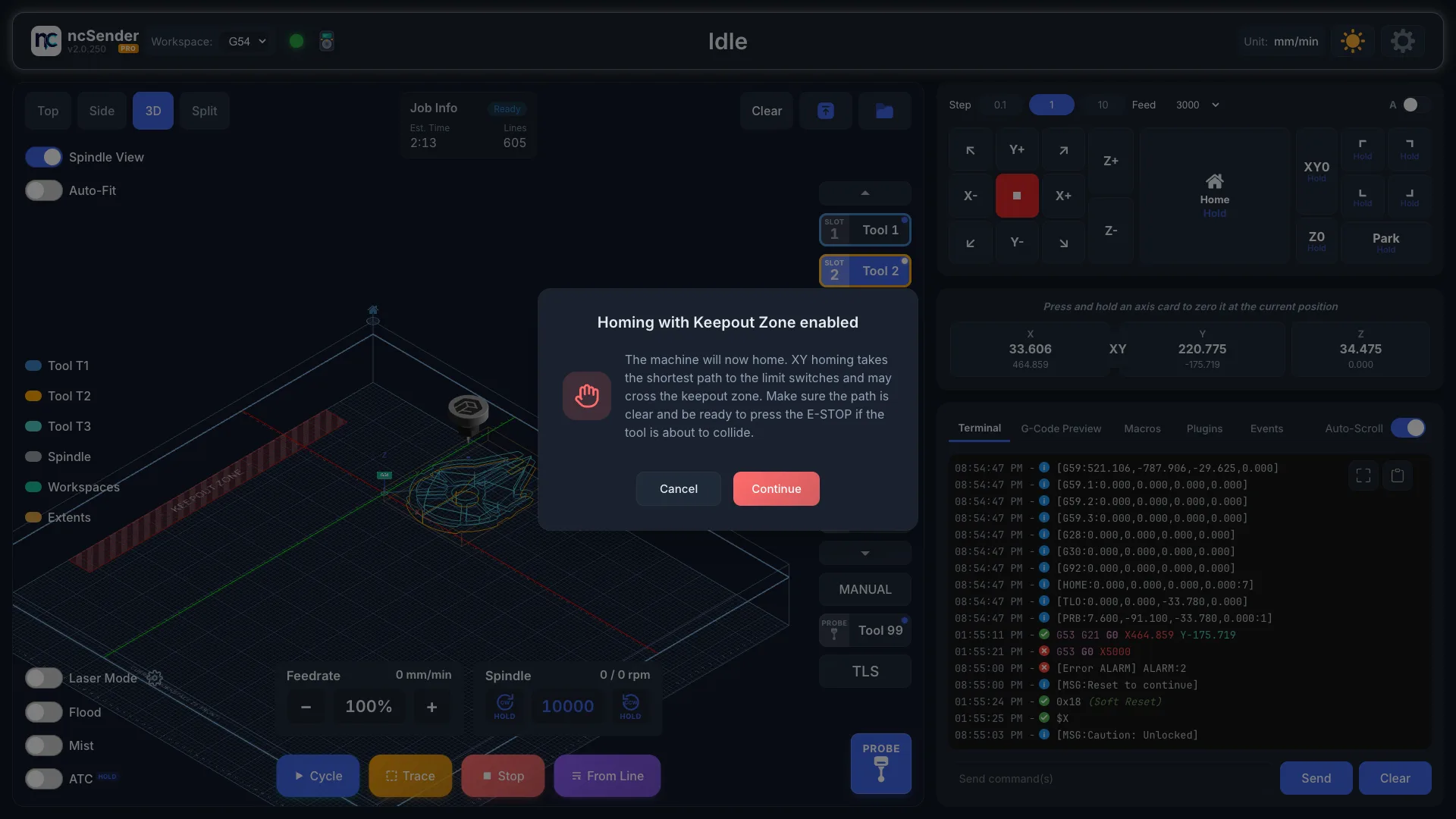
XY homing takes the shortest path to the switches and can pass through the zone. With the zone on, pressing Home shows Homing with Keepout Zone enabled on every screen and on the pendant.
- Make sure the path to the switches is clear.
- Click Continue, or Cancel to stop.
- Stay ready to press the E-stop.
Homing only Z does not ask. The same check runs in the Calibration Travel Limits guide.
Limits and Known Gaps
- Keepout Zone is experimental. Always watch the first moves after setting it up.
- The zone is a flat rectangle in X and Y. Z is not checked, so the spindle can't pass over it even when high.
- Homing is not blocked, only warned about.
- Arcs are checked from start to end. Watch arcs that pass close to the zone.
- Trace moves follow the same rules.
For plugin authors
Starting a command with $keepout_off skips the keepout check for that one command. It is meant for plugins that must reach inside the zone, such as an ATC rack.