Language & Region
Pro Feature
Language & Region is available in ncSender Pro only.
Choose the language ncSender uses for labels and instructions, and the letter layout of the on-screen keyboard.
Change the Language
- Open Settings → General.
- Scroll to Language & Region.
- Pick a Language: English, Deutsch, Français or Español.
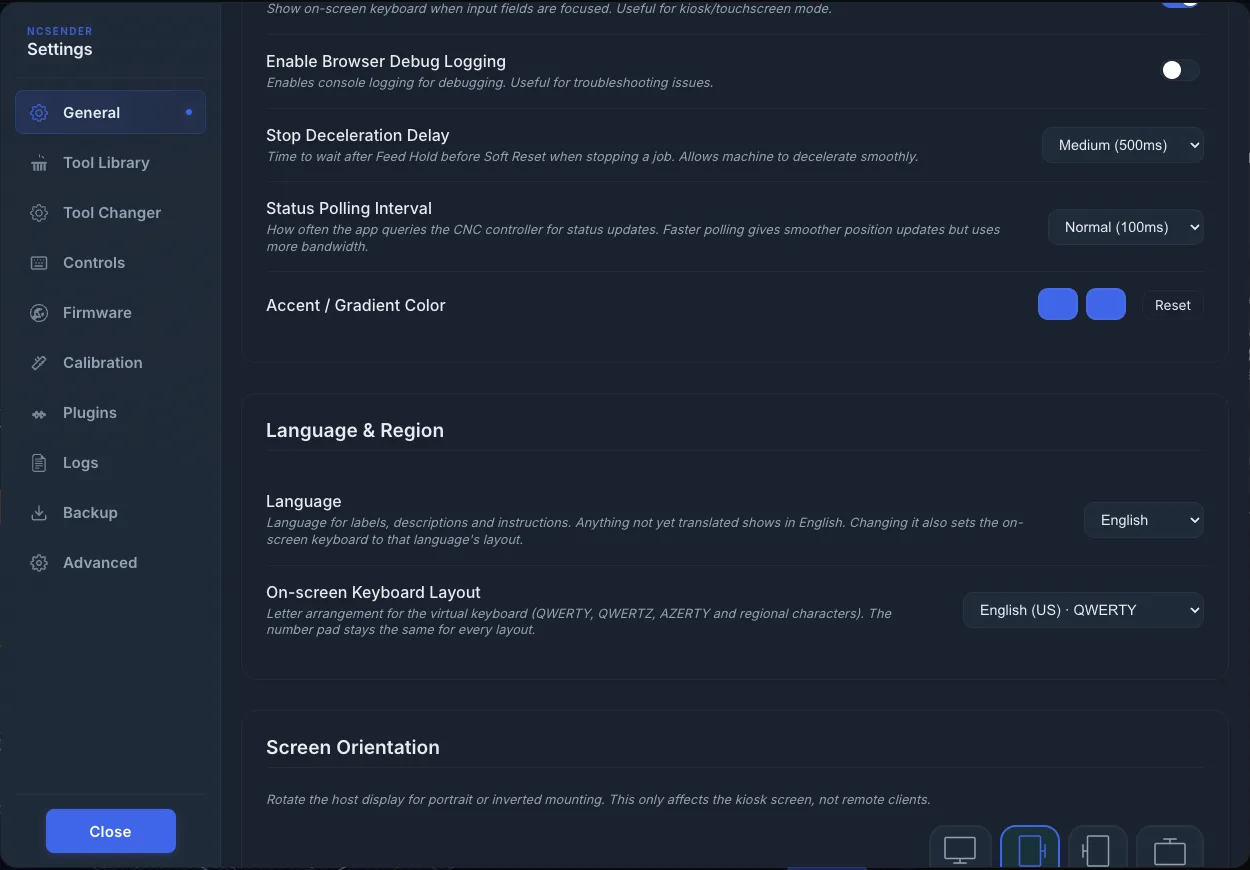
The screen changes right away. Every screen connected to this ncSender changes with it.
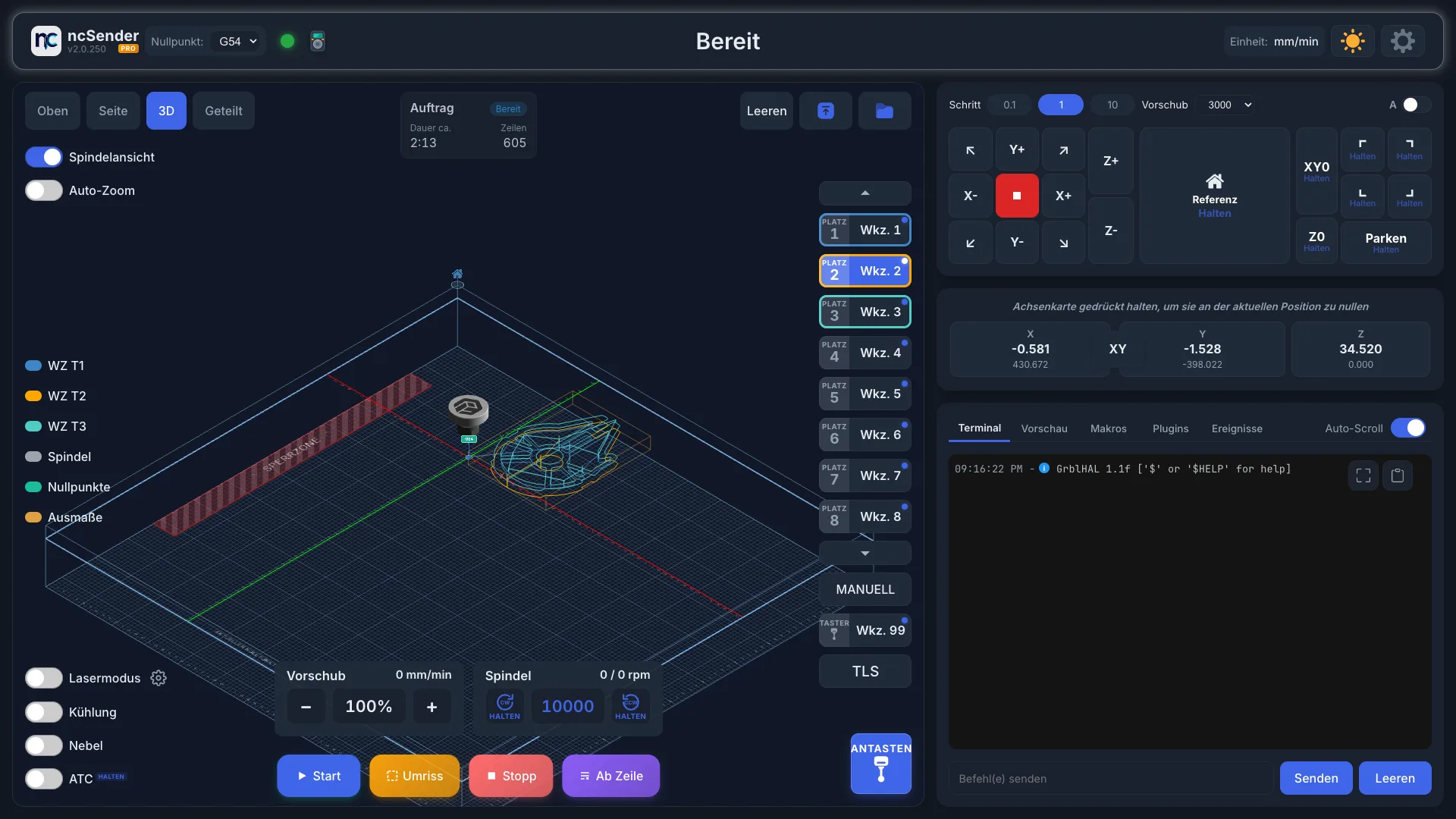
What Is Translated
- Labels, descriptions and instructions
- Alarm names and how to fix them
- The Space, Enter and Done keys on the on-screen keyboard
Anything not yet translated shows in English. Messages that come straight from your controller stay as the controller sends them.
Keyboard Layout
Changing Language also sets the on-screen keyboard to that language's layout:
| Language | Keyboard layout |
|---|---|
| English | English (US) · QWERTY |
| Deutsch | Deutsch · QWERTZ |
| Français | Français · AZERTY |
| Español | Español · QWERTY |
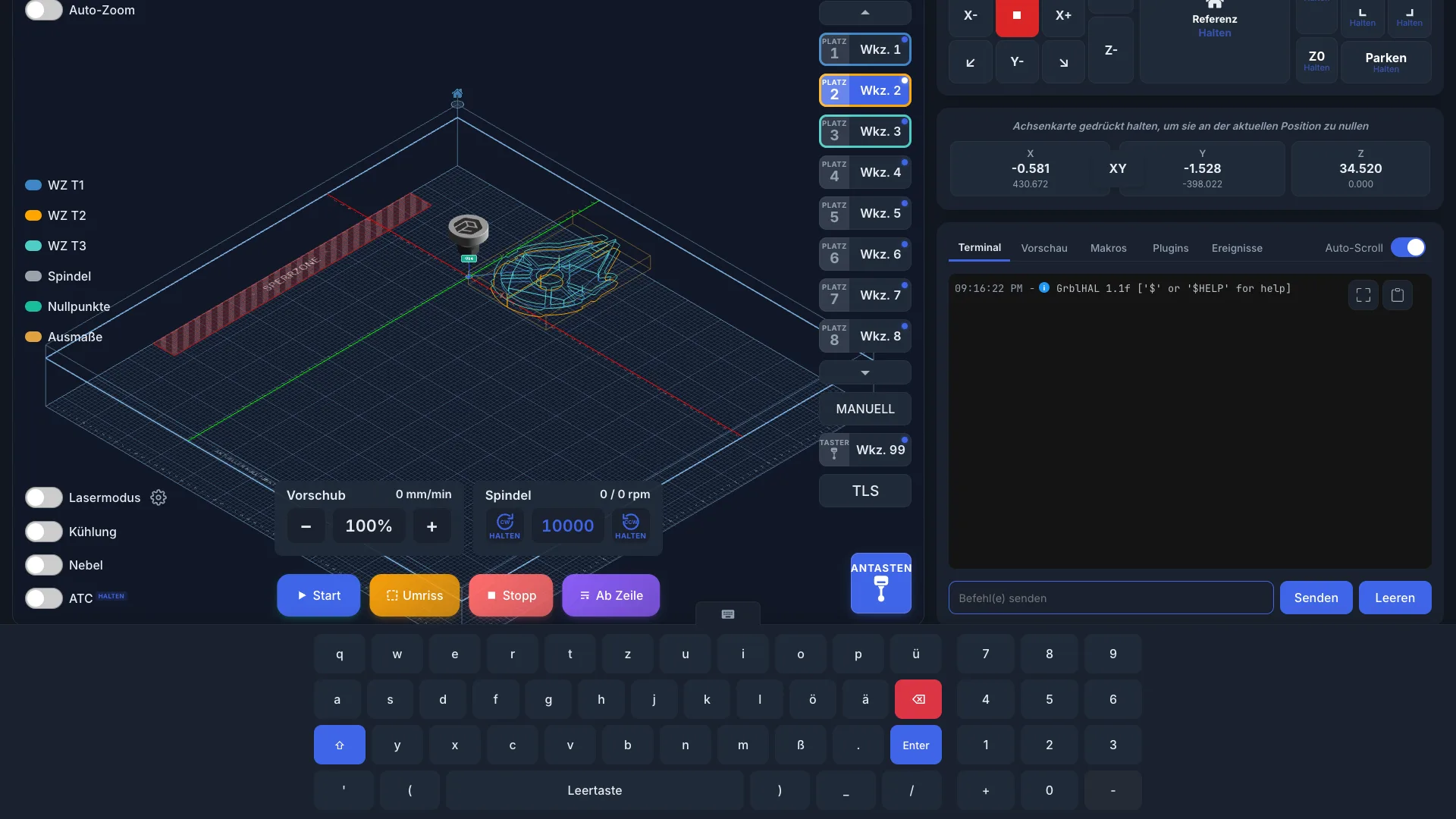
The number pad stays the same for every layout. See Virtual Keyboard.
Use a Different Layout
You can keep one language and use another keyboard layout, for example English with a Swiss keyboard.
- Set the Language first.
- Then pick a layout in On-screen Keyboard Layout.
Pick the language first, because changing the language resets the layout.