Manual Tool Changer
Manual Tool Changer walks you through changing bits by hand. The machine parks the spindle where you can reach it, tells you what to do, then measures the new bit on your tool length setter so your Z zero stays correct.
Only one tool changer plugin can be enabled at a time. See Tool changer plugins.
Before you start
- You need a tool length setter. Measuring each new bit is part of every change.
- Home the machine.
- Open the Plugins tab in the console area and press Manual Tool Changer.
Press Save on each tab after you change something. If you close with unsaved changes, you can Cancel, Discard or Save & close.
Setup
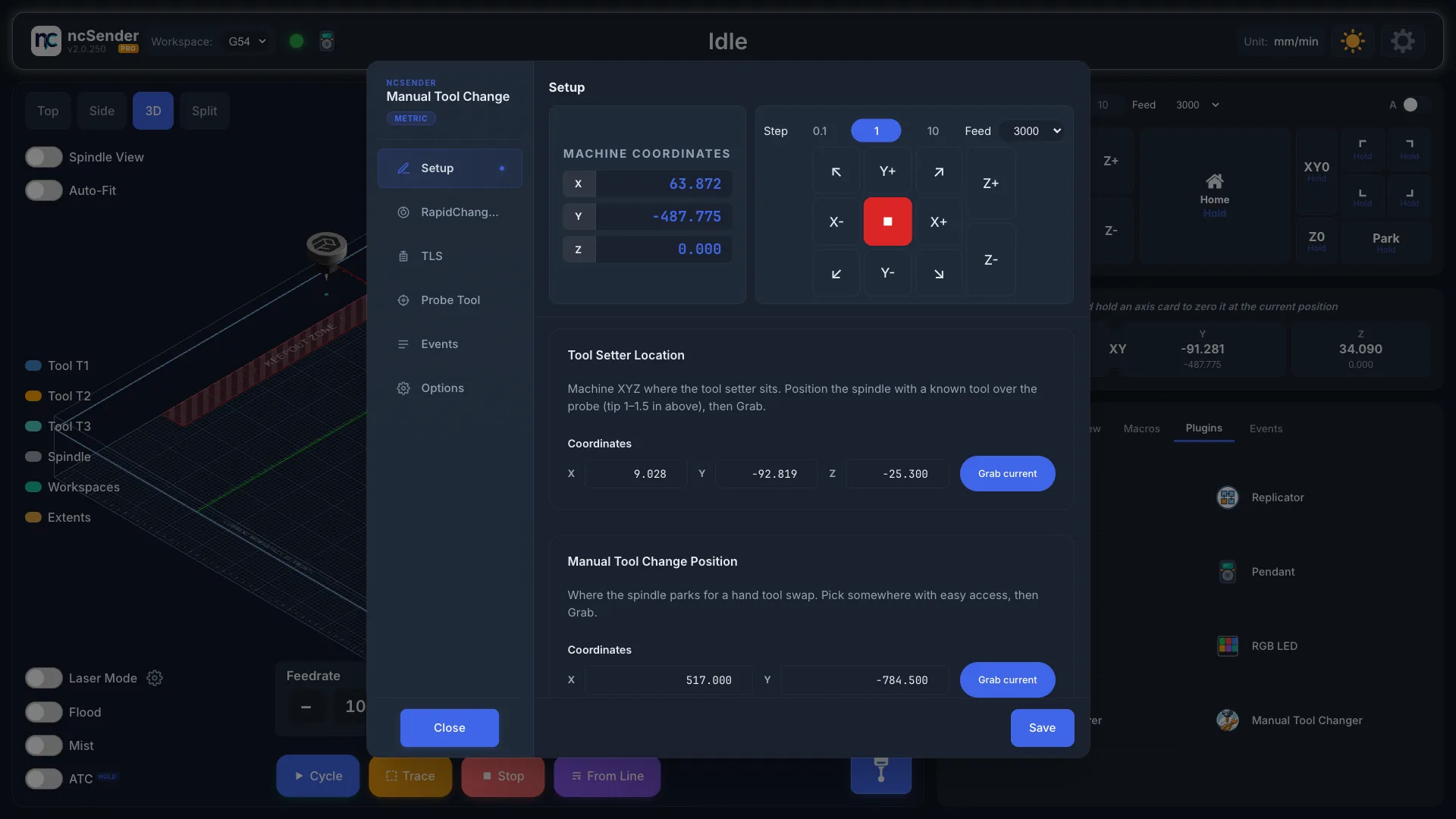
- Tool Setter Location: put a known bit over the tool setter, with the tip about 25 to 40 mm (1 to 1.5 in) above it, and press Grab current.
- Manual Tool Change Position: jog to a spot where you can easily reach the spindle and press Grab current.
- Press Save.
Without a RapidChangeSolo every tool change is done by hand, so there are no slots.
Your tools come from the Tool Library, and with
Slot (classic) numbering you type the
tool number (M6 T2) or use the Manual button.
TLS
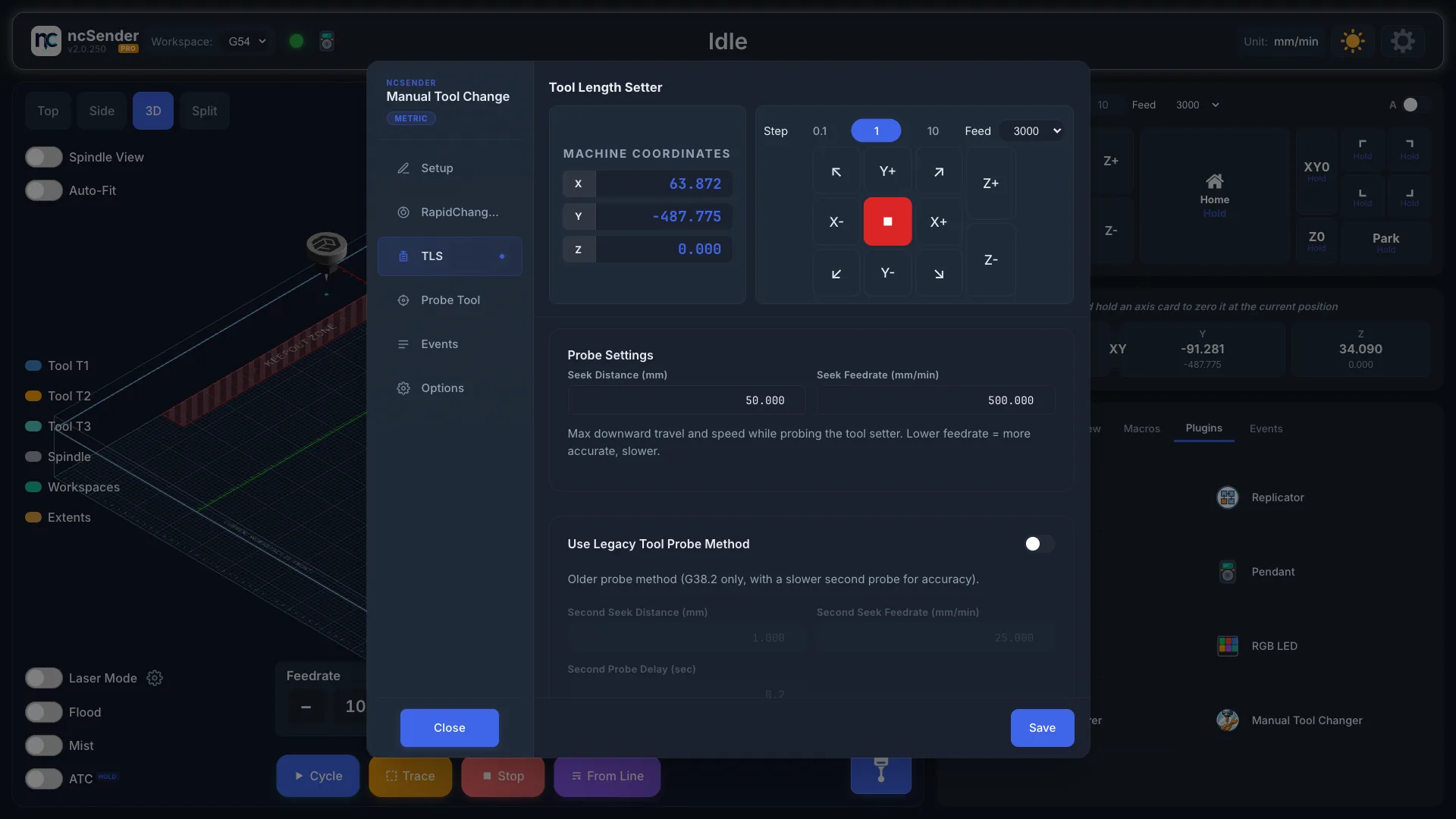
- Seek Distance (mm): how far down the machine searches for the tool setter before giving up.
- Seek Feedrate (mm/min): how fast it searches. Slower is more accurate.
- Use Legacy Tool Probe Method: an older method that touches twice, the second time slowly. When on, set Second Seek Distance (mm) and Second Seek Feedrate (mm/min).
Probe Tool
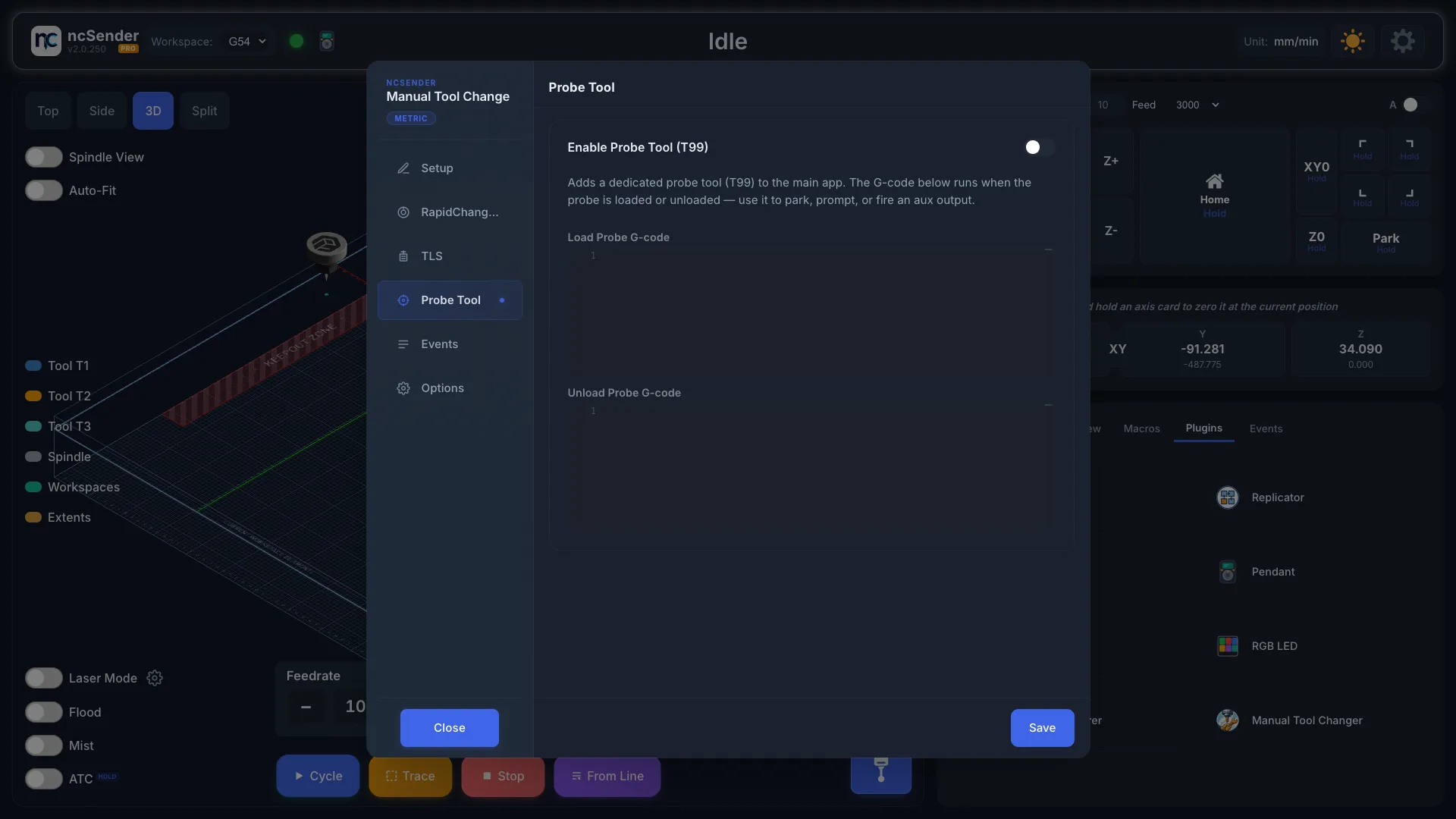
Turn on Enable Probe Tool (T99) to add a probe tool button (T99) to the main screen.
Load Probe G-code and Unload Probe G-code run when the probe is put in or taken out. Use them to park the machine, show a prompt, or switch an output.
RapidChangeSolo
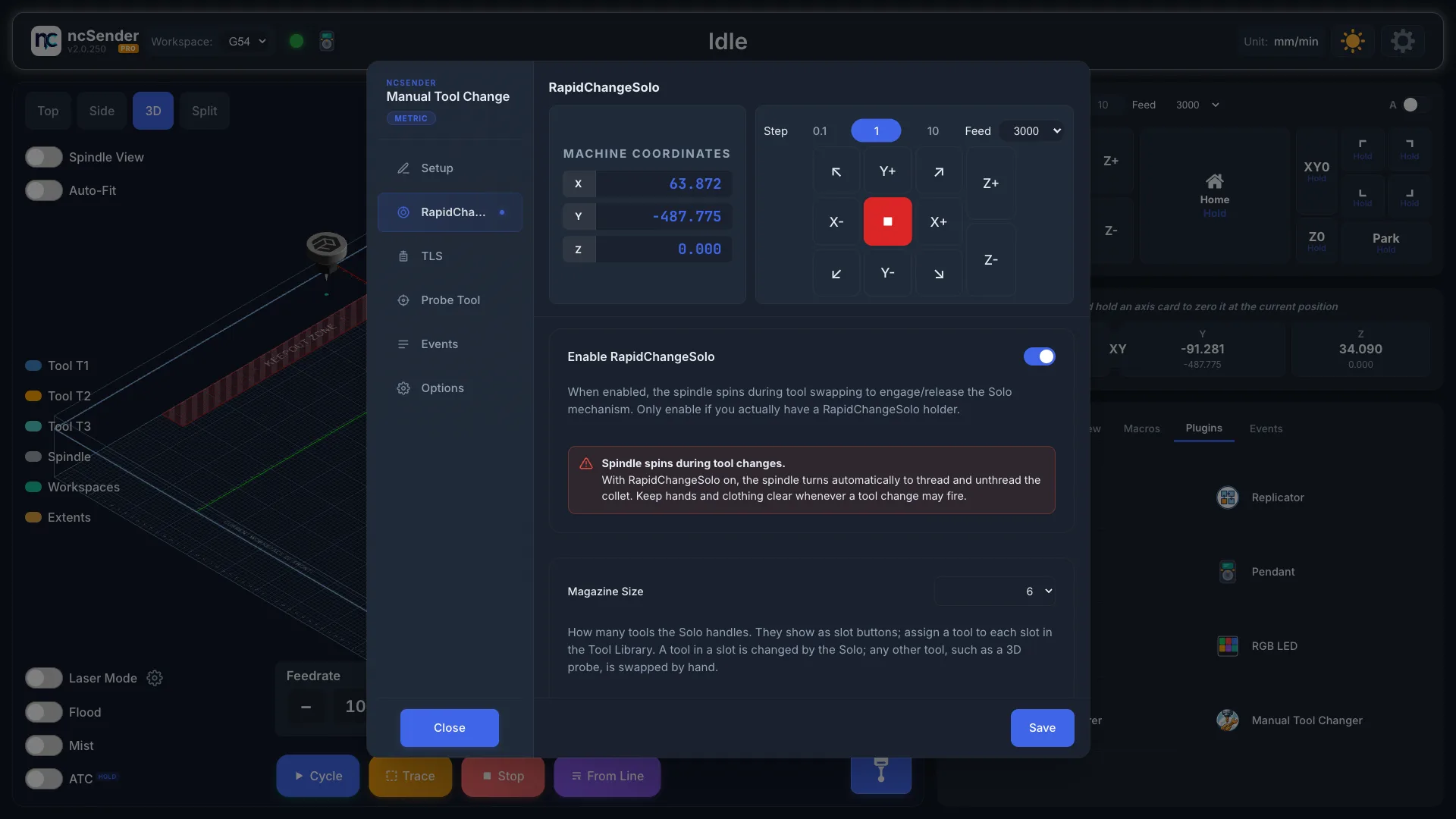
Only use this tab if you have a RapidChangeSolo holder. With it on, the spindle turns by itself during tool changes to screw the collet nut on and off.
The spindle spins during tool changes
Keep hands and clothing clear whenever a tool change may start.
- Turn on Enable RapidChangeSolo.
- Magazine Size: how many tools the Solo handles (1 by default). They show as slot buttons on the main screen; assign a tool to each slot in the Tool Library. A tool in a slot is changed by the Solo. Any other tool, such as a 3D probe you load yourself, is swapped by hand at the Manual Tool Change Position.
- Solo Pocket Position: centre the spindle over the Solo pocket without rubbing, lower Z until the nut touches the bearing inside, then press Grab current. The plugin stores a Z 5 mm lower so the nut engages properly.
- Tool Change Motion:
- Load RPM and Unload RPM: spindle speed while screwing the nut on and off.
- Retract (mm): how far the spindle lifts between moves.
- Pause before Unload: stops at the Manual Tool Change Position and asks you to confirm before the spindle goes to the Solo pocket to unload.
- Wait for Spindle: controls whether the machine waits for the spindle to report that it is up to speed. Your controller and spindle drive must support it.
If a red warning says your controller's minimum spindle speed is higher than these speeds, lower that minimum first. Otherwise the spindle turns too fast and can damage the Solo. See the FAQ.
Events
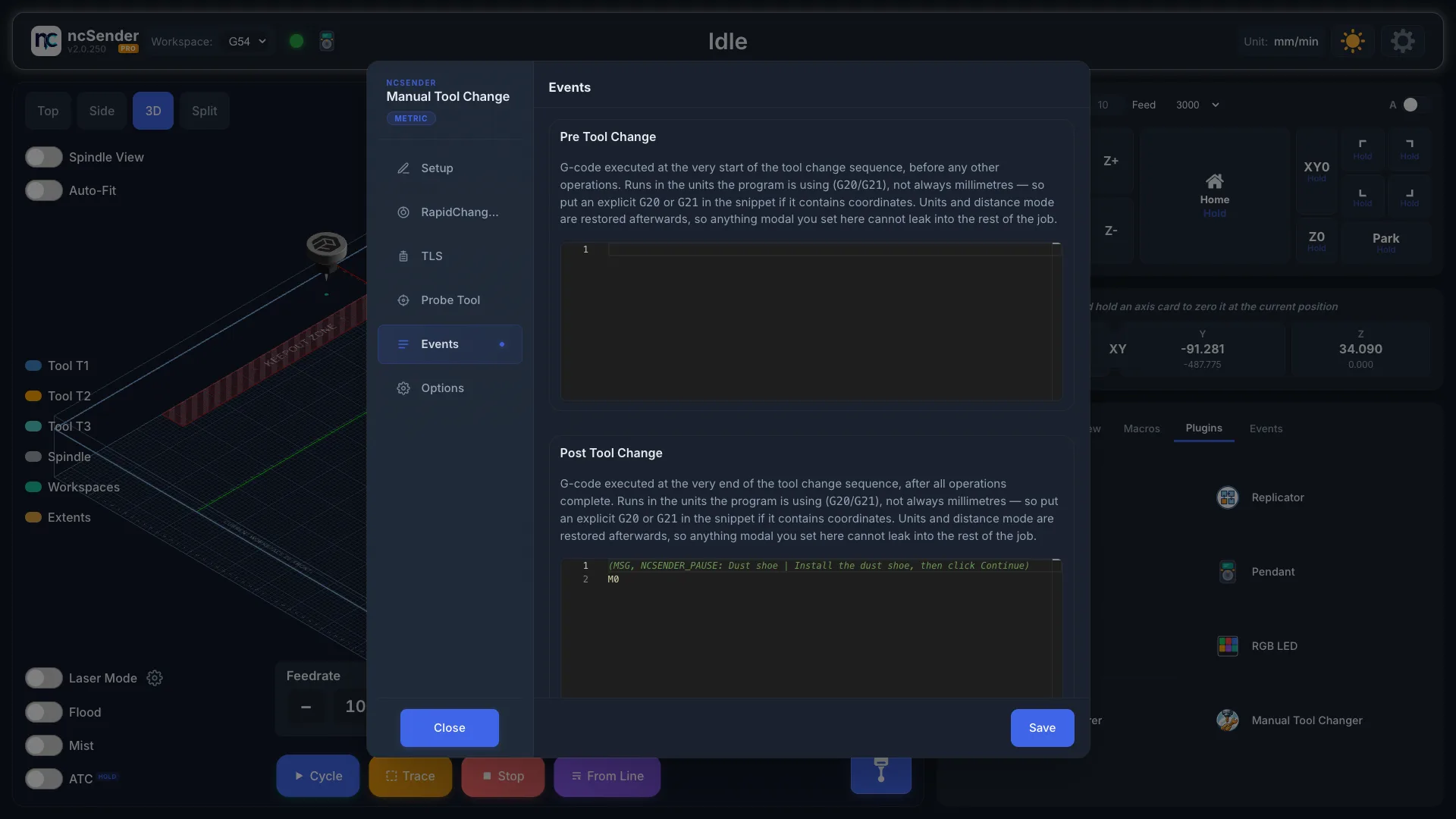
Add your own G-code to run at each step:
- Pre Tool Change: at the start of every tool change.
- Post Tool Change: after the new bit is loaded and measured, before the spindle goes back to where the change started.
- Pre TLS: just before measuring, for example
M64 P1to switch on a wired tool setter. - Post TLS: just after measuring, for example
M65 P1to switch it off. - Abort Event: when you press Abort during a tool change.
The Post Tool Change code runs once the new tool is loaded and measured and the spindle has left the tool setter at safe Z, before the machine goes back to where the tool change started. Use it for steps like picking up a dust shoe. It runs the same way for a tool change you start by hand, not only during a job. Post TLS still runs at the tool setter, right after measuring.
Options
Show G-Code Commands on Terminal shows the command the plugin sends, so you can copy it into your own program or post-processor.
Change a tool
- Press a tool button on the main screen, or run
M6 T2(for tool 2). A job that reaches a tool change does the same. - The spindle moves to the Manual Tool Change Position.
- Follow the prompt:
- Unloading: remove the bit.
- Loading: put in the new bit.
- Tool Change: swap the bit for the new one.
- Press Continue, or Abort to stop.
- The machine measures the new bit on the tool setter, then lifts to safe Z and runs your Post Tool Change code, if any.
- The spindle goes back to where it was before the change, at safe height, before the job carries on. The spindle starts there, not above the tool setter.
If you set Z0 before any tool was measured, the change first measures the bit that is still in the spindle, so your Z0 carries over to the new bit. A bit that hasn't been measured since power-up is measured for you when you start a job. See Measuring after power-up and Set Z0 before or after TLS.
A highlighted tool button is the bit that is loaded now. Long-press it to unload.
You can also type these in the console:
$TLS: measure the bit that is in the spindle.$POCKET1: move to the Solo pocket (RapidChangeSolo only).
Tools outside the slots keep their offsets
A tool doesn't need a slot to use its TLS offsets and stored TLO. The tool number is looked up as a slot first, then as a Tool ID. See How a tool number finds its tool.