Installation
Downloads
Community Edition (Free)
Download the latest release from GitHub Releases.
| Platform | Download |
|---|---|
| Windows x64 | .exe installer |
| macOS (Apple Silicon) | .dmg |
| macOS (Intel) | .dmg |
| Linux x64 | .deb |
| Linux ARM64 (Raspberry Pi) | .deb |
Pro Edition
Download from ncSender Pro Releases.
After installing, see License Activation to unlock the Pro features with your Installation ID.
System Requirements
- Windows: Windows 10 or later (x64)
- macOS: macOS 12 Monterey or later (Apple Silicon and Intel)
- Linux: Ubuntu 22.04+ or Debian 12+ (x64 and ARM64)
Installation Steps
- Download the
.dmgfile (Apple Silicon or Intel build): Community · Pro - Open the DMG and drag ncSender to Applications
- Before the first launch, clear the quarantine attribute: On Pro, this is a one-time step: later versions installed through the app's own updater don't need it. The Community edition does not install updates on macOS, so run this command again after each manual install.
Pro Feature
The pre-built Raspberry Pi 5 OS image ships with ncSender Pro only.
A ready-to-boot SD-card image is published for the Pi 5. No manual OS setup is needed. It boots straight into ncSender Pro in kiosk mode.
- Download the latest
ncSenderOS-pi5-vX.Y.Z.img.xzfrom the ncSender Pro OS releases page. (If you see a.rp.img.xzfile next to it, ignore it. That's a vendor-specific build, not the general image.) - Flash it to a microSD card (16 GB or larger recommended) using
balenaEtcher: select the
.img.xzfile, select your card, then click Flash. Etcher decompresses the archive on the fly, so there's no need to extract it first. - Insert the card into your Pi 5, connect a display, keyboard, and your CNC controller, then power it on. ncSender Pro launches automatically on first boot and walks you through the same first-launch steps as below.
To use ncSender in German, French or Spanish, open Settings → General → Language & Region after setup.
What Happens on First Launch
- Pro only: the License Required screen asks for your Installation ID. See License Activation.
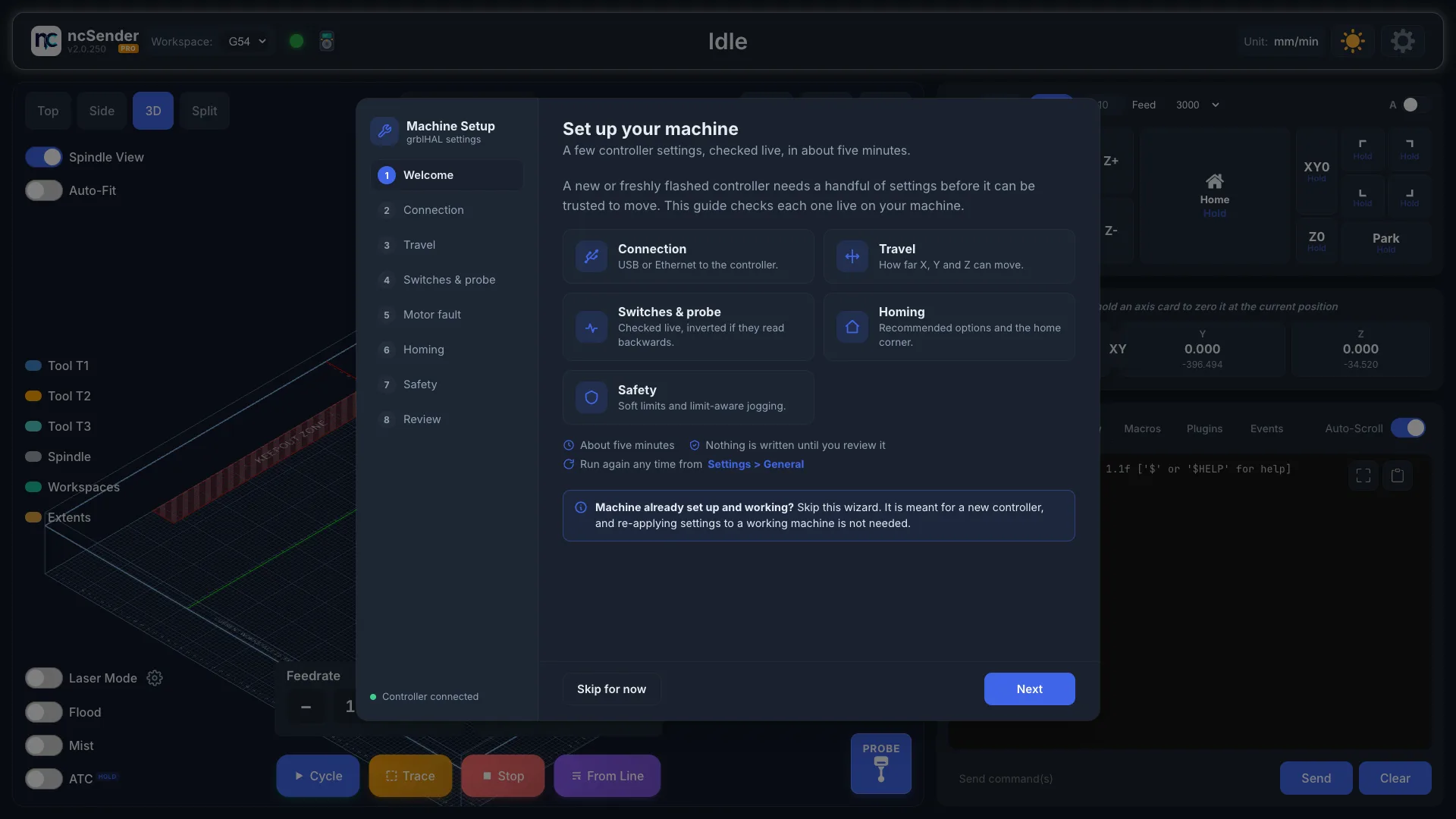
- The Machine Setup Wizard opens. It sets up the connection and checks your controller settings. If your machine already works, click Skip for now.
- From the second launch on, a Tips & Tricks dialog shows a short tip. You can turn it off.
Updating Later
New versions can install from inside the app:
- Pro: Windows, macOS and Debian-based Linux.
- Community: Debian-based Linux only. On Windows and macOS, download and install the new version yourself.
See Software Updates.