Controls (Keyboard & Gamepad)
Jog and run jobs from a keyboard or a USB gamepad. Open Settings → Controls.
Turn On Keyboard Control
- Open Settings → Controls.
- Turn on Enable Keyboard.
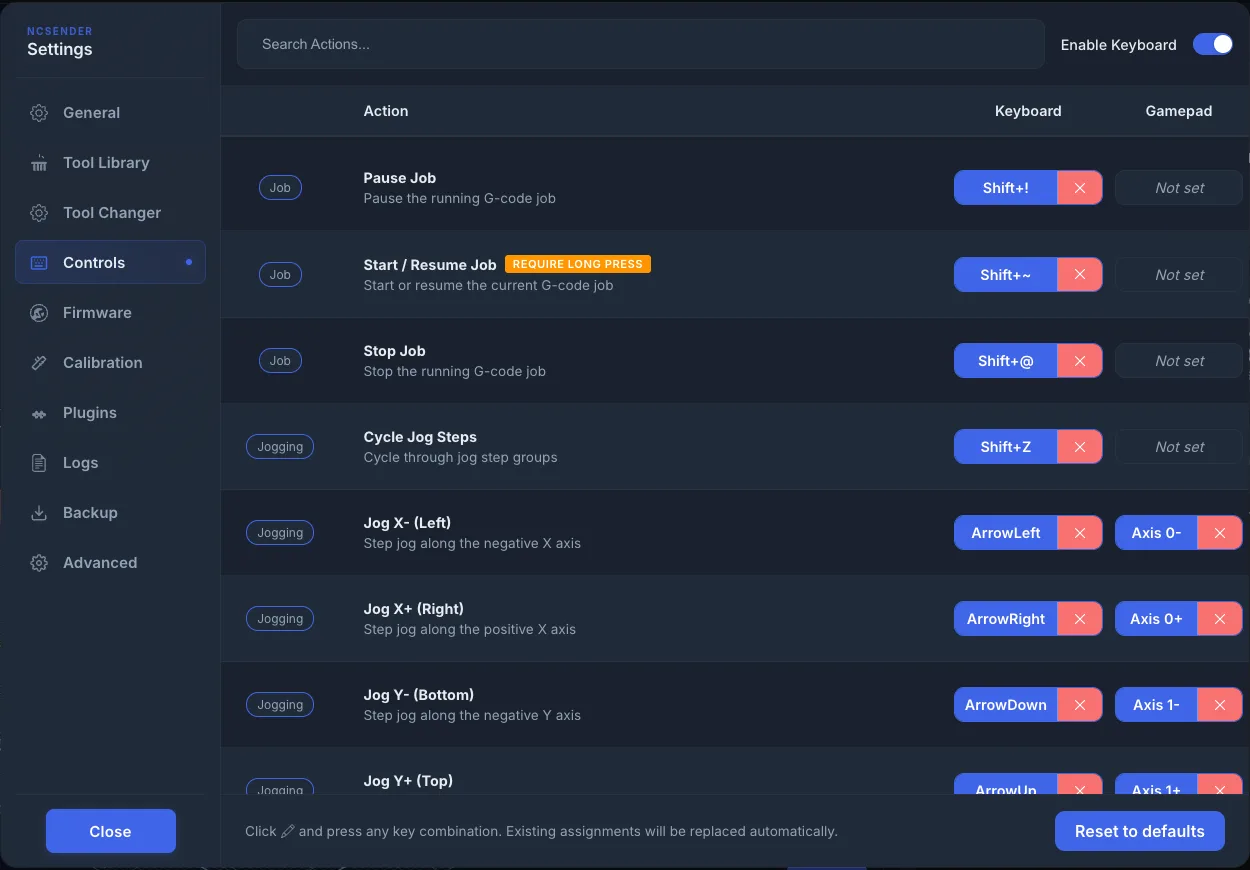
Each row is an action, with a Keyboard column and a Gamepad column. Type in Search Actions... to find one.
| Group | Actions |
|---|---|
| Jogging | Jog X+, X-, Y+, Y-, Z+, Z-, and the four diagonals |
| Job | Start / Resume Job, Pause Job, Stop Job |
| Machine | Cycle Jog Steps, Set Step Small, Set Step Medium, Set Step Large, Home Machine |
| Probe | Start Probe (only works while the probe dialog is open) |
Keyboard and gamepad jogs are ignored while a job or probe is running. If your controller requires homing at startup, home the machine first.
Change a Key
- Click the Keyboard cell for an action.
- When it says "Press a key combination...", press the key or combination.
- If that key was used by another action, it moves to this one.
Click × next to a binding to remove it.
Set Up a Gamepad
- Plug in the gamepad and press any button so the computer detects it.
- Click the Gamepad cell for an action.
- When it says "Press a button or move axis...", press the button or move the stick.
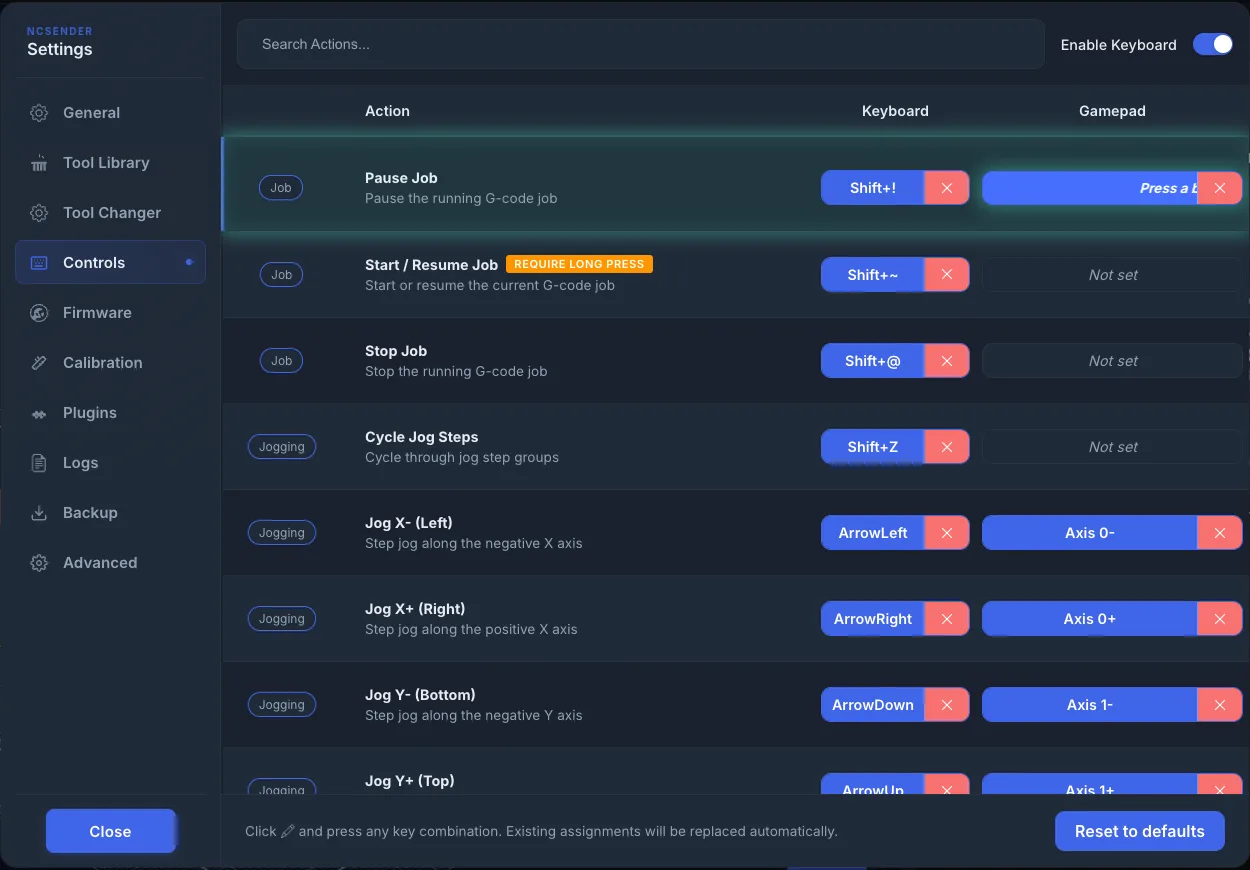
Long-Press Actions
Turn on REQUIRE LONG PRESS for an action so a quick tap doesn't trigger it. Use it for actions like Home Machine or Stop Job.
Reset
Click Reset to defaults and confirm to put back all default bindings. This can't be undone.
Check a Gamepad With Gamepad Debug
If a gamepad doesn't respond, check what ncSender sees:
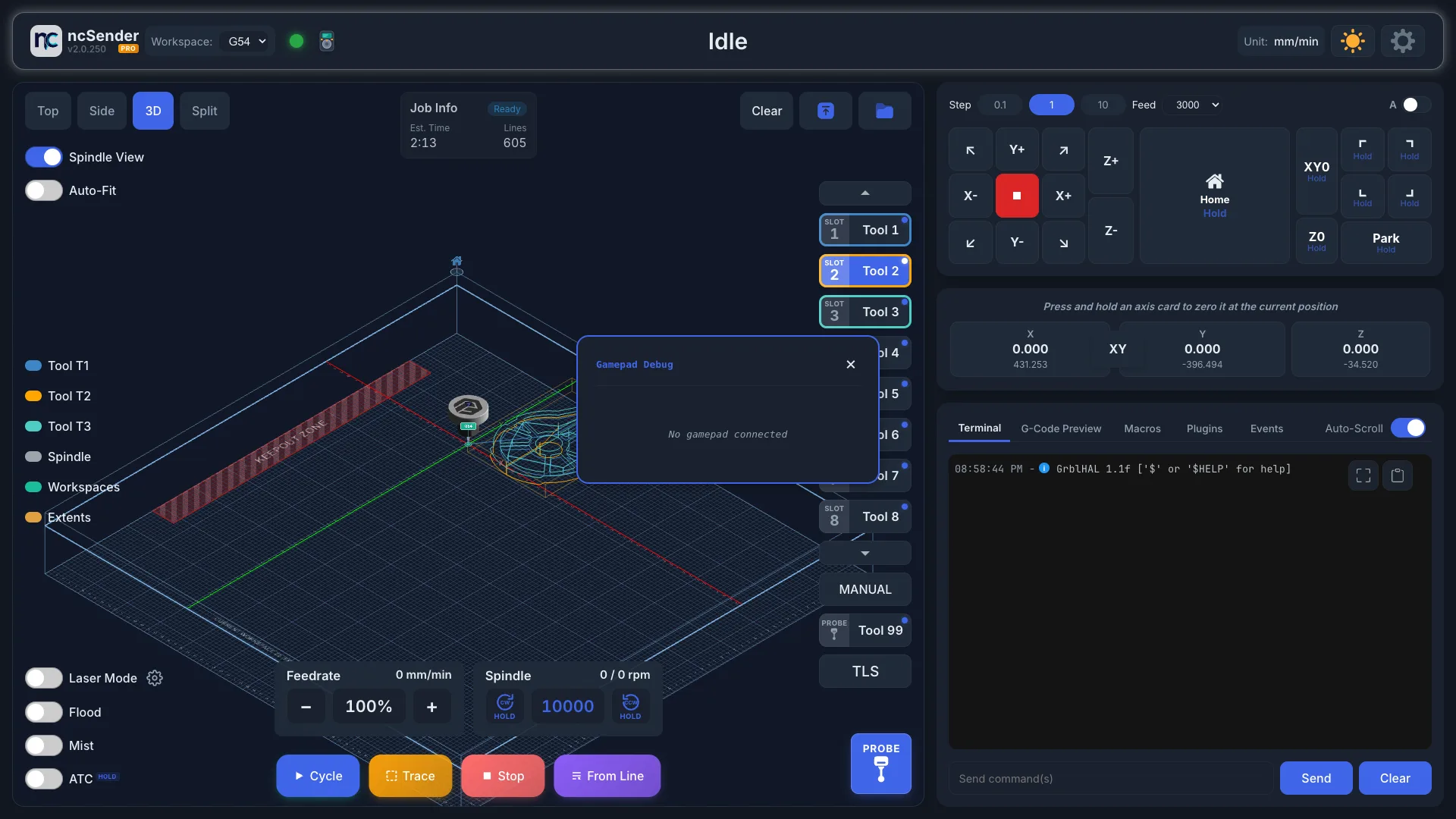
- Click the ncSender logo in the toolbar (Toggle Gamepad Debug).
- Move the sticks and press buttons. The overlay shows each axis and button as it changes.
- If it says No gamepad connected, press a button on the gamepad or plug it in again.
- Click Toggle Gamepad Debug again to hide it.
See also Jog Controls.