First Connection
New controller?
On its first launch ncSender opens the Machine Setup Wizard, which sets up the connection and checks travel, switches, homing and safety limits live on the machine. To run it again later, open Settings → General and click Run setup wizard. This page covers the connection on its own.
Connecting via USB
- Connect your CNC controller to your computer with a USB cable.
- Open ncSender.
- Set up the connection in the wizard, or in Settings → General → CNC Connection Setup.
- Click Save & connect.
After the connection is saved, ncSender connects on its own every time it starts.
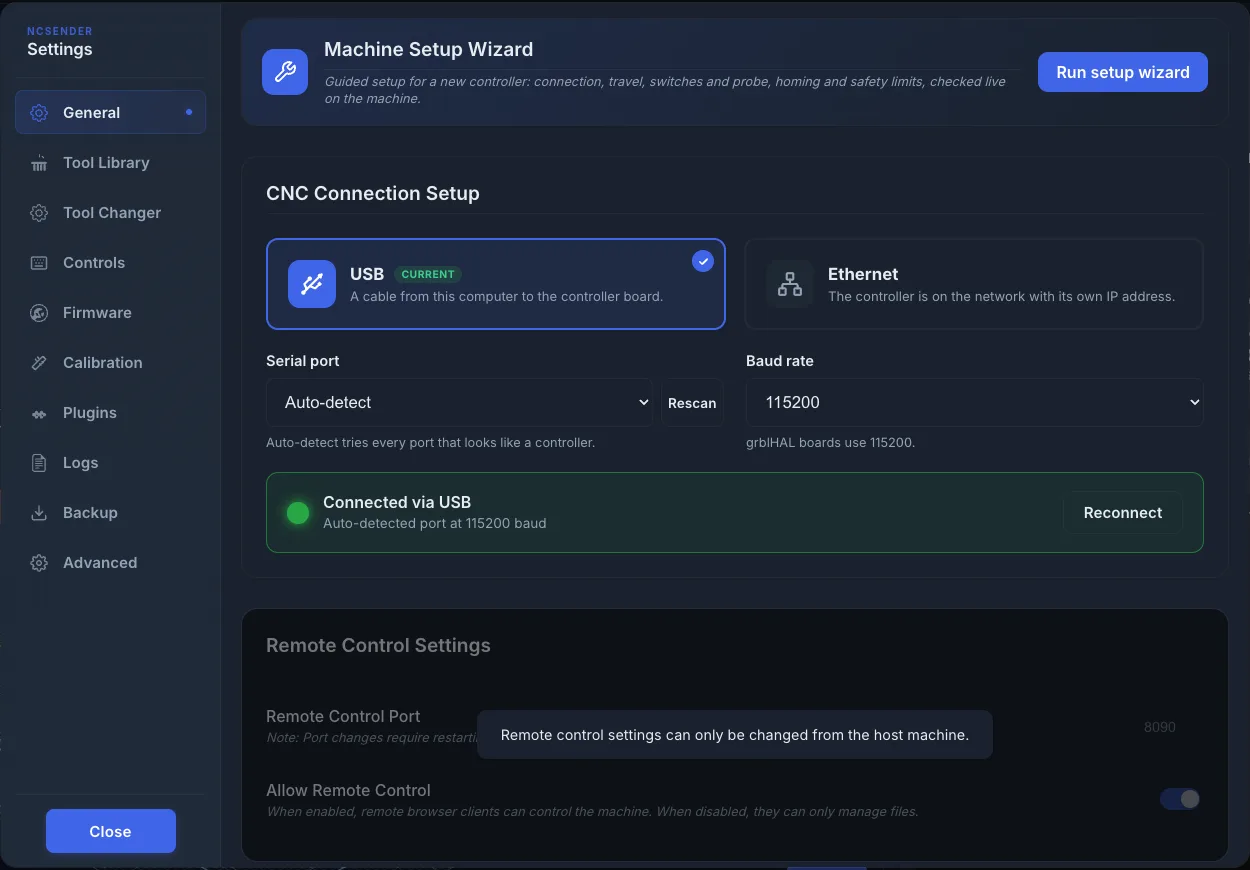
Auto-detect
Auto-detect tries every port that looks like a CNC controller. If your board is not found, click Rescan, then pick its port by name under Serial port.
Connection Settings
| Setting | Description | Default |
|---|---|---|
| Connection type | USB or Ethernet | USB |
| Serial port | USB only: Auto-detect or a specific port | Auto-detect |
| Baud rate | USB only: communication speed | 115200 |
| IP address | Ethernet only: the controller's address | 192.168.5.1 |
| Port | Ethernet only | 23 (Telnet) or 81 (WebSocket) |
| Protocol | Ethernet only: Telnet or WebSocket | Telnet |
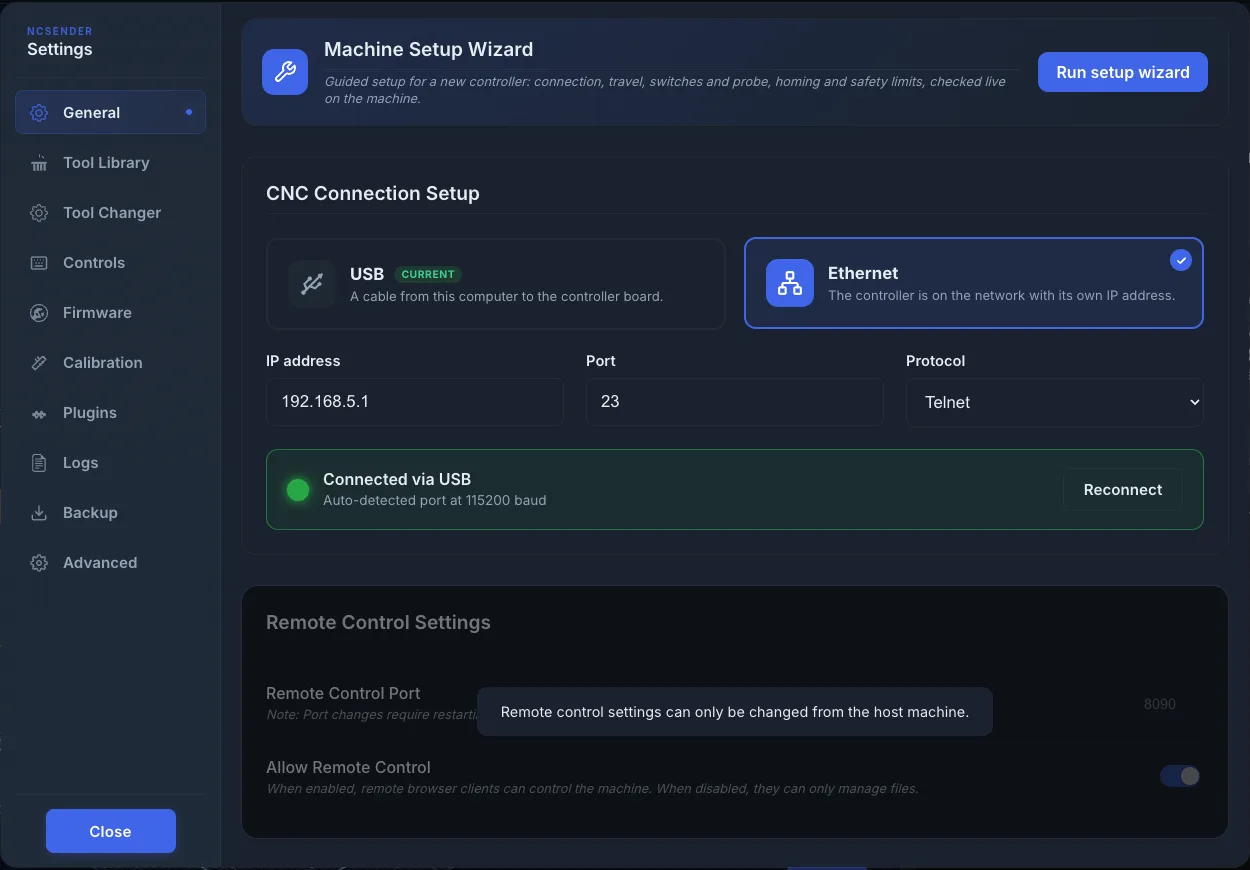
Click Save & connect. When it works, the status reads Connected via USB (or Ethernet) with the port and baud rate, or the address, it is using. Click Reconnect to drop the connection and connect again.
Baud Rates
grblHAL boards use 115200. The list also offers 230400, 250000, 460800 and 921600 for boards set up to use them.
Verifying Connection
Once connected, you should see:
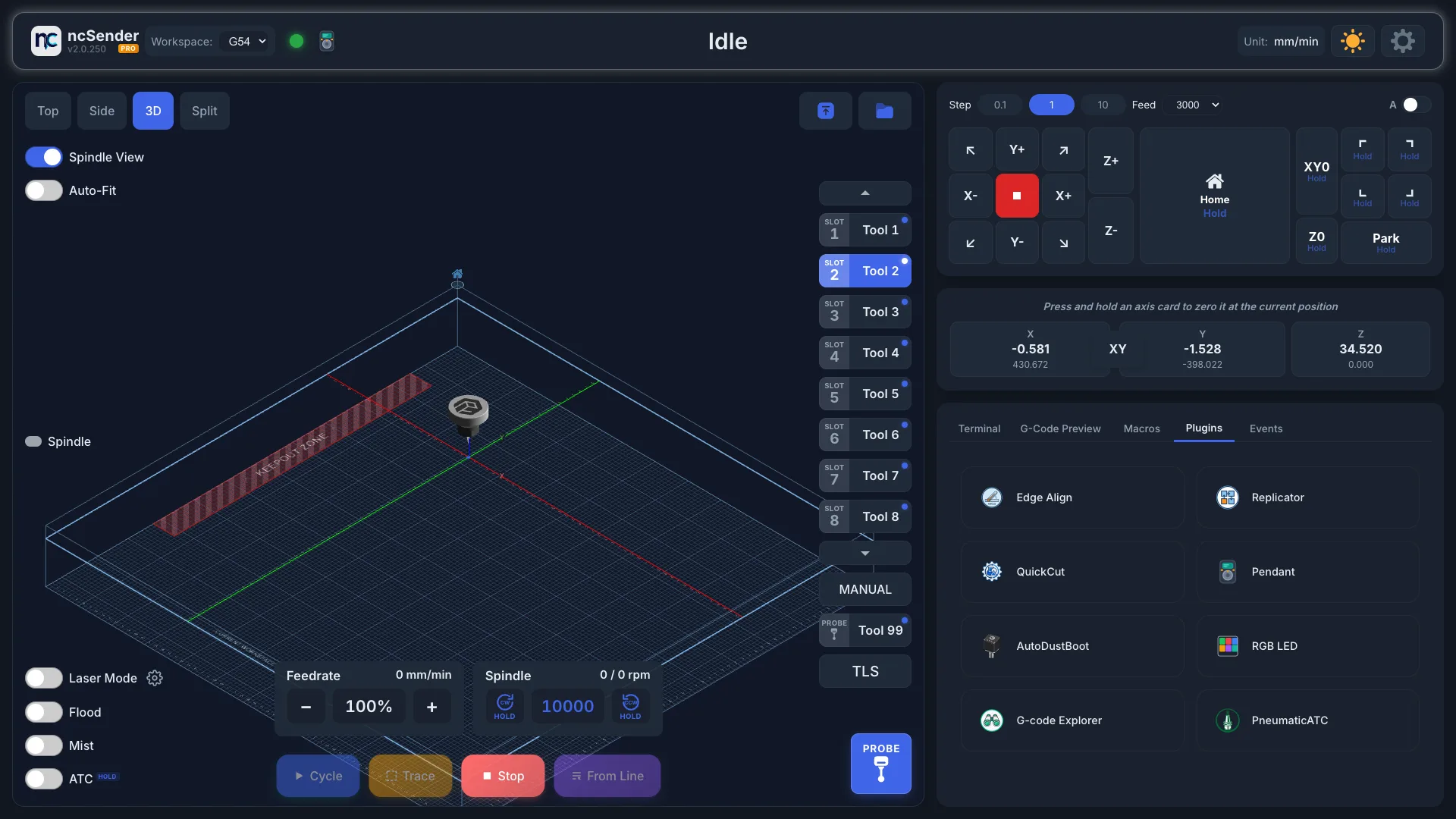
- The toolbar status change from Connecting... to Idle, or to Homing Required if the machine must be homed first. Setup Required means no connection has been saved yet.
- Machine coordinates in the DRO (Digital Readout).
- The controller greeting message in the Terminal.
When the status is Homing Required, press Home. The status changes to Idle.
If an Alarm Appears
Many grblHAL boards start in an alarm. ncSender shows an alarm dialog with a plain-language title and what to do.
- Power-on safety check: press the E-stop button in, release it, then press Press to Unlock. The controller asks for this once after every power-on to confirm the E-stop works.
- Other alarms: follow the fix in the dialog, then press Press to Unlock.
One press keeps trying to unlock for up to 30 seconds. If the cause is still active (E-stop held, a limit switch pressed, a motor fault input), the dialog says so. Fix the cause and it unlocks on the next try.
Troubleshooting Connection Issues
- No ports detected: check the USB cable and drivers.
- Controller not found by Auto-detect: pick its port by name under Serial port. Auto-detect skips Bluetooth, debug and accessory ports, and ports that don't look like a CNC board.
- Controller not responding: try a different USB cable or baud rate.
- See Troubleshooting for more help.