G-Code Preview
The G-Code Preview tab shows the loaded file as text.
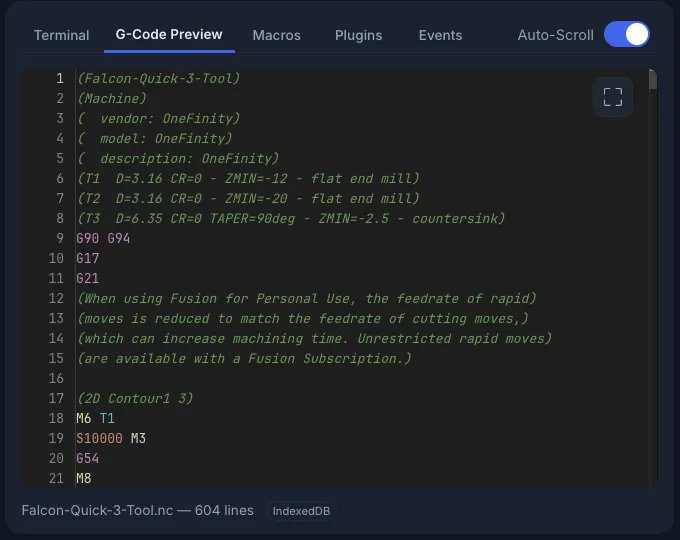
The tab shows:
- Colour-coded G-code
- Line numbers
- File name and line count at the bottom
- Current line: while a job runs, finished lines are dimmed and the line being sent is highlighted. Turn on Auto-Scroll to keep that line in view.
With no file loaded, the tab reads No G-code loaded. Load a file from the
Visualizer, or drop a .gcode or .nc file onto the
window.
Start From Line
To start a job partway through, double-click a line, or select it in the line numbers. The Start From Line dialog opens with that line filled in.
Larger view
Click Open in larger view to open the file in a large window. What you can do depends on whether a job is running:
- While a job runs: you can read the file only. It follows the current line and has its own Auto-Scroll switch.
- When idle: you can edit the file.
Editing a file
- Open the larger view while no job is running.
- Make your changes.
- Click Commit Changes to keep them. It turns on once you've changed something.
To throw away your edits, click Discard. Before you edit, this button reads Close.
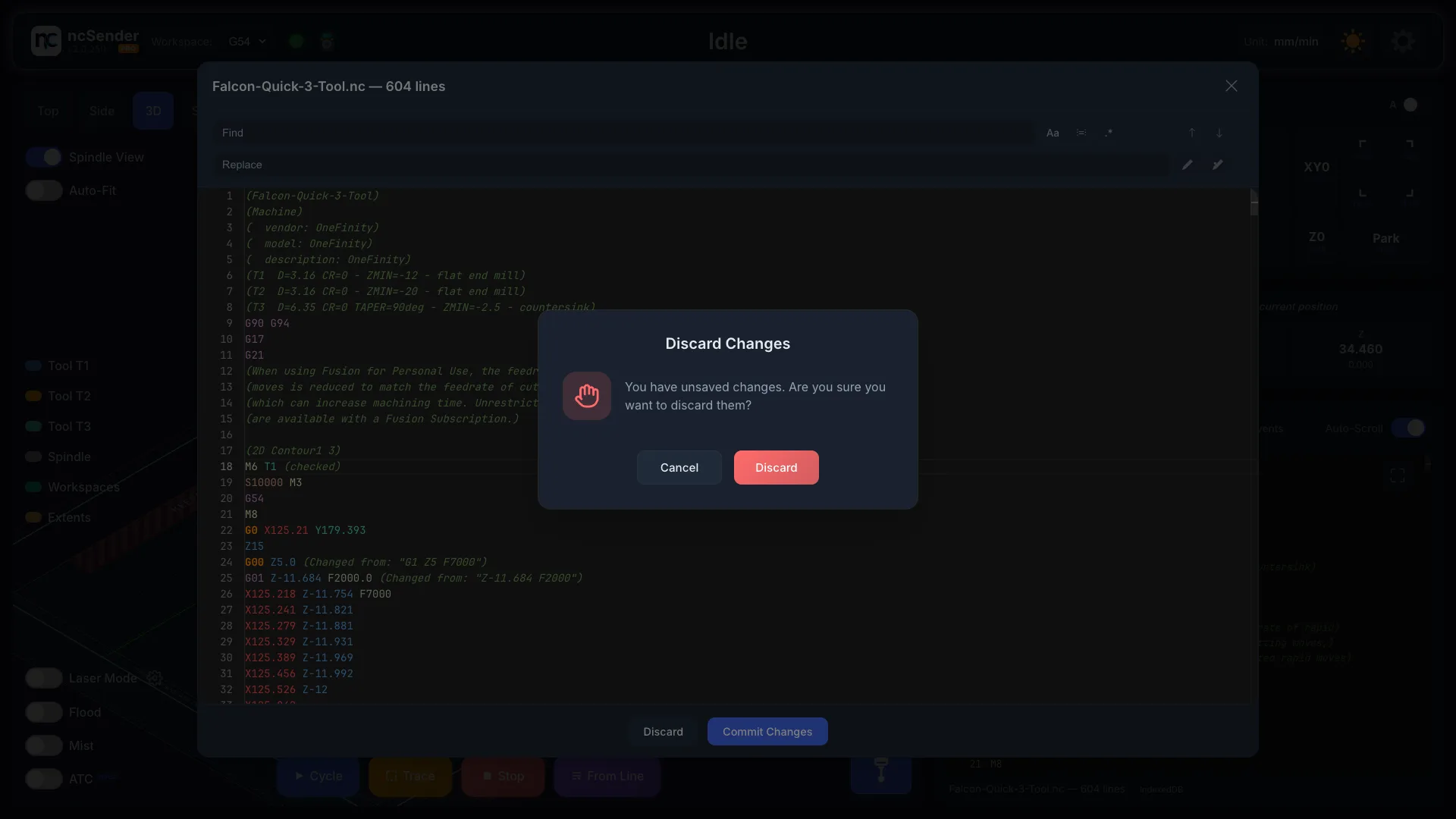
If you open Start From Line with unsaved edits, ncSender asks what to do: Save First, Discard or Cancel. Unsaved edits are lost if a job starts.
Find & Replace
- Find: type to search. The count shows where you are, for example 3 of 12. Press Enter for the next match and Shift+Enter for the previous one.
- Match Case (
Aa, Alt+C), Match Whole Word (Alt+W) and Use Regular Expression (.*, Alt+R) narrow the search. - Replace and Replace All work when no job is running.