Firmware Settings & Flashing
View and change your grblHAL controller's settings, back them up, and flash new firmware. Open Settings → Firmware.
The controller must be connected. Otherwise the tab shows "Connect to a CNC controller to query firmware settings".
Find and Change a Setting
- Open Settings → Firmware.
- Type a number or word in Search Firmware Settings..., for example
110orhoming. - Change the value in the Value column.
- Click Submit to send your changes to the controller.
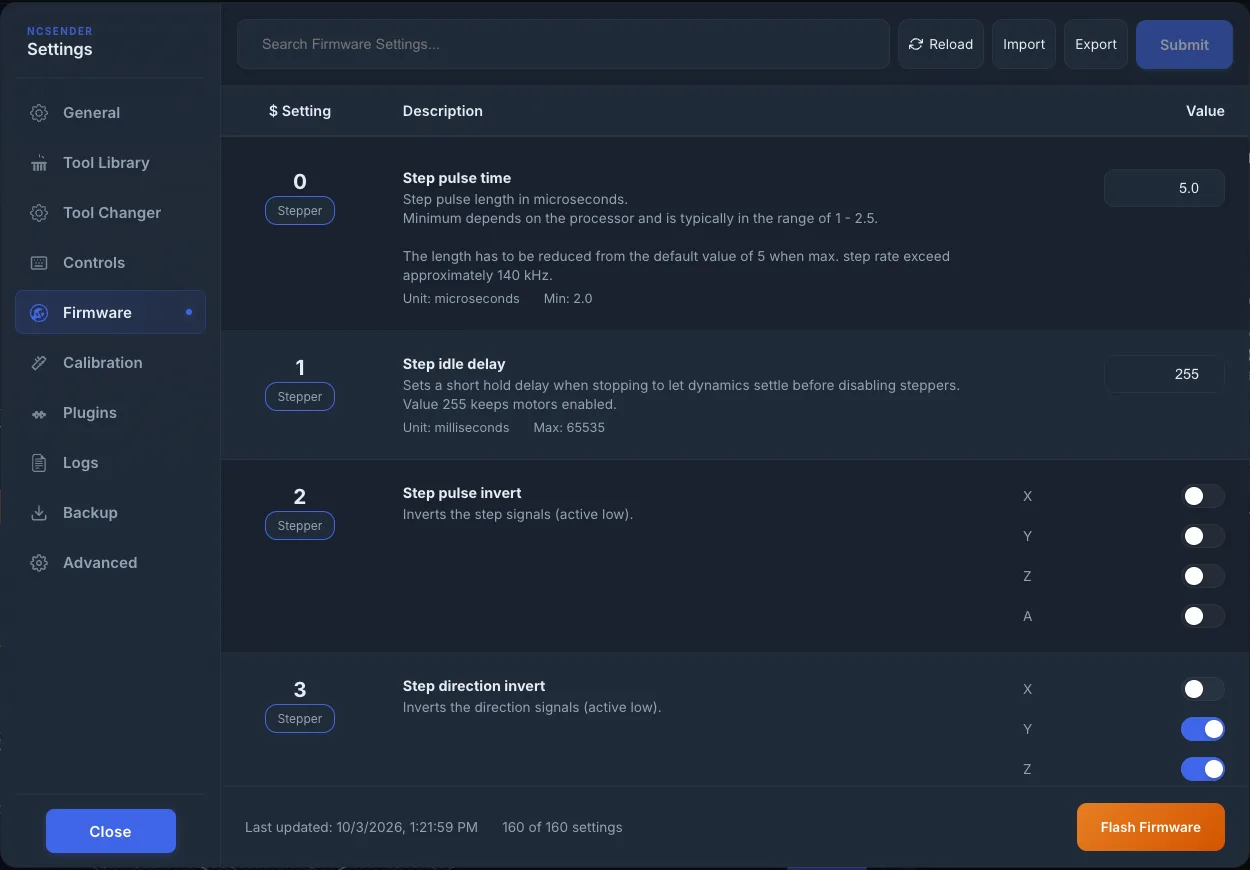
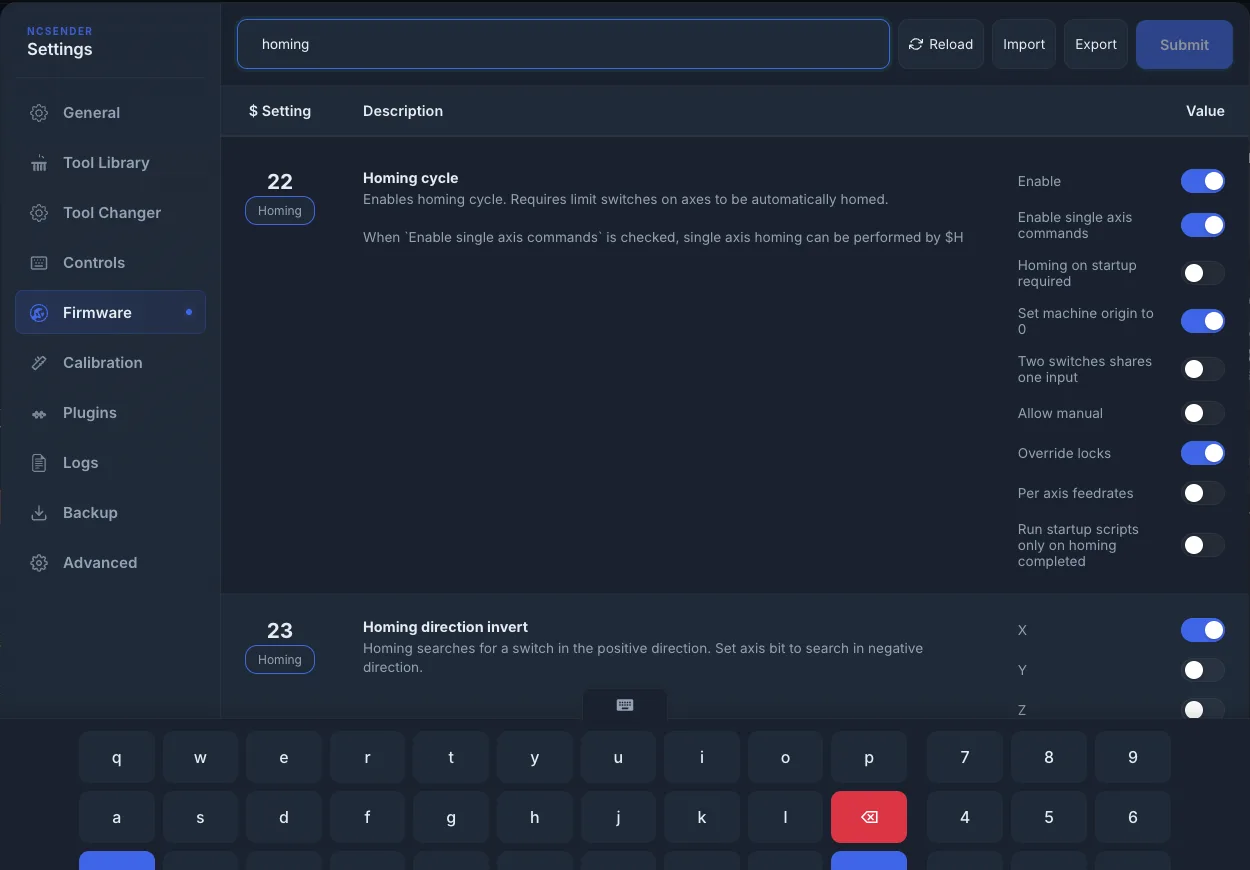
Each row shows what the setting does, plus its unit, minimum and maximum. The bottom shows how many settings are listed and when they were last read.
Click Reload to read all settings from the controller again.
Some fields check what you type:
- MAC addresses use the format
XX:XX:XX:XX:XX:XX. - IP addresses use the format
192.168.1.1. - G-code fields accept several commands separated by
|.
Some settings alarm right away
Changing a switch inversion or a motor fault input to the wrong value trips an alarm as soon as it's applied. The Machine Setup Wizard checks these live and lets you undo them. See Alarms.
Settings That Need a Restart
Settings marked Requires Restart only take effect after the controller restarts. Submit your changes, then power-cycle or reset the controller.
Import and Export Settings
Export saves all settings to a file. Do this before big changes. On a kiosk, you save to an external drive.
To load settings from a file:
- Click Import and pick the file. It can be
$1=valuelines or a JSON export. - Check the changed rows. A summary shows how many settings changed.
- Nothing is sent yet. Click Submit to send them to the controller.
Note
ncSender's Backup & Restore doesn't include firmware settings. Use Export to keep a copy.
Flash New Firmware
Heads up
Flashing disconnects the machine and replaces the current firmware. Make sure the file matches your controller board.
- Export your settings first.
- Click Flash Firmware.
- Pick the Device Port. Click refresh if your board isn't listed. Boards in DFU mode show as SLB_DFU (DFU Mode Device).
- Under Firmware File (.hex), click Choose File and pick the
.hexfile. On a kiosk you can pick it from an external drive. - Click Flash Firmware and wait. Don't unplug the board.
- When you see "Firmware flash completed! Please reconnect your device.", reconnect.
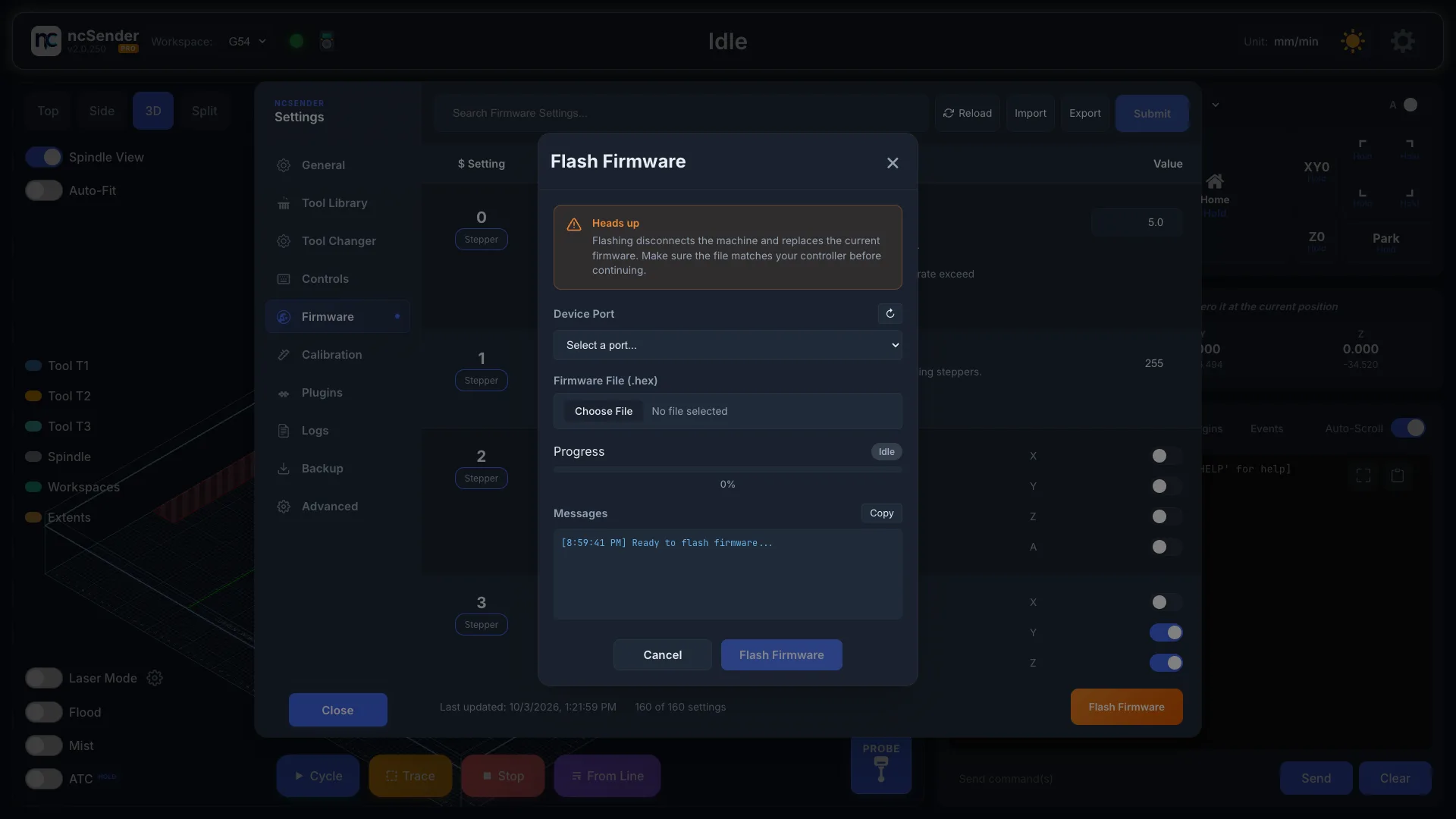
The Messages box shows what's happening. If something fails, click Copy and include the messages when you ask for help.
FluidNC: Config Tab
FluidNC doesn't use numbered settings. It shows a Config tab instead of this table. See FluidNC Setup.